Troubleshooting
Find what your Frame is showing, or the problem you have, below.
The Frame won't connect to Wi-Fi
Check that:
- Your network is 2.4 GHz. The Frame can't use 5 GHz networks, and the setup page marks them Not supported. Most routers can broadcast both; turn on 2.4 GHz in your router's settings if yours doesn't.
- The password is right. If it's wrong, the setup page says so. Choose Back and enter it again.
- The Frame is close enough to your router. If the setup page says the network can't be found or the connection timed out, move the Frame nearer, choose Back and try again.
- Your network doesn't need a username. Networks that ask for a username as well as a password, as some offices and universities do, can't be used.
If your network isn't in the list, choose Refresh, or choose Enter manually and type its name exactly.
"Wait for WiFi to reconnect"
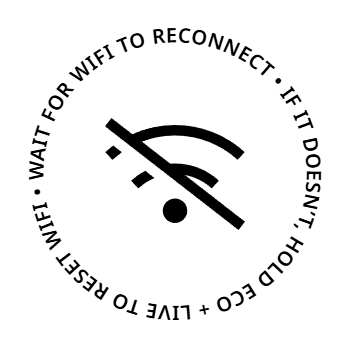
The Frame has lost its Wi-Fi connection, or can't reach Blotch. It keeps trying by itself, so first wait a few minutes. A router restart or a short internet outage usually sorts itself out.
If it doesn't reconnect:
- Check that your Wi-Fi and internet are working, for example on your phone.
- Hold both buttons on the back for 5 seconds. The Frame forgets your network and shows the Wi-Fi setup screen.
- Connect it to your Wi-Fi again.
I can't see a QR code on my Frame
The Frame only shows its QR code once it's connected to Wi-Fi.
- If it shows Join this Wi-Fi on your phone to begin, it isn't connected yet. Follow Connect it to your Wi-Fi.
- If it shows Wait for WiFi to reconnect, see below.
- If the screen is blank or unchanged, check the power switch is up and the battery has charge, then press .
- If it shows a Page instead, the Frame is already linked to an account. To link it to yours, ask that account's owner to un-link it, or to share it with you.
"Please scan the QR code to register your Blotch Smart Frame"
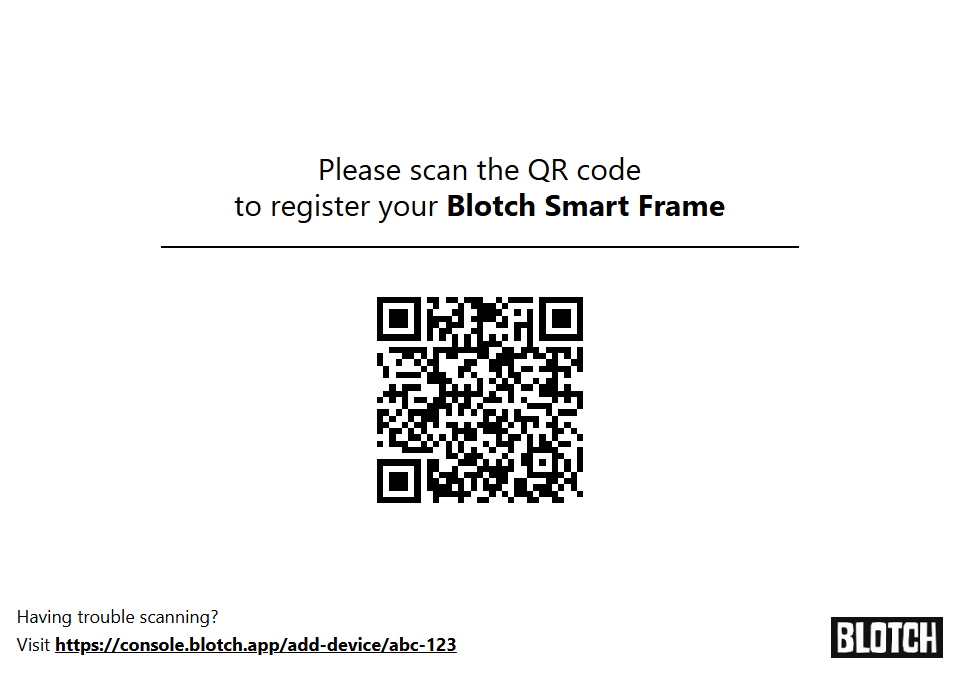
The Frame isn't linked to an account. Scan the code and sign in to link it, as in Set up your Frame. If the code won't scan, type the address printed under it into a browser.
"Nothing scheduled"

Your Frame only shows Pages that are on its schedule, and nothing is scheduled for now. In the Console, add a Page to the schedule. See Choose when each Page shows.
A Widget shows an error
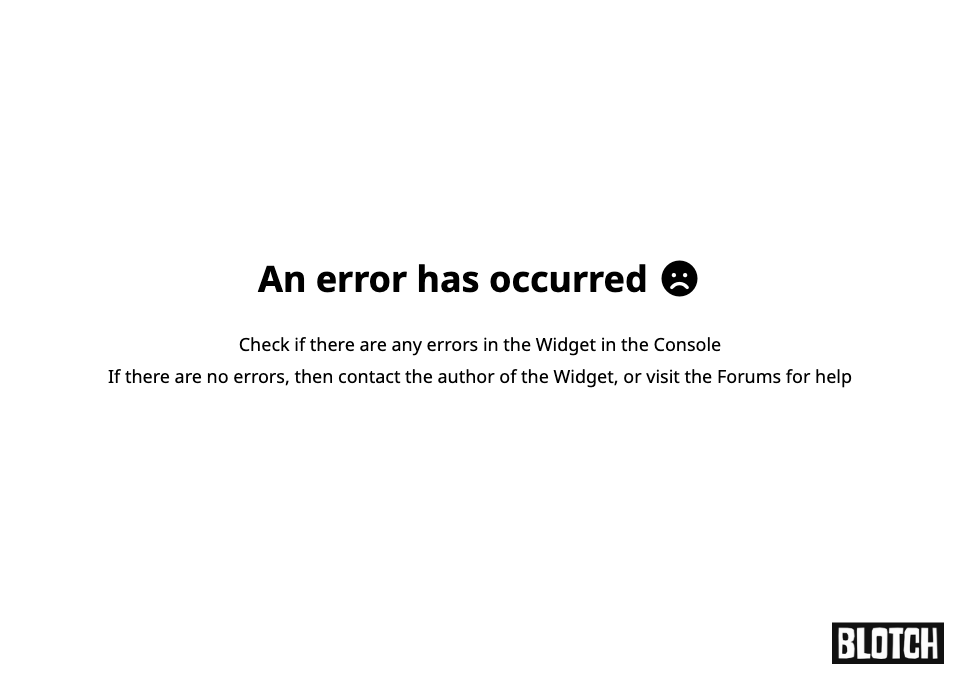
A Widget couldn't be drawn, so the Frame shows an error in its place. It either says An error has occurred, or names the error with technical details underneath.
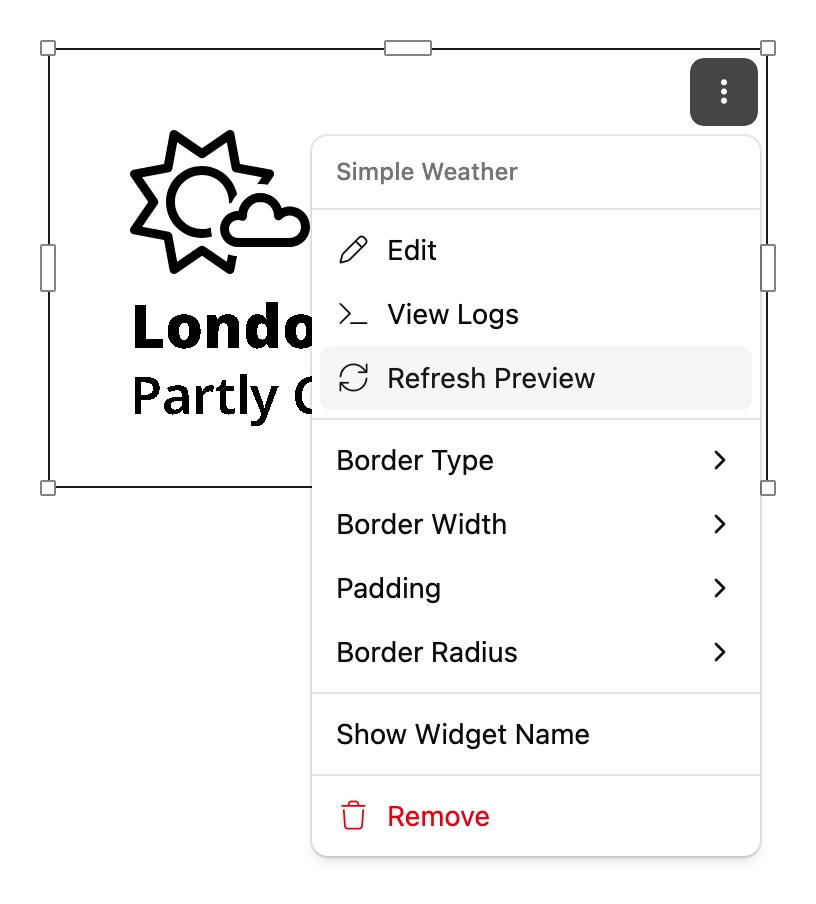
- Check the Widget's settings. In the Editor, choose ⋮ on the Widget, then Edit. A missing or mistyped setting, such as a city name or an API key, is the most common cause.
- Choose View Logs in the same menu to see what went wrong.
- If the settings are right, the Widget itself may have a problem. Ask its creator, or ask on Discord.
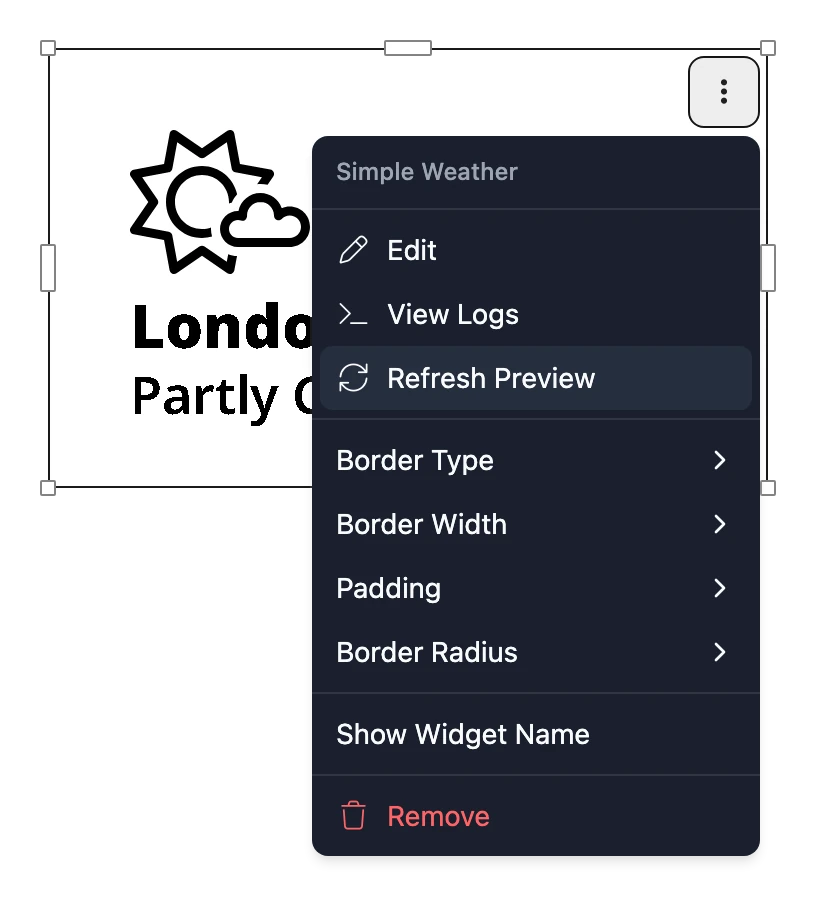
If you made the Widget yourself, the Output pane in the Widget Studio shows the error.
"Private Widget"
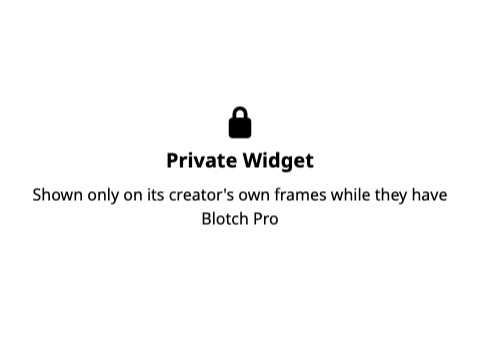
The Widget is a Private Widget, which only shows on its creator's Frames while they have Pro. It comes back when they get Pro again.
"Widget unavailable"

Blotch couldn't draw the Widget this time, even after several tries, so the Frame shows this in its place. It clears up by itself the next time the Frame updates. If it keeps coming back, choose View Logs on the Widget in the Editor: the log says Render service unavailable, and anything else it says points at the cause.
"Low battery, please recharge"
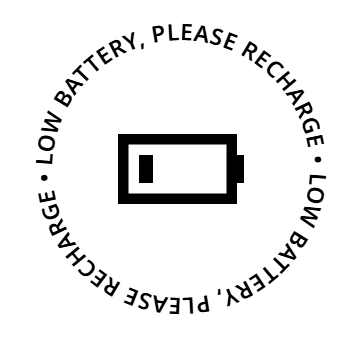
Plug the Frame in. It shows Charging until it has enough charge, then carries on as normal.
"Powered off"
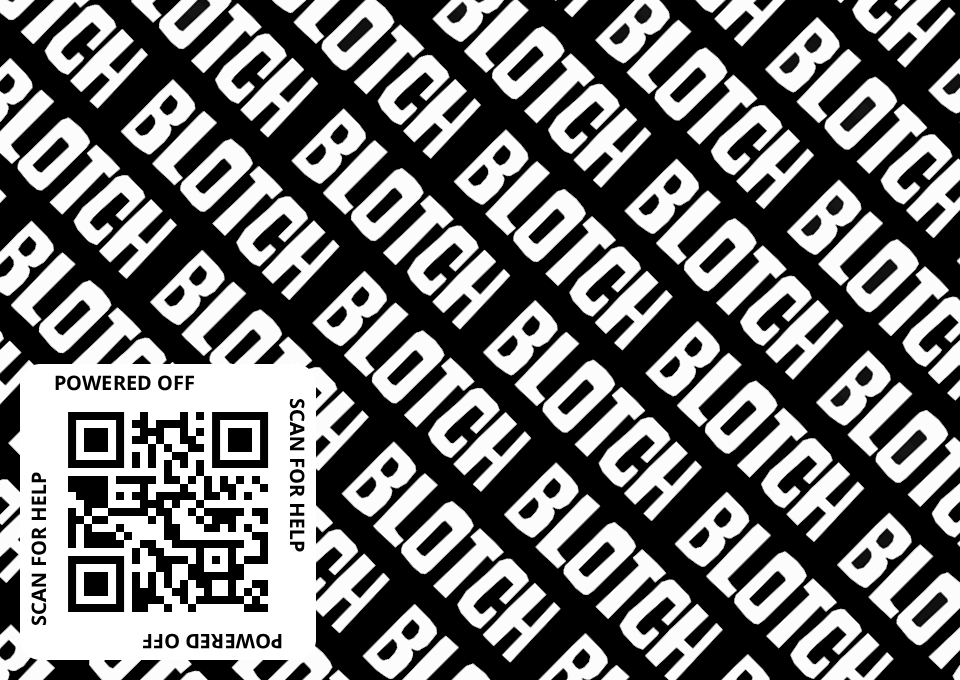
The power switch is off. Move it up to turn the Frame on. The screen keeps showing this while the Frame is off, since e-ink holds its picture without power.
The Page doesn't change
- In Standard Mode, the Frame only updates at the times its schedule says. Press to update it now.
- Check the Page's Refresh Interval in the schedule. See Refresh intervals.
- If the Frame seems frozen, hold both buttons for 10 seconds to restart it. You'll need to connect it to Wi-Fi again afterwards.
Still stuck?
Ask on Discord, or email help@blotch.ink.