Widget Studio
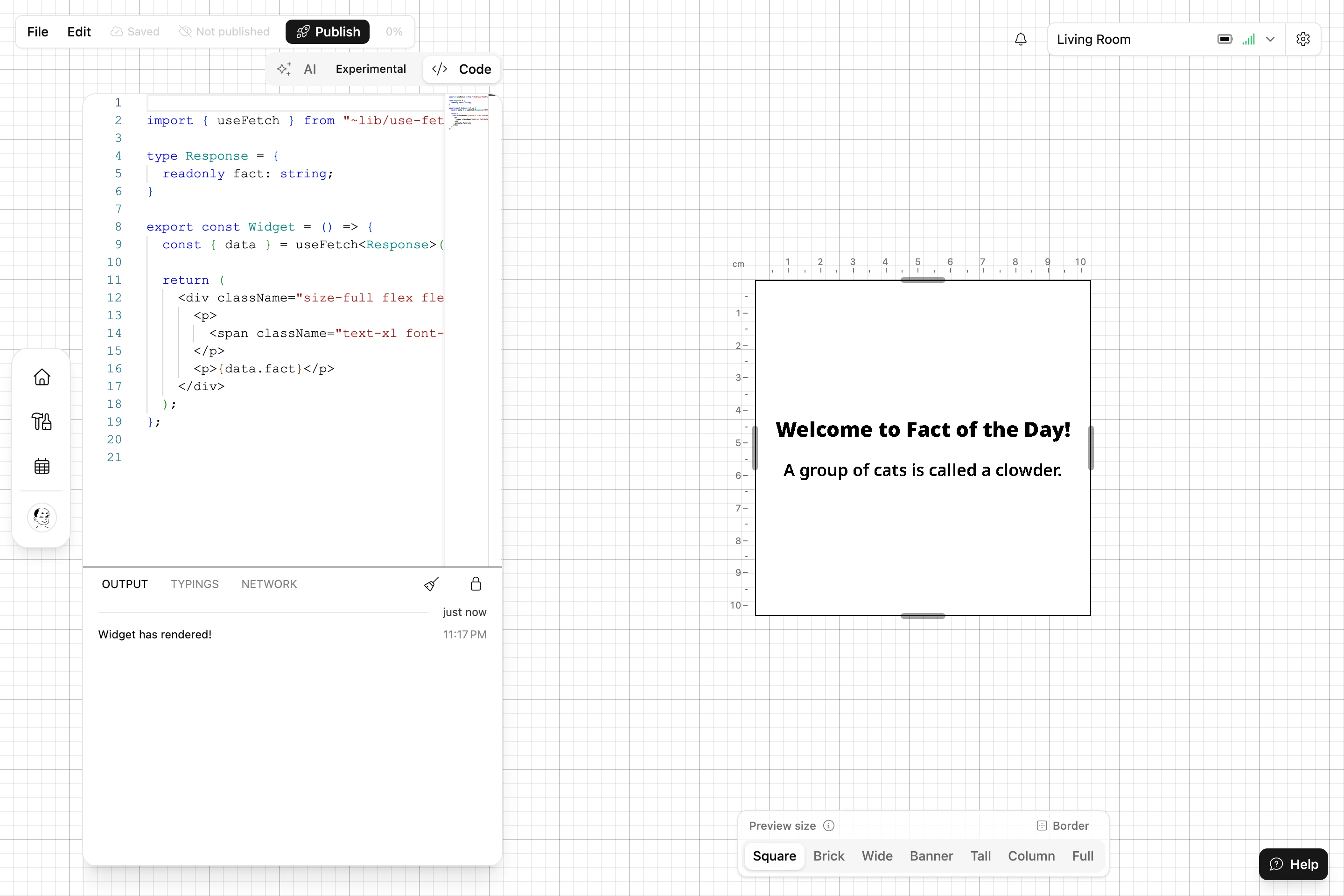
The Widget Studio is where you write, preview and publish a Widget. To open it, open one of your Widgets from My Profile and choose Edit. It needs a desktop browser.
Layout
| Area | What it's for |
|---|---|
| AI tab | Describe what you want and let AI write or change the code. Experimental. |
| Code tab | The code editor, with auto-complete for React, the Blotch Library, your Inputs and your images, and red underlines for type errors. |
| Output | Below the editor. See Output. |
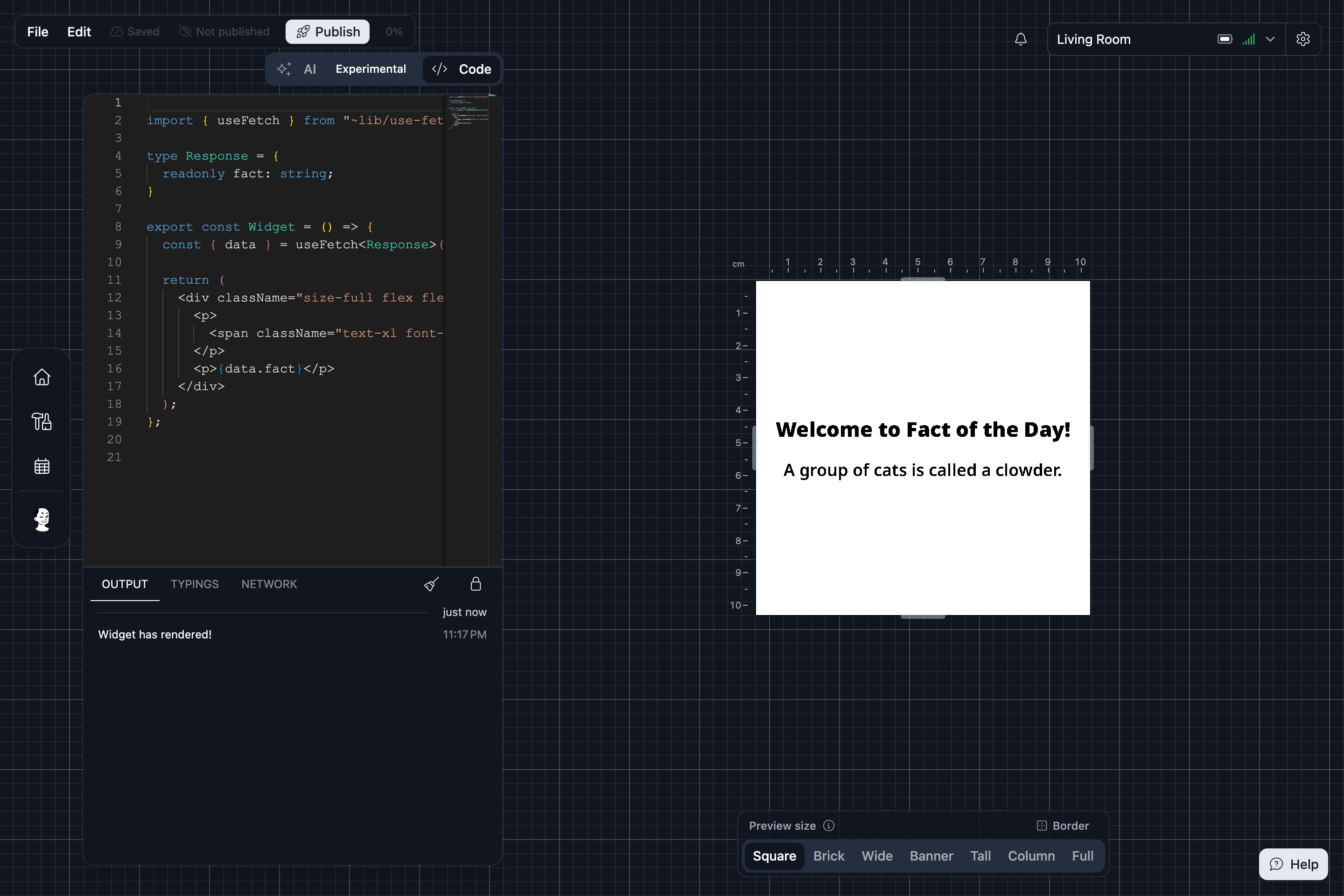
| Preview | On the right. Shows your Widget, redrawn a couple of seconds after you stop typing. Choose a Preview size, or drag the preview's edges to try any size. The Border menu tries the borders people can put around it. |
The toolbar shows the version you last published, Unpublished changes if you've saved since, and Publish. A meter shows how much of the length limit for a Widget's code you've used.


Menus
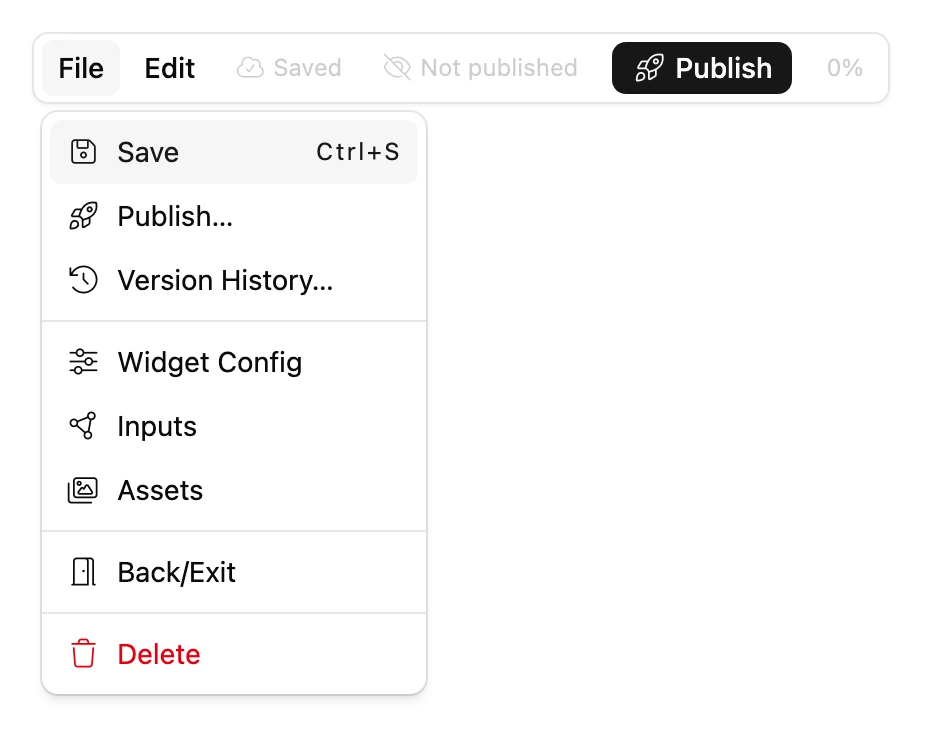
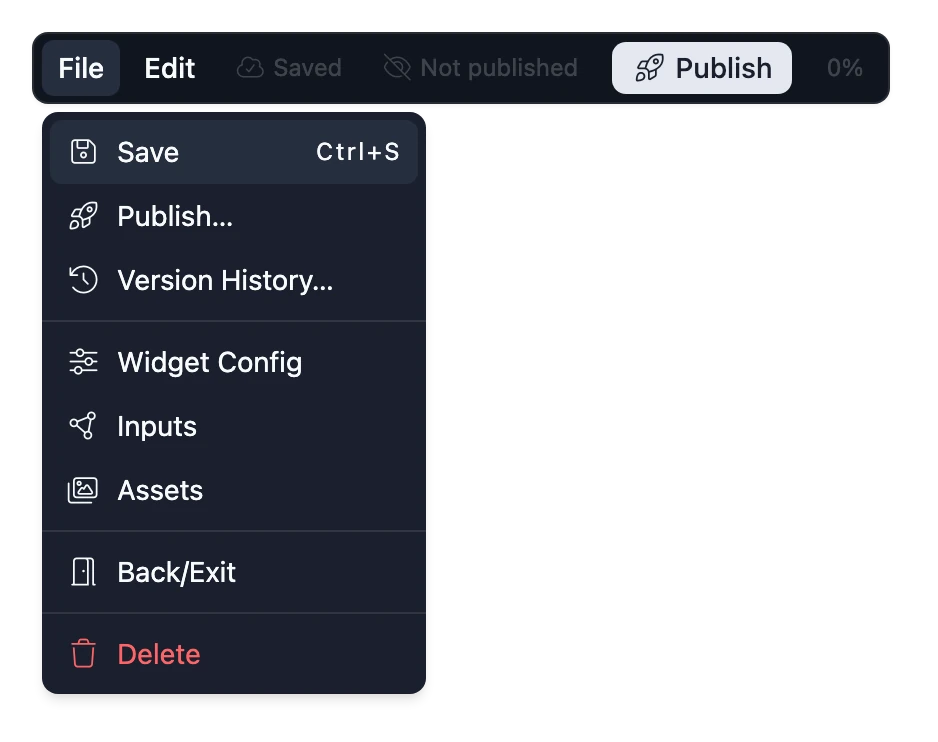
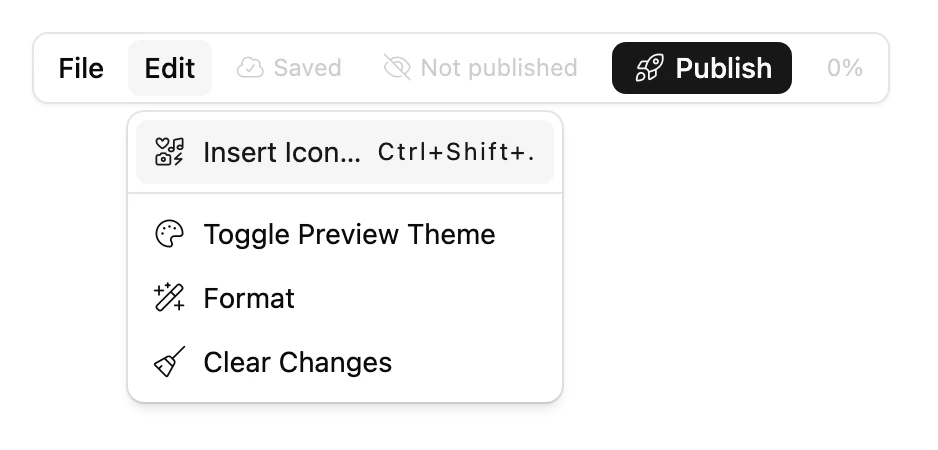
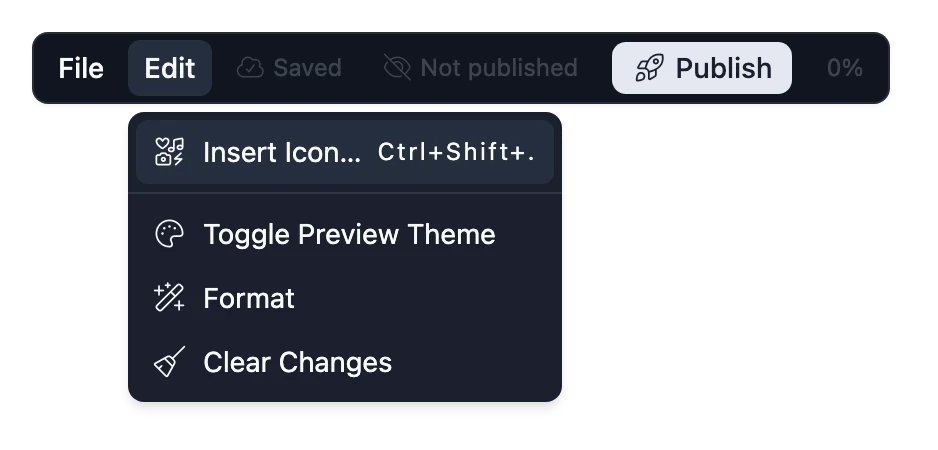
| Menu | Item | What it does |
|---|---|---|
| File | Save | Saves your code and Public Inputs. Ctrl+S (⌘S on a Mac). |
| Publish… | Releases your latest save. See Publish and release versions. | |
| Version History… | Every save, with what changed. Restore loads one into the editor. | |
| Widget Config | Name, description, icon, category and visibility. See Widget settings. | |
| Inputs | Public Inputs, Private Inputs and Integrations. See Input types. | |
| Assets | Your uploaded images. See Add your own images. | |
| Delete | Deletes the Widget. Only shown while nobody has it installed. | |
| Edit | Insert Icon… | Finds an icon and adds the code to draw it. Ctrl+Shift+. (⌘⇧. on a Mac). |
| Toggle Preview Theme | Switches the preview between the light and dark themes. | |
| Format | Tidies your code's layout. | |
| Clear Changes | Throws away everything you haven't saved. |
Output
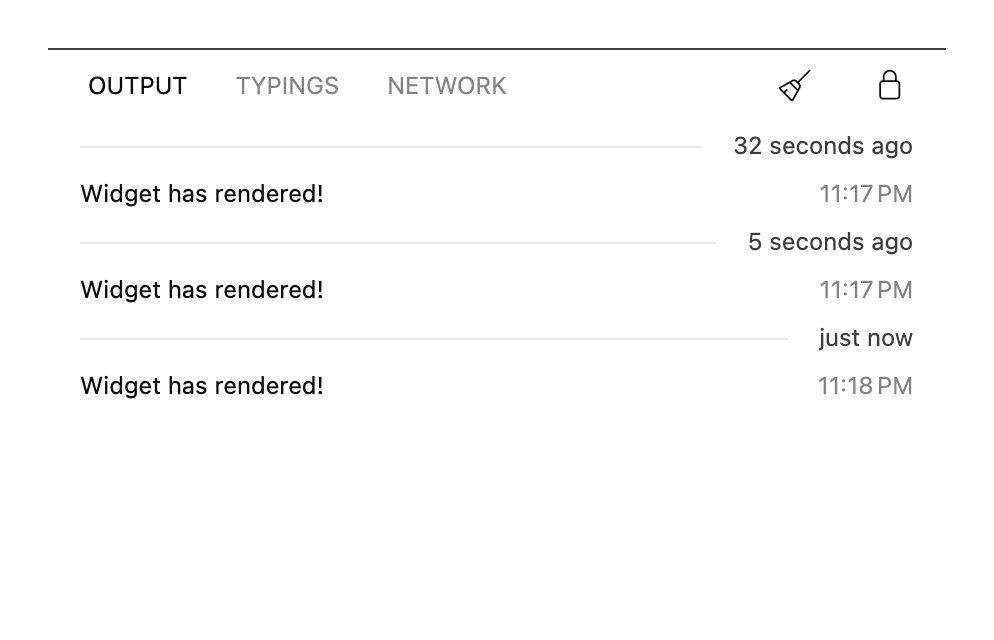
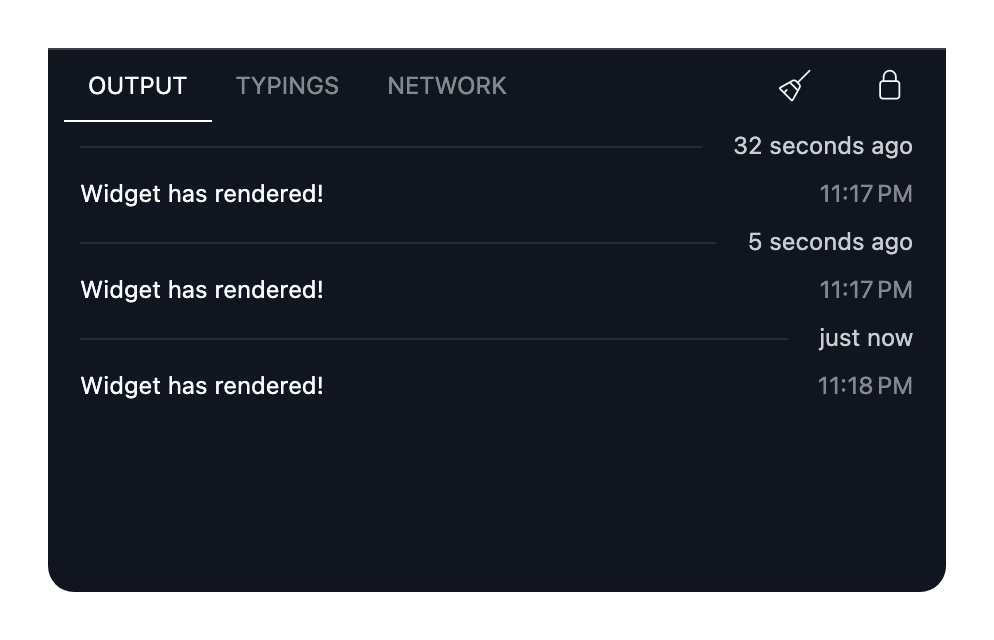
The panel under the editor has three tabs:
- Output shows what your Widget logs with
console.log,console.warnandconsole.error, and any error it stops on. Choose Fix with AI beside an error for a suggested fix. Otherconsolemethods, such asconsole.table, aren't available. - Typings shows the type definitions the editor is loading for the packages you import.
- Network shows each request your Widget makes and its response. Choose Create Type Definitions beside a response to copy a TypeScript type for it.
Clear logs empties the current tab. The lock turns auto-scrolling on and off.
Your code
-
Your Widget is the component named
Widget, or the file's default export:export const Widget = () => {// ...}; -
Write TypeScript or JavaScript. Type errors are underlined, but don't stop your Widget from drawing or publishing.
-
Style with Tailwind CSS. The only colors are
foregroundandbackground. See How Widgets run. -
Import from the Blotch Library with
~lib/, and from npm with a pinned version. See Use npm packages.