Buttons and modes
The back of your Blotch Smart Frame has a power switch and two buttons. Each button stands for one of the Frame's two modes.
The two modes
| Mode | Button | What it does | Best for |
|---|---|---|---|
| Standard Mode | Sleeps between updates and wakes when its schedule says the next Page is due. Recommended. | Every day. The battery lasts for months. | |
| Power Intensive Mode | Stays awake and updates as soon as something on the Page changes, as well as on its schedule. Uses far more battery. | Occasional use, while the Frame is plugged in. |
A new Frame starts in Standard Mode. You can also change the mode in the Console: open the Frame on your dashboard and choose its refresh mode.
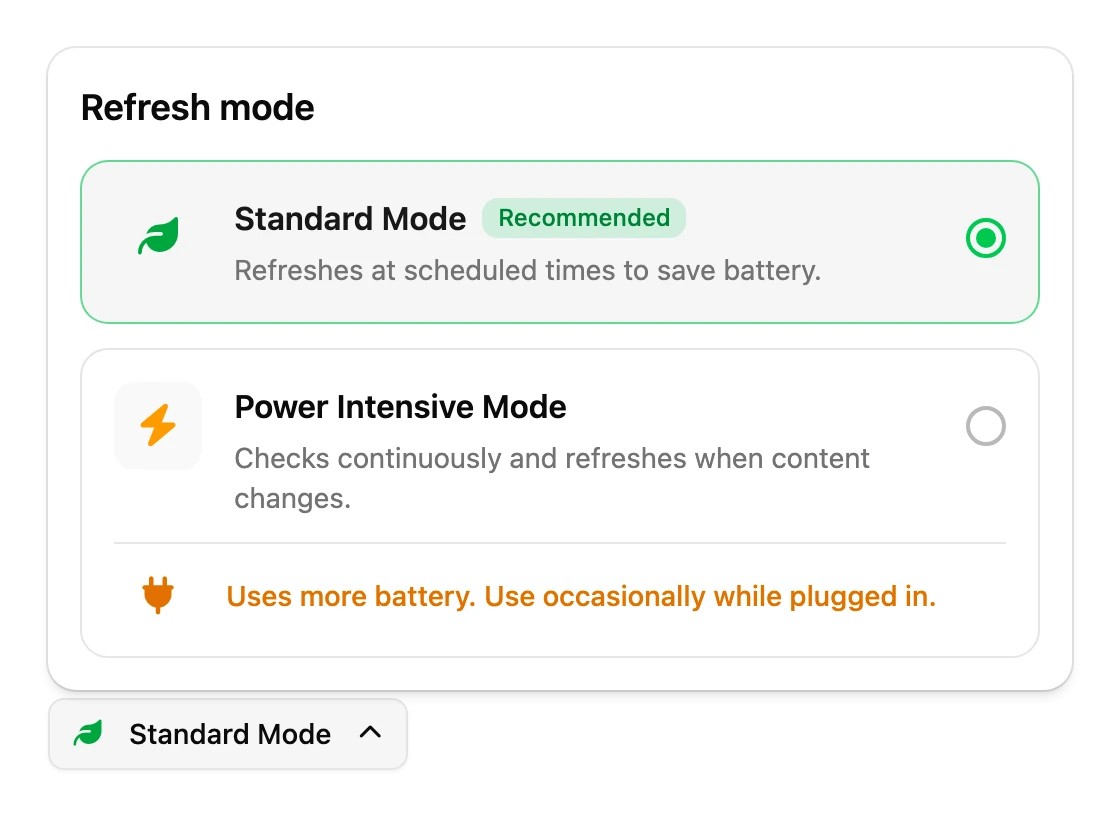
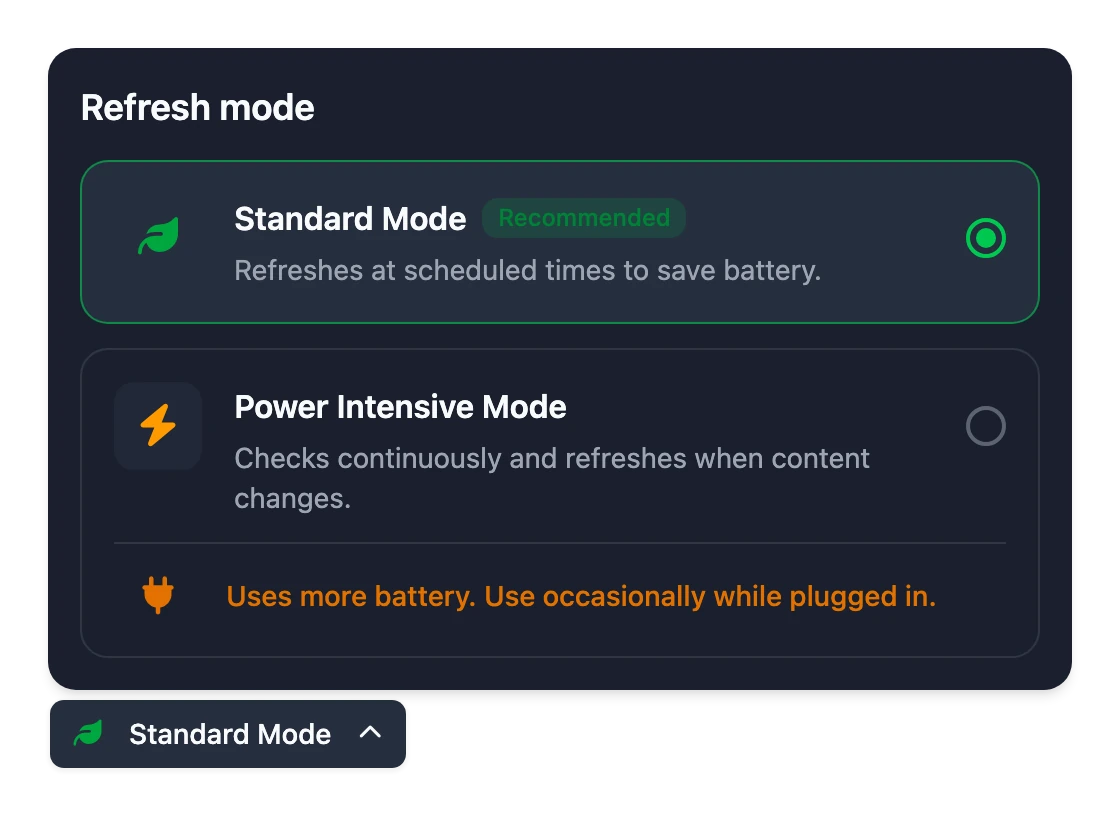
How often a Page updates also depends on its schedule and your plan. See Choose when each Page shows.
What the buttons do
| You press | What happens |
|---|---|
| in Standard Mode | Wakes the Frame and updates the Page now. |
| in Power Intensive Mode | Switches to Standard Mode and updates the Page. |
| in Standard Mode | Switches to Power Intensive Mode and updates the Page. |
| in Power Intensive Mode | Updates the Page now. |
| Both buttons, held for 5 seconds | Forgets your Wi-Fi network and shows the Wi-Fi setup screen, so you can connect it again. |
| Both buttons, held for 10 seconds | Restarts the Frame. It forgets your Wi-Fi first, at 5 seconds, so it comes back on the Wi-Fi setup screen. |
So to update the Page without changing mode, press the button for the mode the Frame is already in.
Neither hold unlinks the Frame from your account or deletes your Pages. Only the saved Wi-Fi network is forgotten.
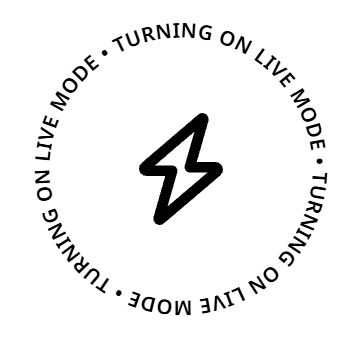
When the Frame is changing mode, it says Turning on Eco mode or Turning on Live mode first.

The power switch
Move the switch down to turn the Frame off. It shows Powered off with a QR code that opens this documentation, and the buttons do nothing until you move the switch back up.
Updates
Your Frame installs updates to its own software by itself. While it does, it shows Updating... please do not turn off, then restarts. You don't need to do anything.
Battery
When the battery runs low, the Frame shows Low battery, please recharge. Plug it in, and it shows Charging until it has enough charge to carry on. The Console shows the battery level and whether the Frame is charging.