Choose when each Page shows
Your Frame only shows Pages that are on its schedule. To open it, pick your Frame in the frame selector at the top right of the Console, then choose Schedule in the menu on the left.
There are two ways to schedule a Frame. Choose one with Scheduling in Frame settings:
- Basic shows one Page, or takes turns through several, all day, every day. It's the simplest.
- Weekly Calendar lets you choose a Page for each time of the week, such as train times on weekday mornings.
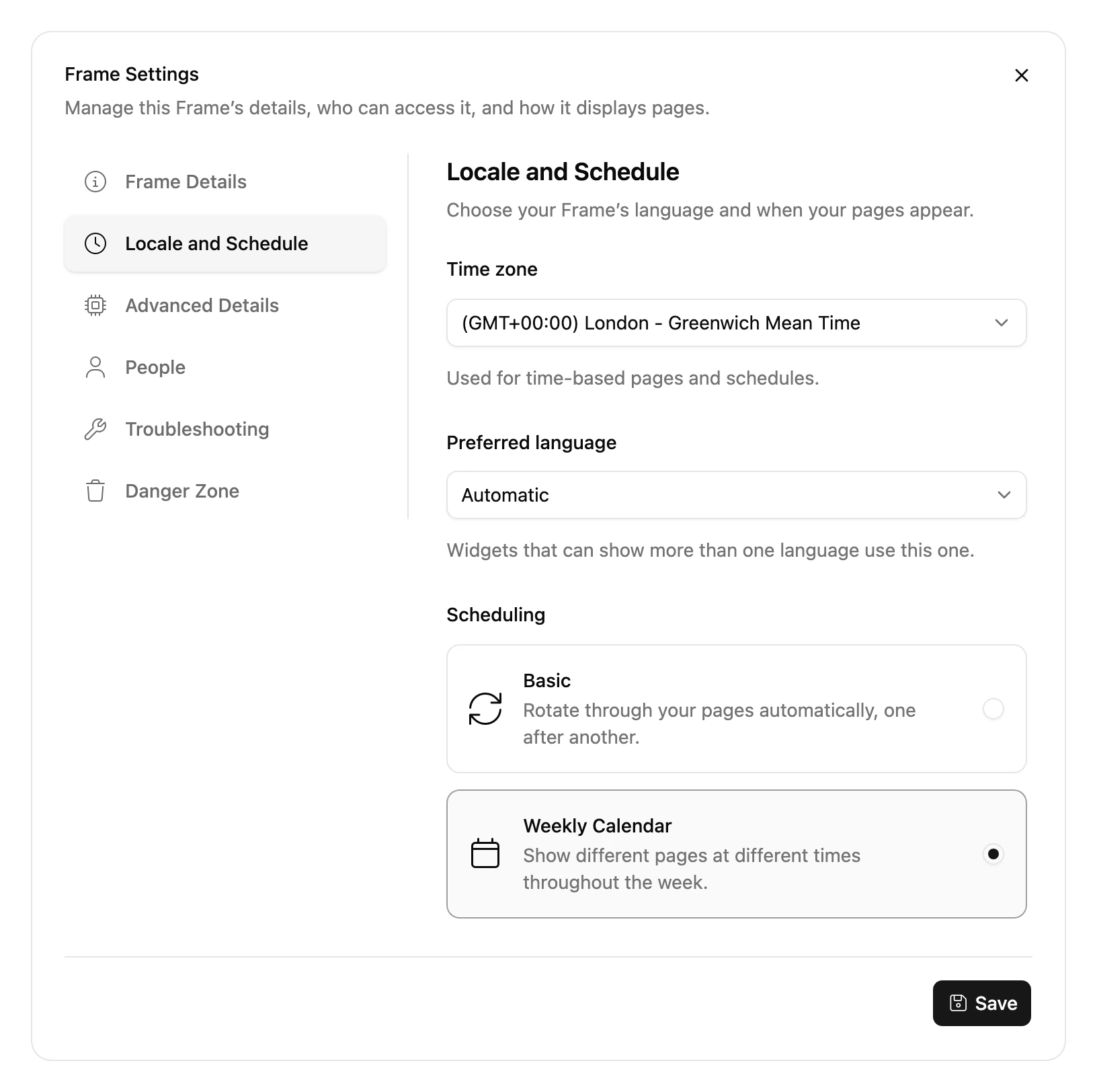
Switching from Weekly Calendar to Basic replaces your weekly events, and switching back doesn't bring them back.
Basic
Choose a Page and how often it should Refresh Every. That Page shows all day, every day.
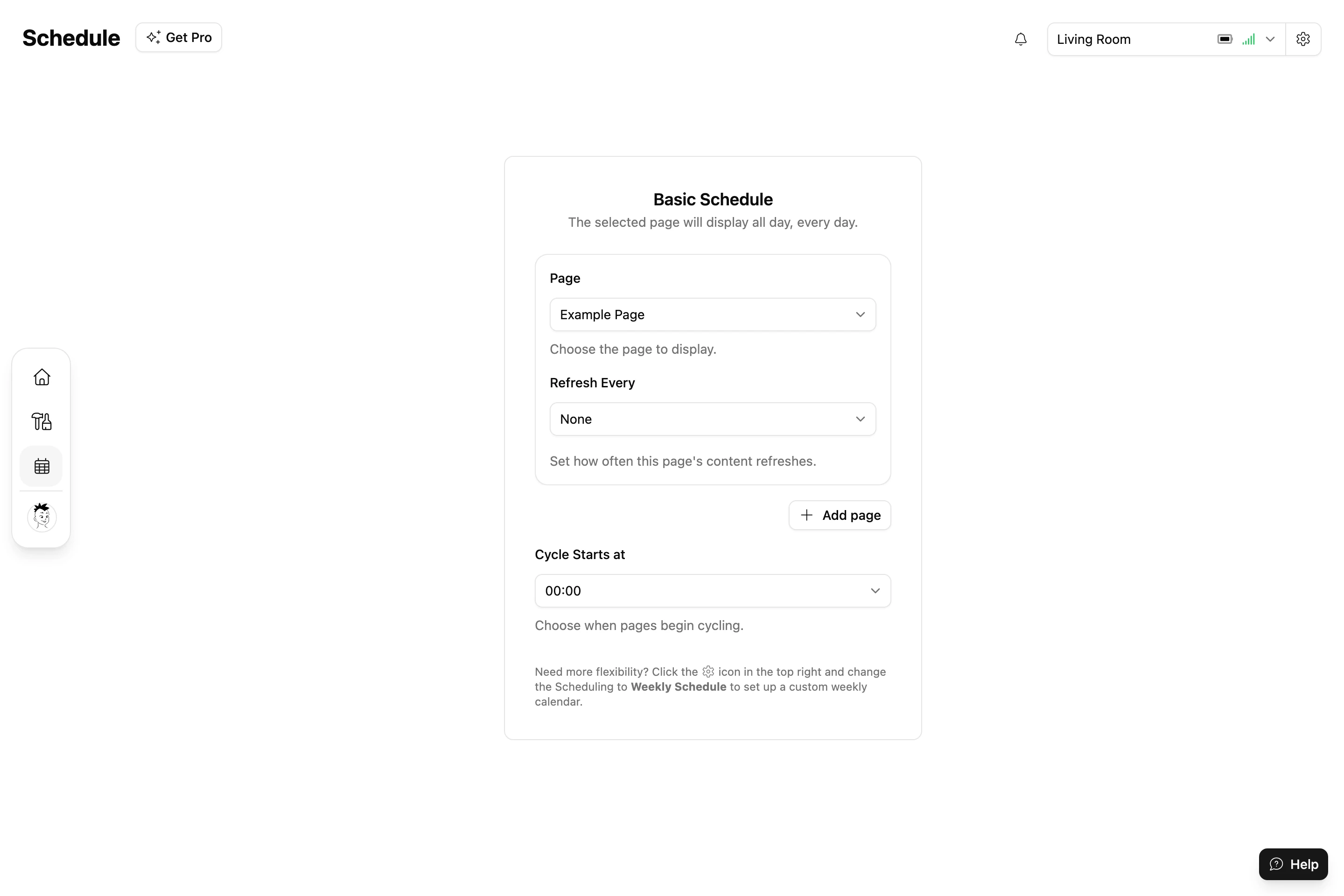
To take turns through several Pages, choose Add page for each one, then choose:
- Cycle Every: how long each Page stays on screen before the next one.
- Cycle Starts at: the time of day the turns start from.
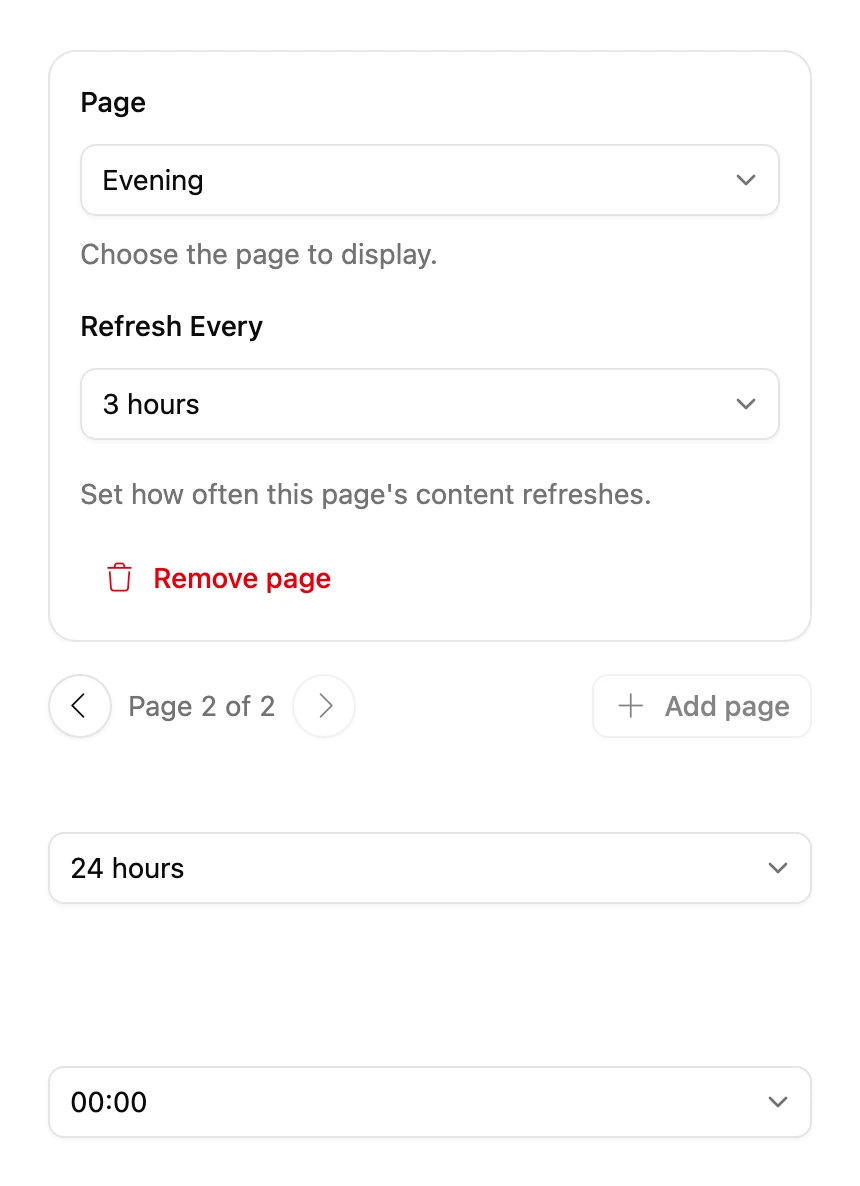
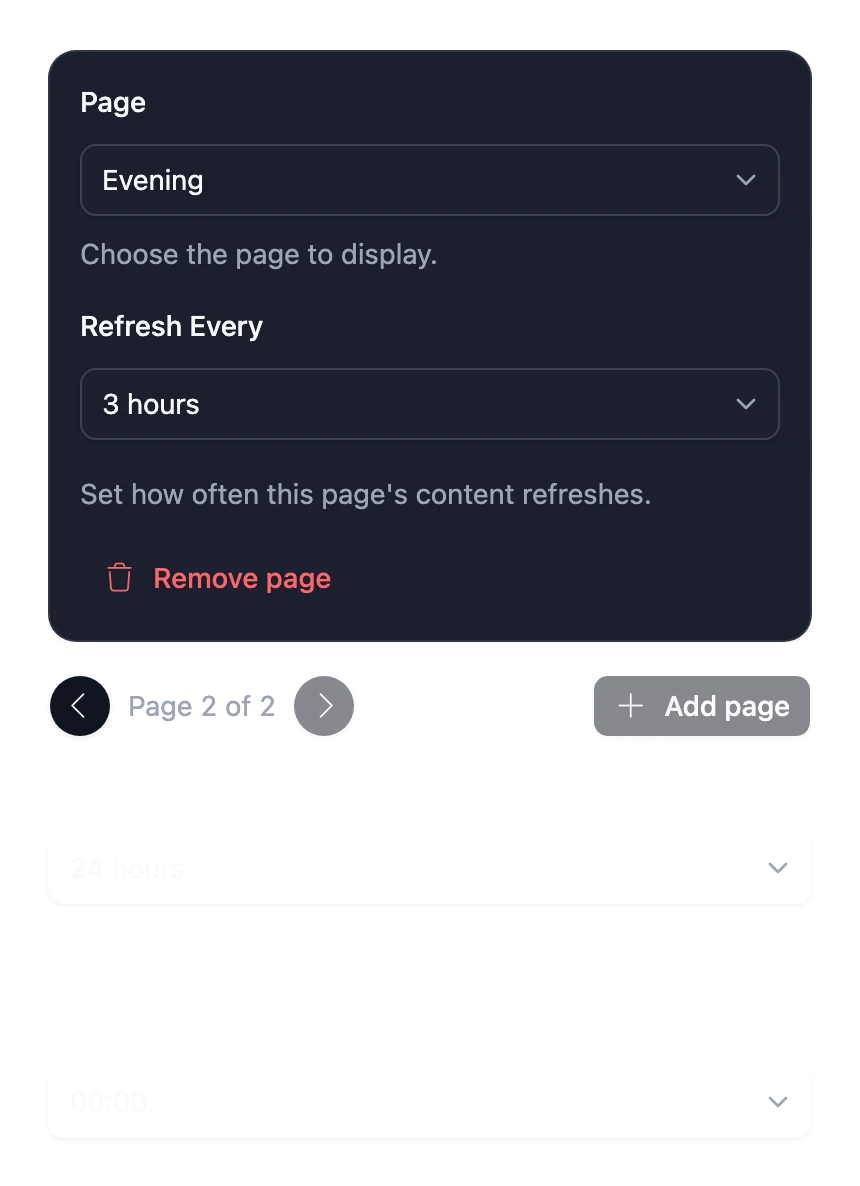
The schedule summarizes what will happen, such as "The selected pages will rotate every 2 hours, all day, every day." Changes save as you make them.
Weekly Calendar
The calendar shows a week, Sunday to Saturday, with the hours of the day down the side. A green line marks the current time in the Frame's time zone.
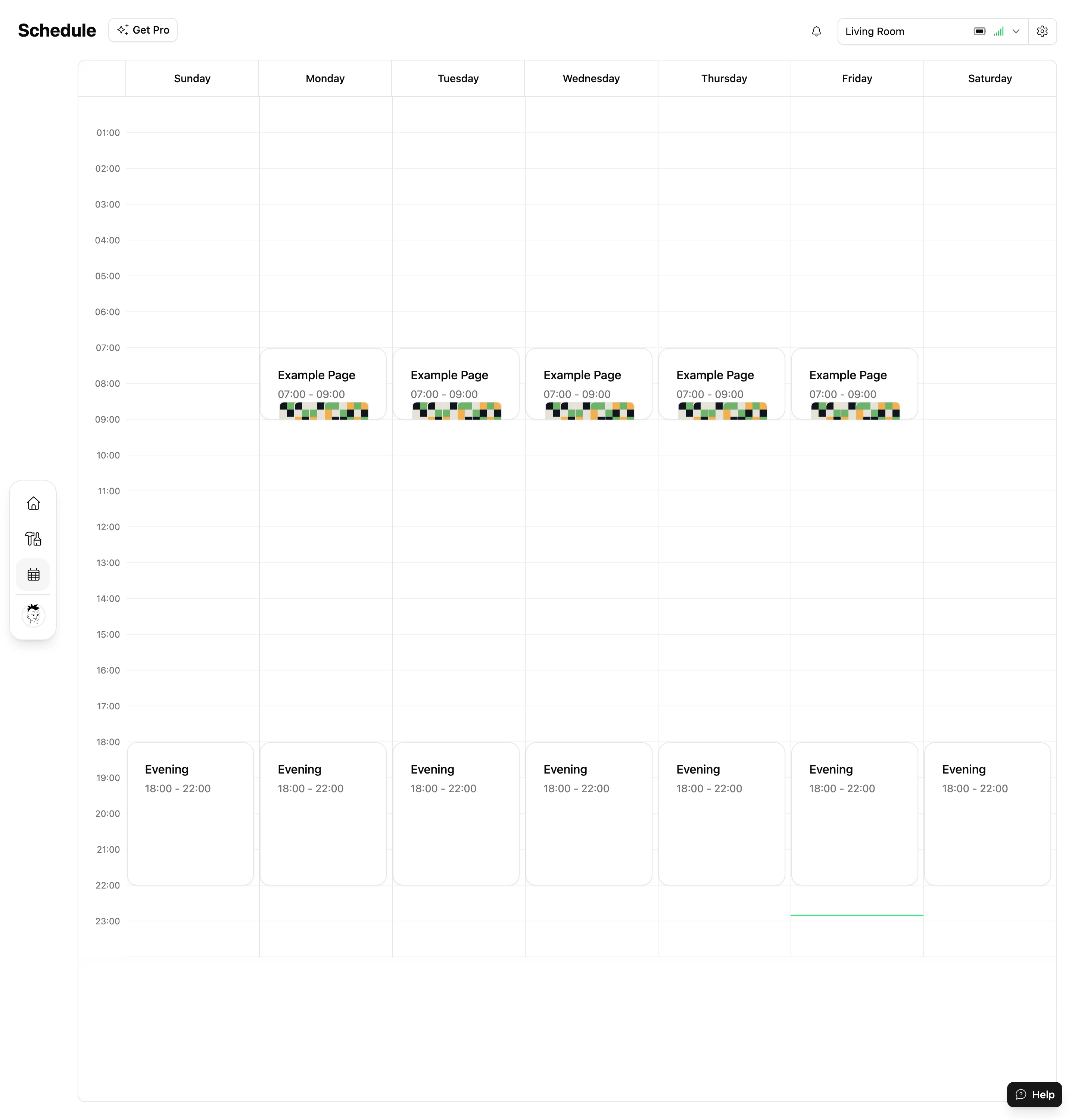
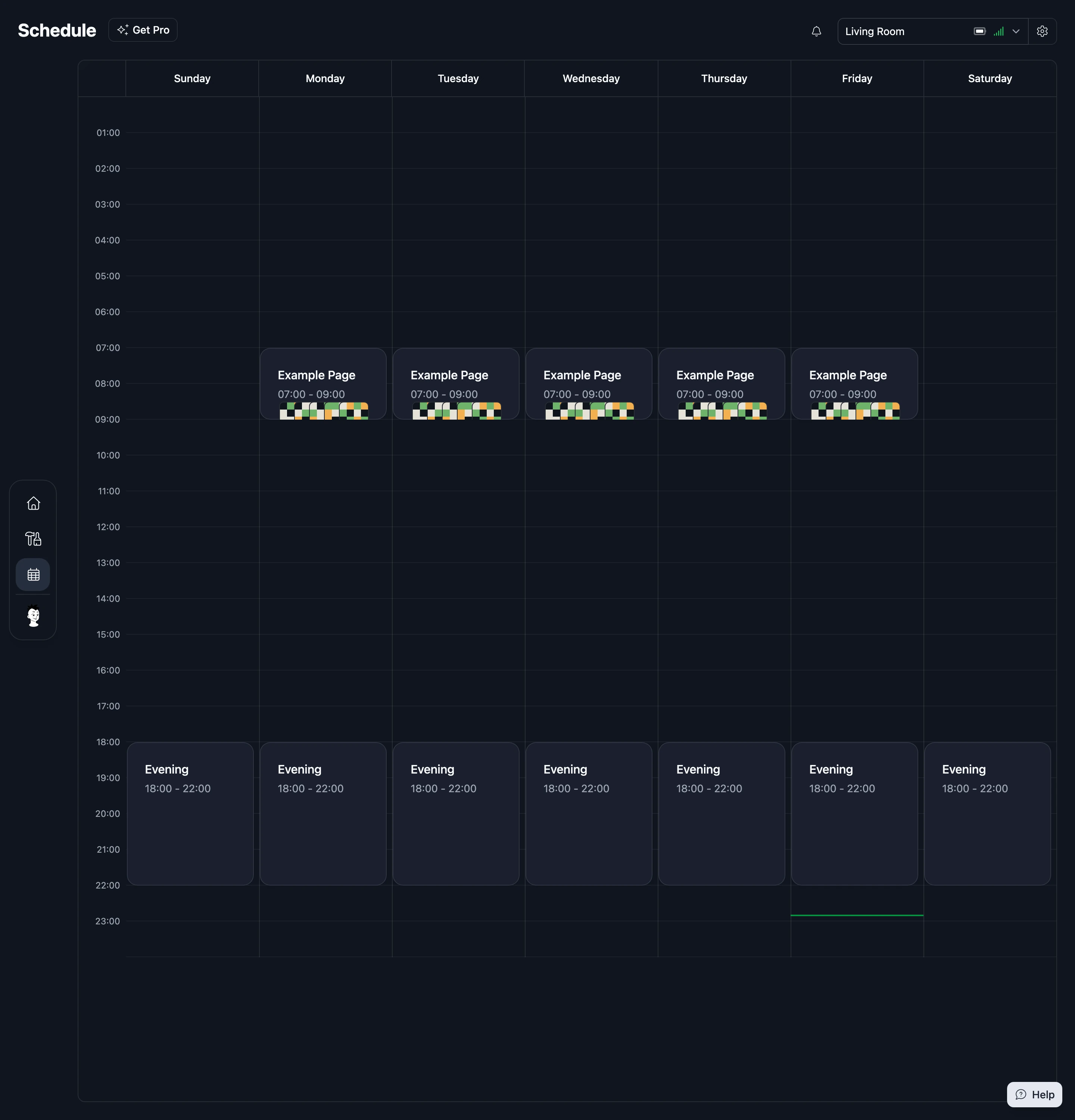
Add an event
- Click an empty slot, or right-click the calendar and choose Add Page.
- Choose the Page, the Days of Week it should show on, the Start Time and End Time, and the Refresh Interval. Turn on All Day to cover the whole day.
- Choose Create.
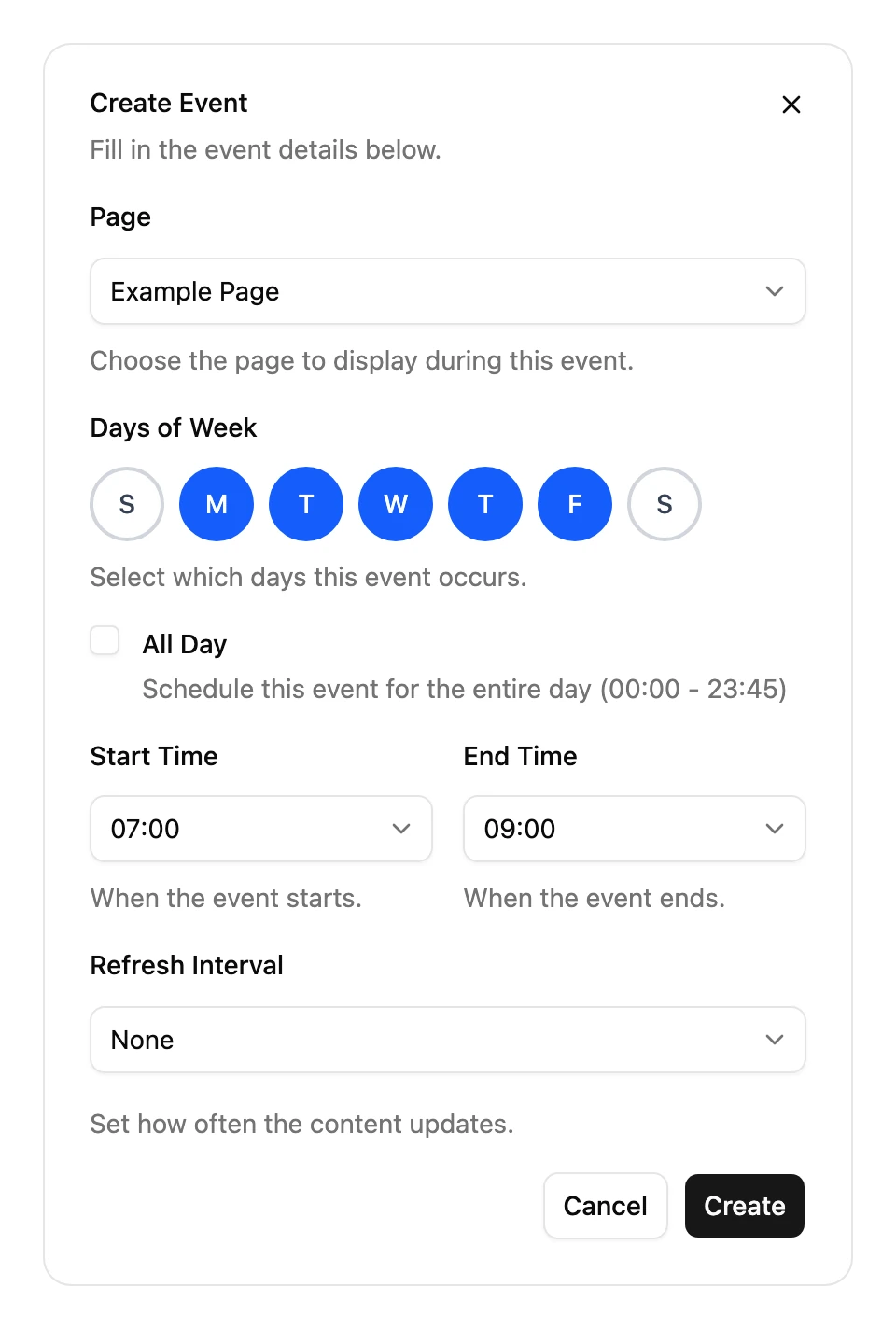
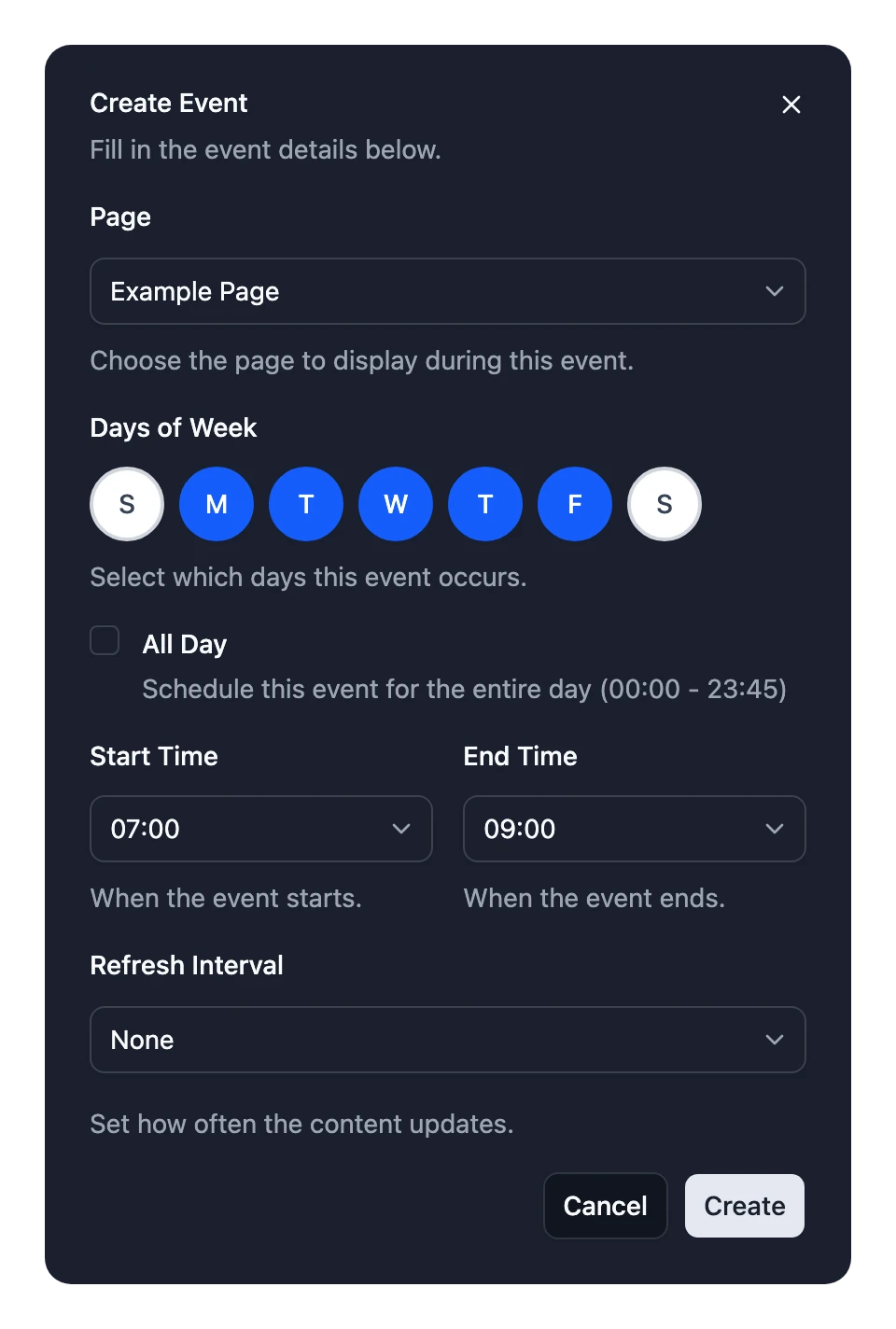
Choosing several days creates one event on each.
Change an event
- Drag an event to move it, or drag its top or bottom edge to change how long it lasts. Times snap to the nearest quarter of an hour.
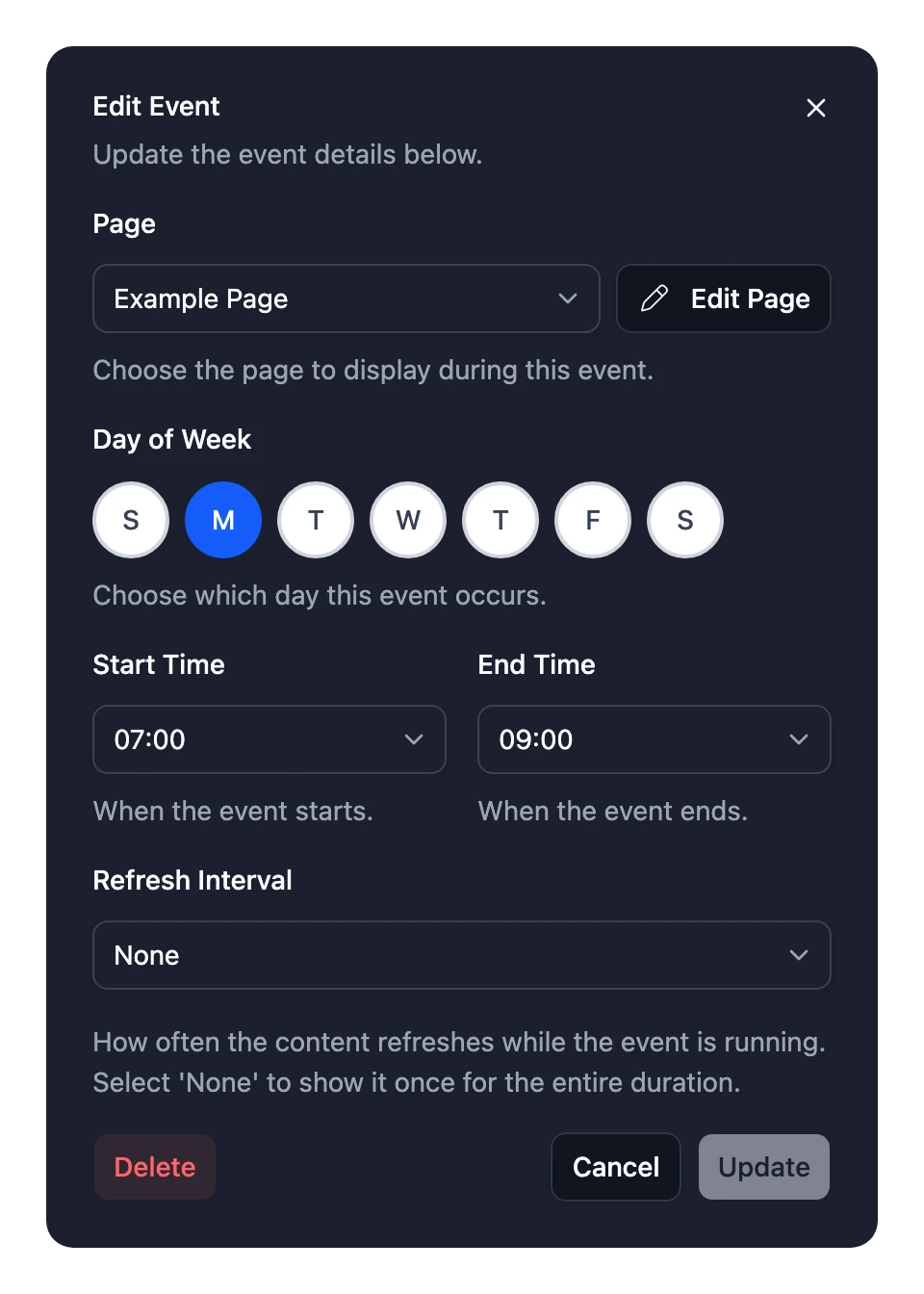
- Click an event to change its Page, day, times or refresh interval, then choose Update. Choose Delete to remove it.
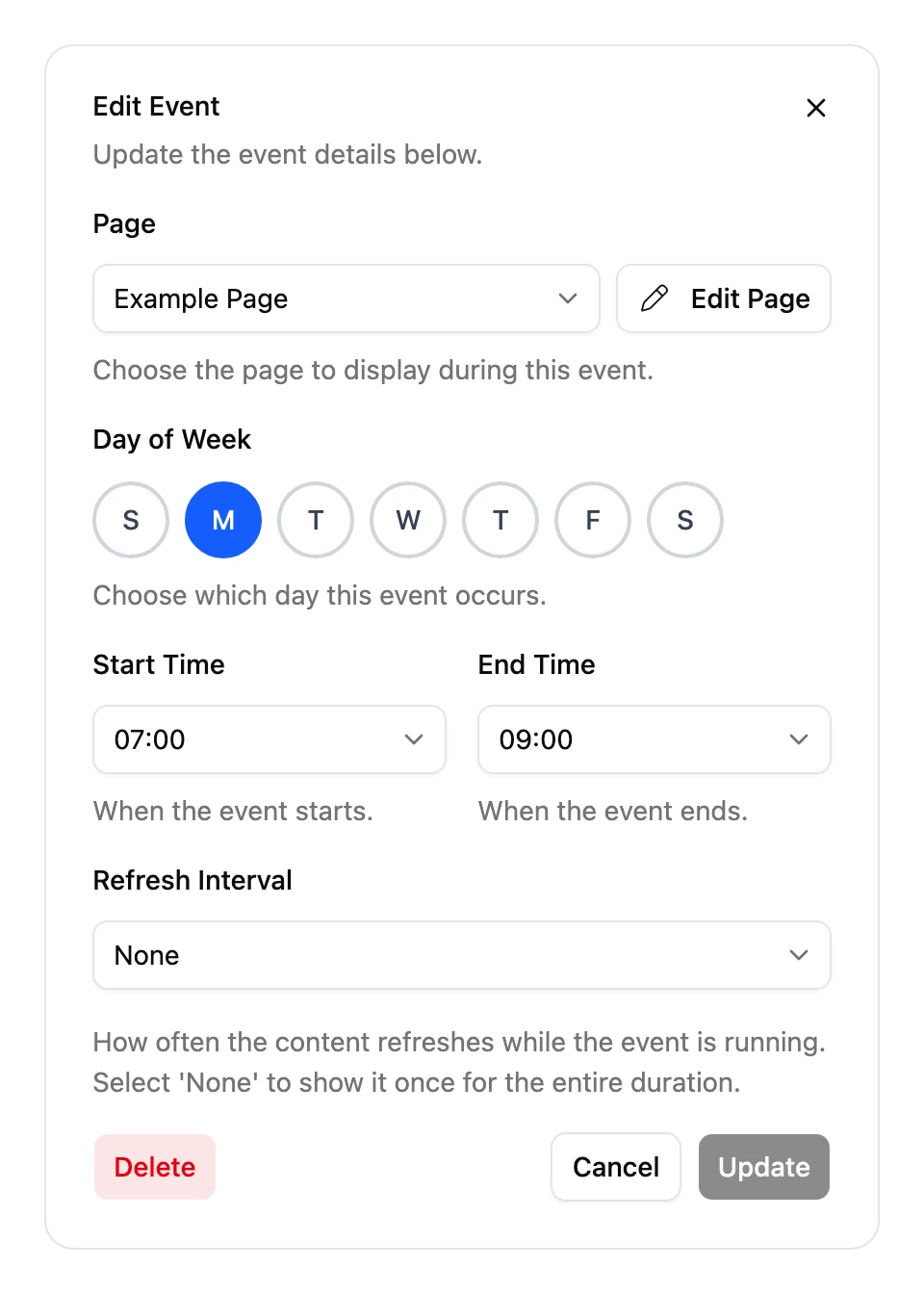
An event can last up to a day. One that ends earlier in the day than it starts carries on past midnight into the next morning.
Gaps and overlaps
- When no event is on, the Frame shows Nothing scheduled. Fill gaps if you want something on screen all the time.
- When events overlap, the Frame shows the one that starts earliest in the week, counting from Sunday at midnight. Overlapping events sit side by side in the calendar, so you can spot them.
Refresh intervals
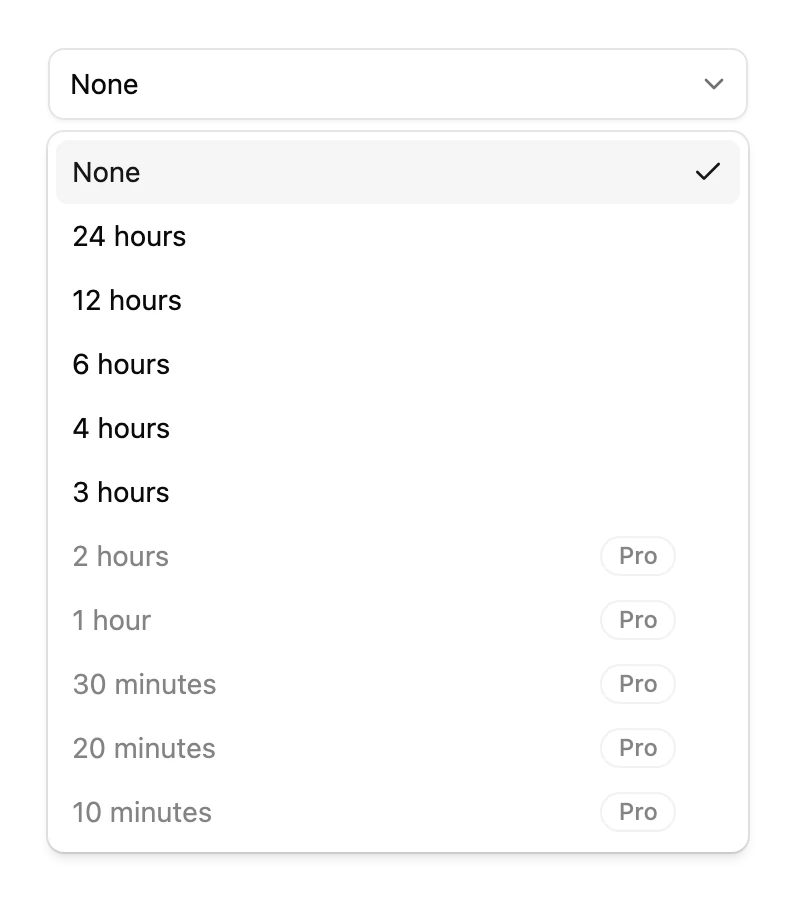
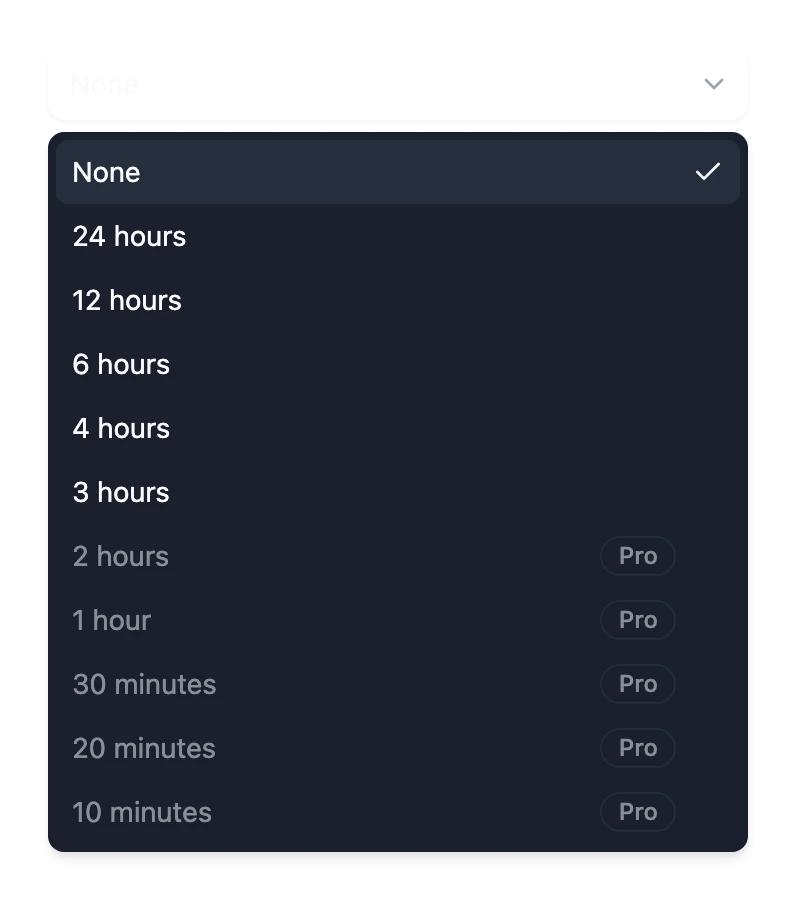
The refresh interval is how often the Frame redraws a Page while it's on screen, so it picks up new weather, headlines and so on. Choose from every 24, 12, 6, 4, 3, 2 or 1 hours, every 30, 20 or 10 minutes, or None to draw it once.
How often a Frame can refresh depends on its plan. On Free, a Page refreshes every 3 hours at most. On Pro, it can refresh as often as every 10 minutes. Intervals your plan doesn't include are marked Pro. See Plans.
- If a Page is set to refresh more often than the plan allows, for example after Pro ends, the Frame refreshes it as often as the plan allows instead. The schedule keeps the interval you chose, so it applies again if you get Pro back.
- On a Frame with more than one Admin, the Admin with the best plan decides how often it can refresh.
- In Standard Mode, the Frame sleeps between refreshes. Press on the back to refresh it now. See Buttons and modes.