Share a Frame
Share a Frame to let other people see it, or help you change it, from their own Blotch account. Only an Admin of the Frame can share it.
Share it with someone
The other person needs a Blotch account first.
- Pick the Frame in the frame selector, choose the gear beside it, then choose Frame Settings.
- Open the People tab.
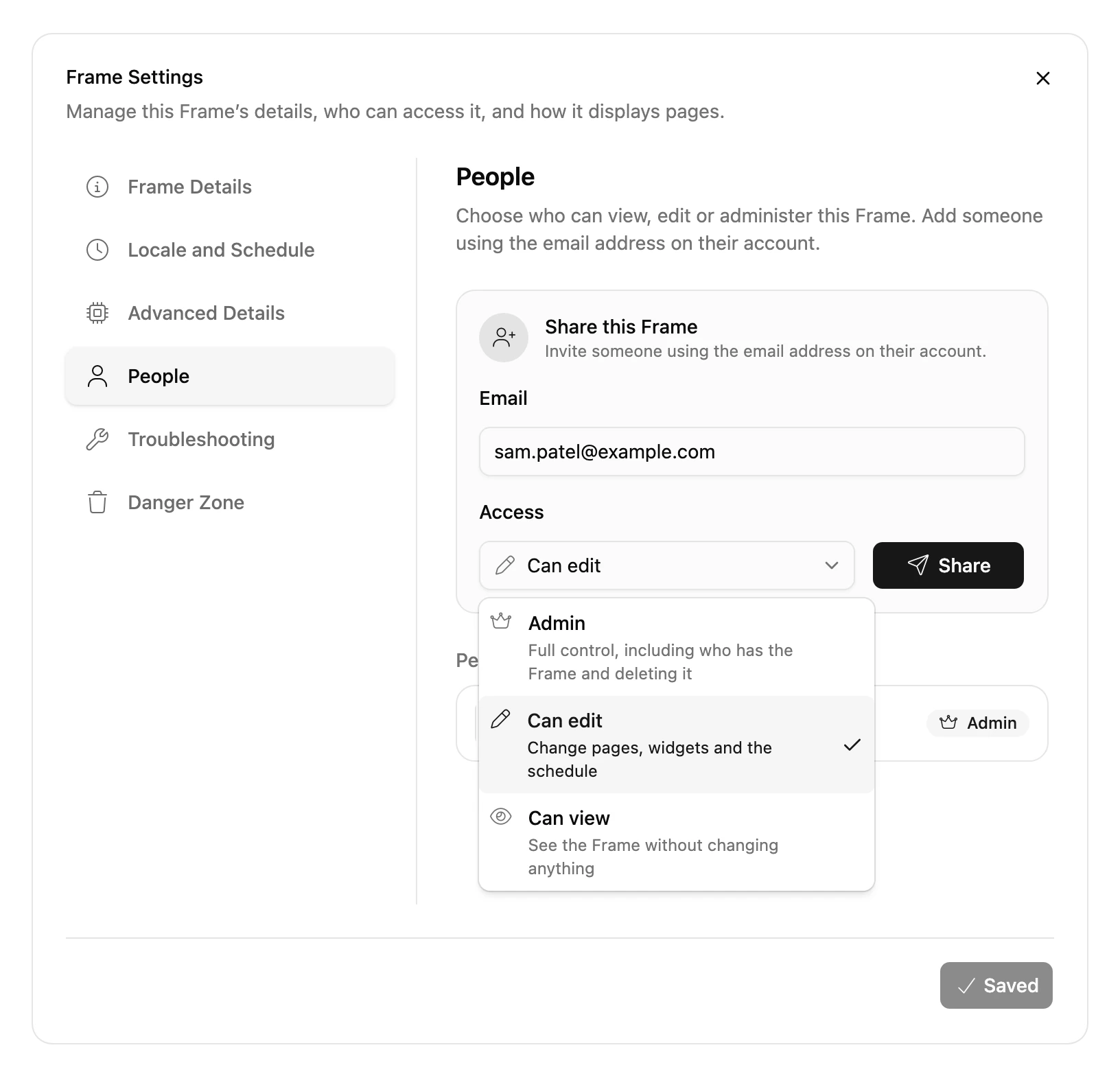
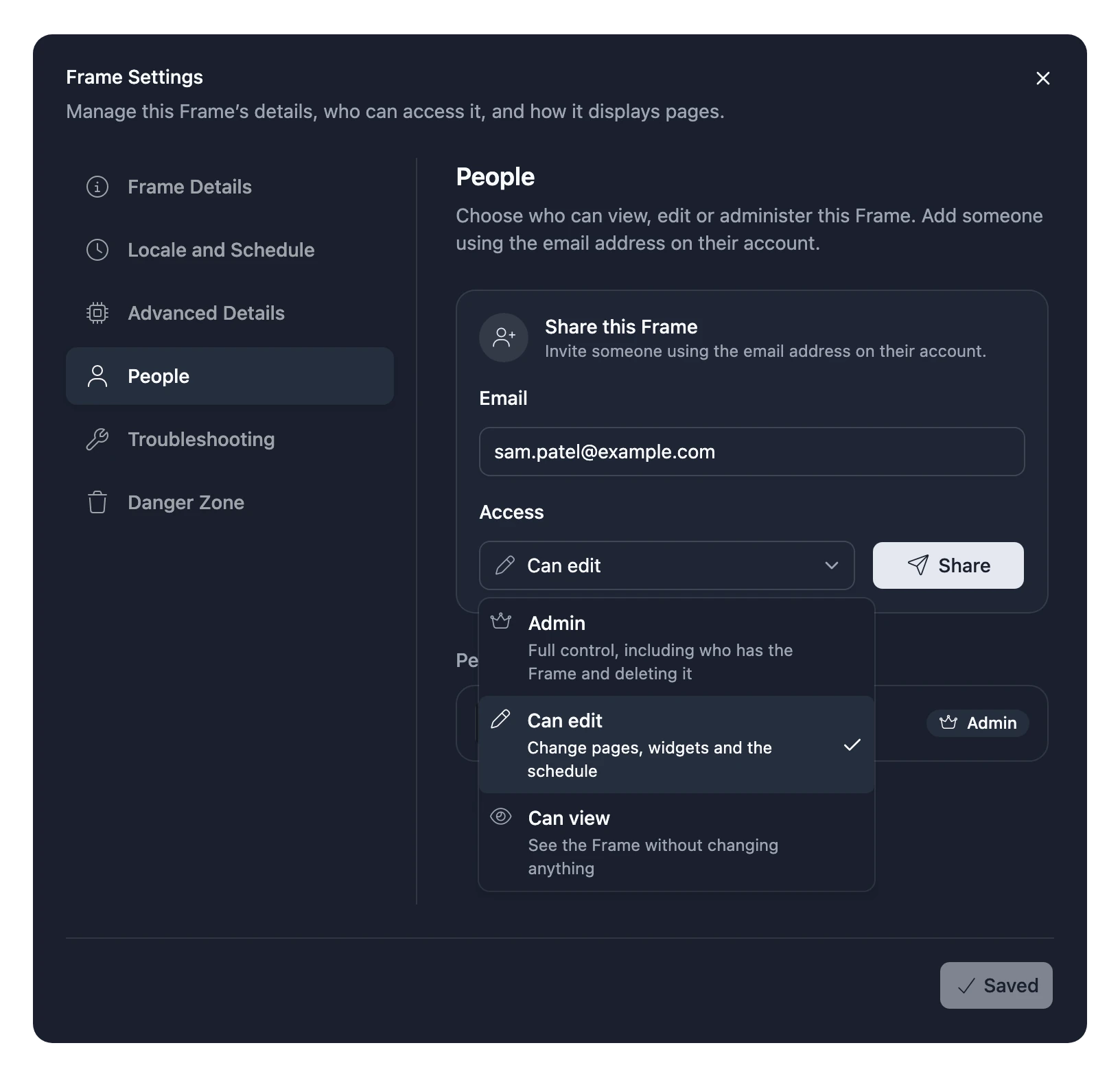
- Under Share this Frame, enter the email address of their Blotch account.
- Choose their Access: Admin, Can edit or Can view.
- Choose Share.
The Frame appears in their frame selector straight away, marked with a shared icon. Blotch doesn't email them, so let them know.
What each role can do
| Role | What they can do |
|---|---|
| Can view | See the Frame's Pages, Widgets and schedule, without changing anything. |
| Can edit | Change the Pages, Widgets, schedule, Frame settings and refresh mode. |
| Admin | Everything, including who has the Frame, and removing or deleting it. |
Two Admins' plans work together: the Frame gets the allowance of whichever Admin has the best plan. People who can edit or view don't change its allowance, and the Frame doesn't use up theirs. See Plans.
Change someone's access or remove them
On the People tab, under People with access, choose a new role beside their name, or choose × to remove them. Changes apply straight away.
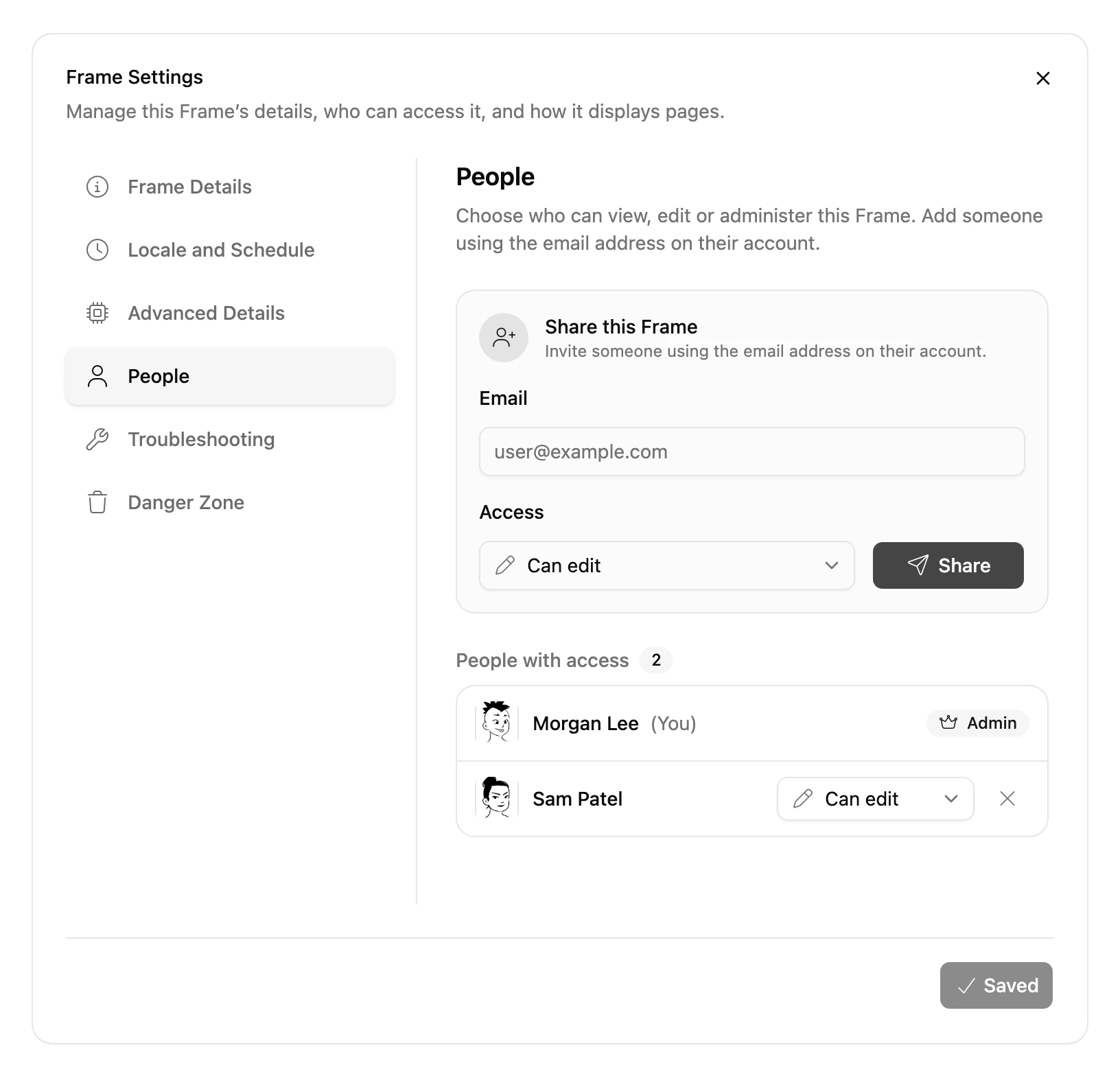
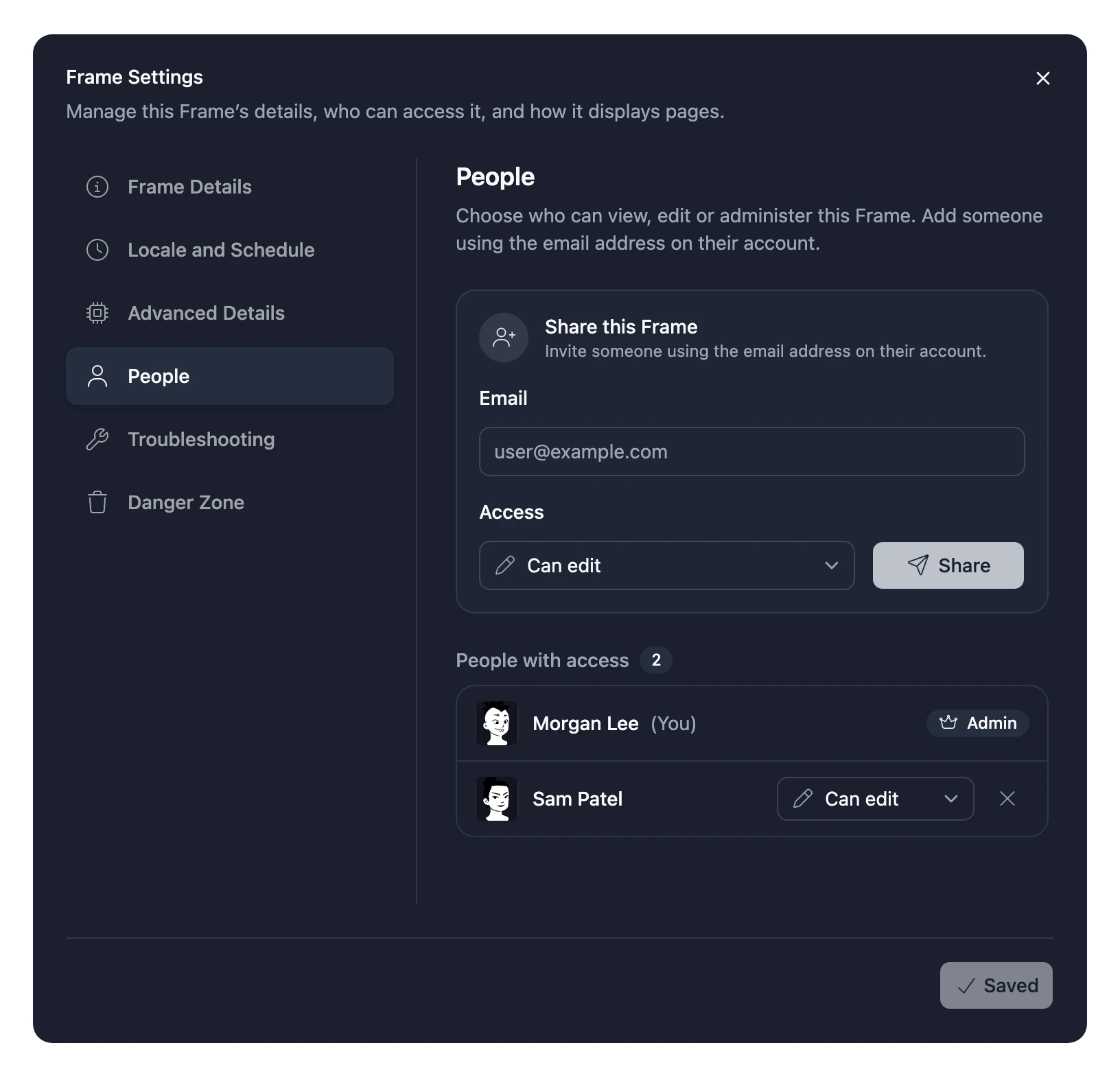
You can't change your own access, so a Frame always has at least one Admin.
Stop sharing your own access
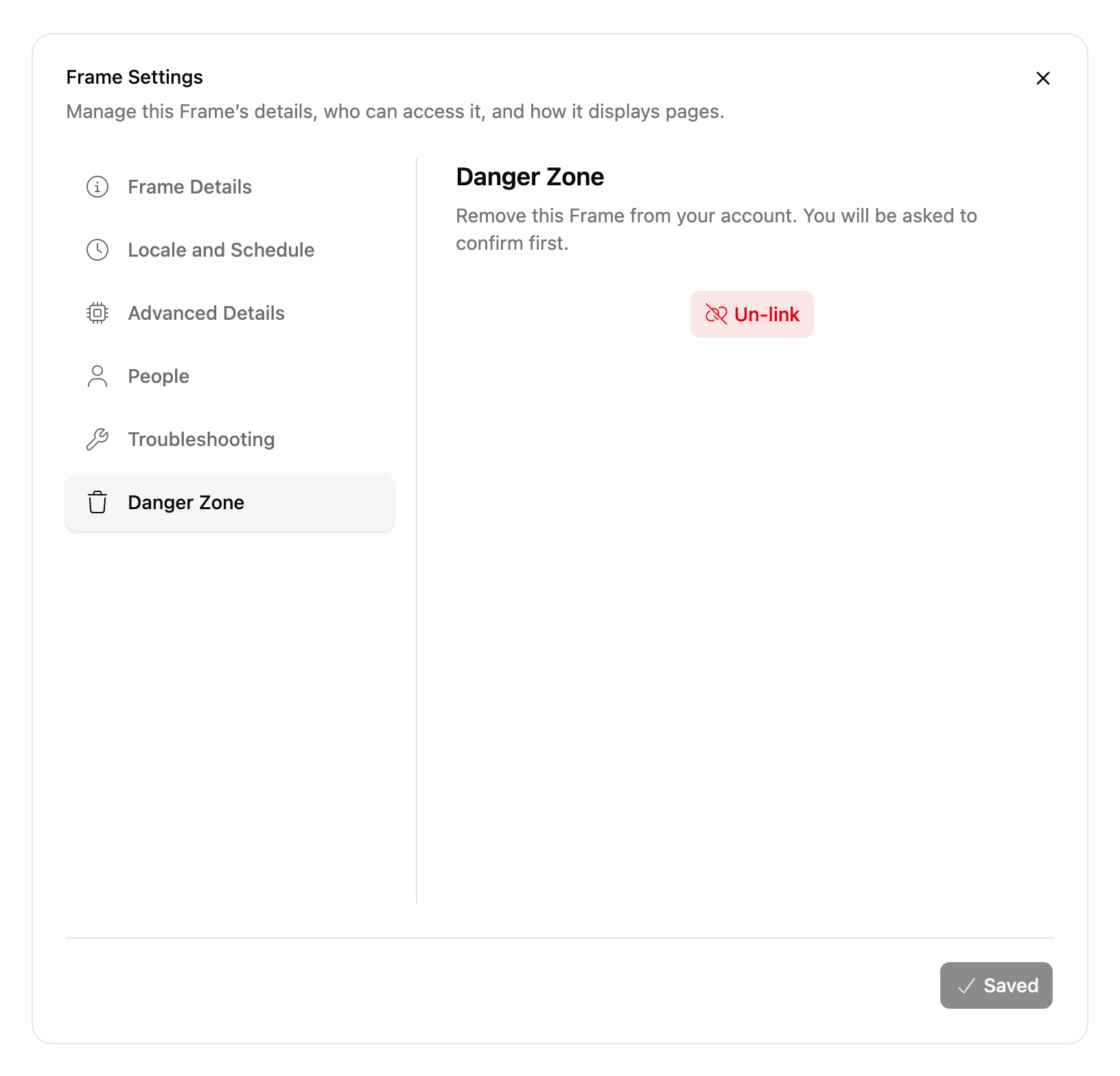
An Admin leaves a Frame from the Danger Zone tab of Frame Settings:
- If other Admins remain, you lose access and they keep the Frame.
- When you leave a Blotch Smart Frame, you keep a copy of its Pages as a Virtual Frame.
- If you're the last Admin, everyone you shared it with loses access too. A Virtual Frame is deleted. A Blotch Smart Frame is reset, ready to be linked to an account again by scanning its QR code.
If someone shared a Frame with you as Can edit or Can view, ask one of its Admins to remove you.