Set up your Frame
In this tutorial you'll switch on your Blotch Smart Frame, connect it to your Wi-Fi, link it to your Blotch account and see its first Page. It takes about ten minutes.
You'll need:
- Your Blotch Smart Frame
- A phone
- The name and password of your home Wi-Fi network. It must be a 2.4 GHz network: the Frame can't connect to 5 GHz networks.
1. Switch it on
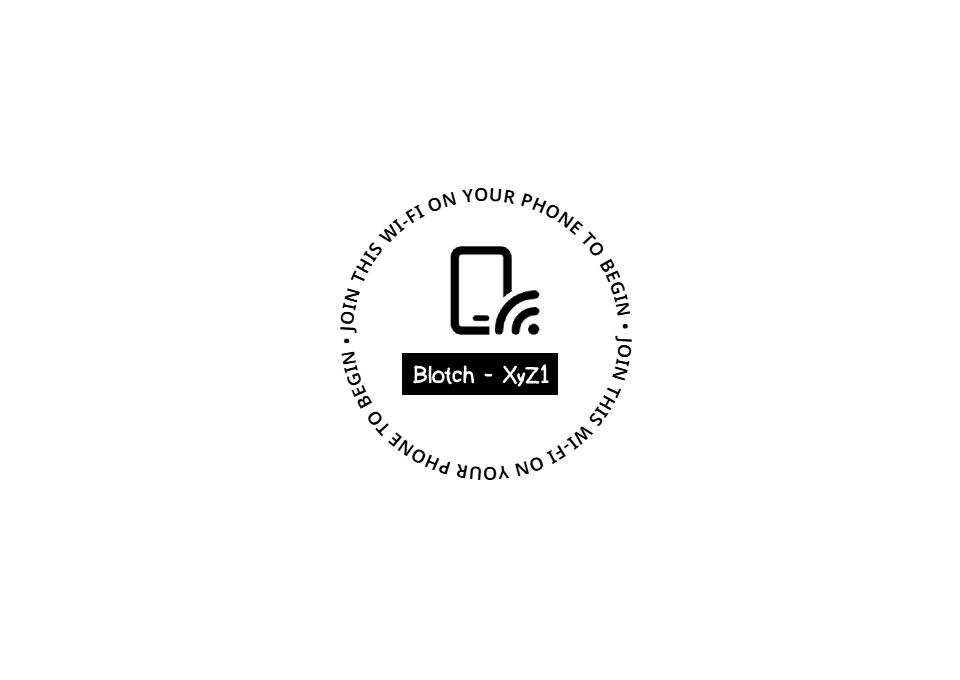
Move the power switch on the back of the Frame up. After a moment the Frame asks you to join its Wi-Fi network:
If nothing appears, the battery may be flat. Plug the Frame in to charge for a few minutes, then try again.
2. Connect it to your Wi-Fi
The screen shows the name of the Frame's own network, such as Blotch - XyZ1. The four characters at the end are different on every Frame.
- On your phone, open your Wi-Fi settings and join the network shown on the Frame. It has no password.
- A Blotch WiFi Setup window opens on your phone. If it doesn't, open any web page in your phone's browser and the setup page appears instead.
- Choose your home network from the list. If it isn't there, choose Refresh, or choose Enter manually and type its name.
- Enter your Wi-Fi password and choose Connect.
When the Frame has joined your network, your phone says Connected and the Frame shows Successfully connected to WiFi.
If your phone says the password is wrong or the network can't be found, choose Back and try again. If it still won't connect, see Troubleshooting.
3. Link it to your account
Next, the Frame shows a QR code:
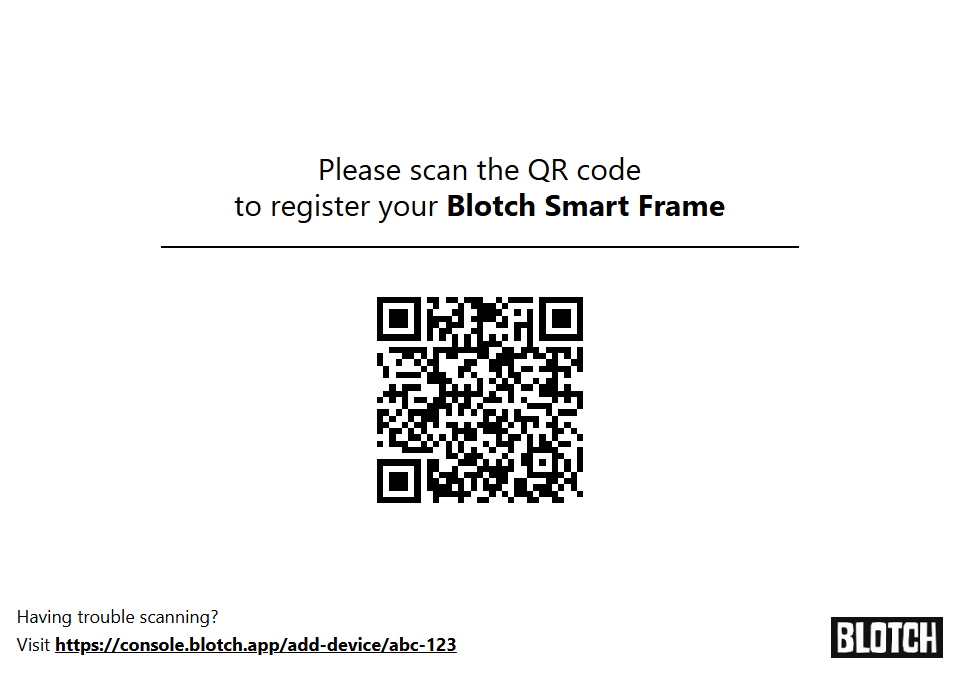
- Scan the code with your phone's camera, or type the address printed under it into a browser. It opens the Blotch Console.
- Sign in, or choose Create account if you don't have an account yet.
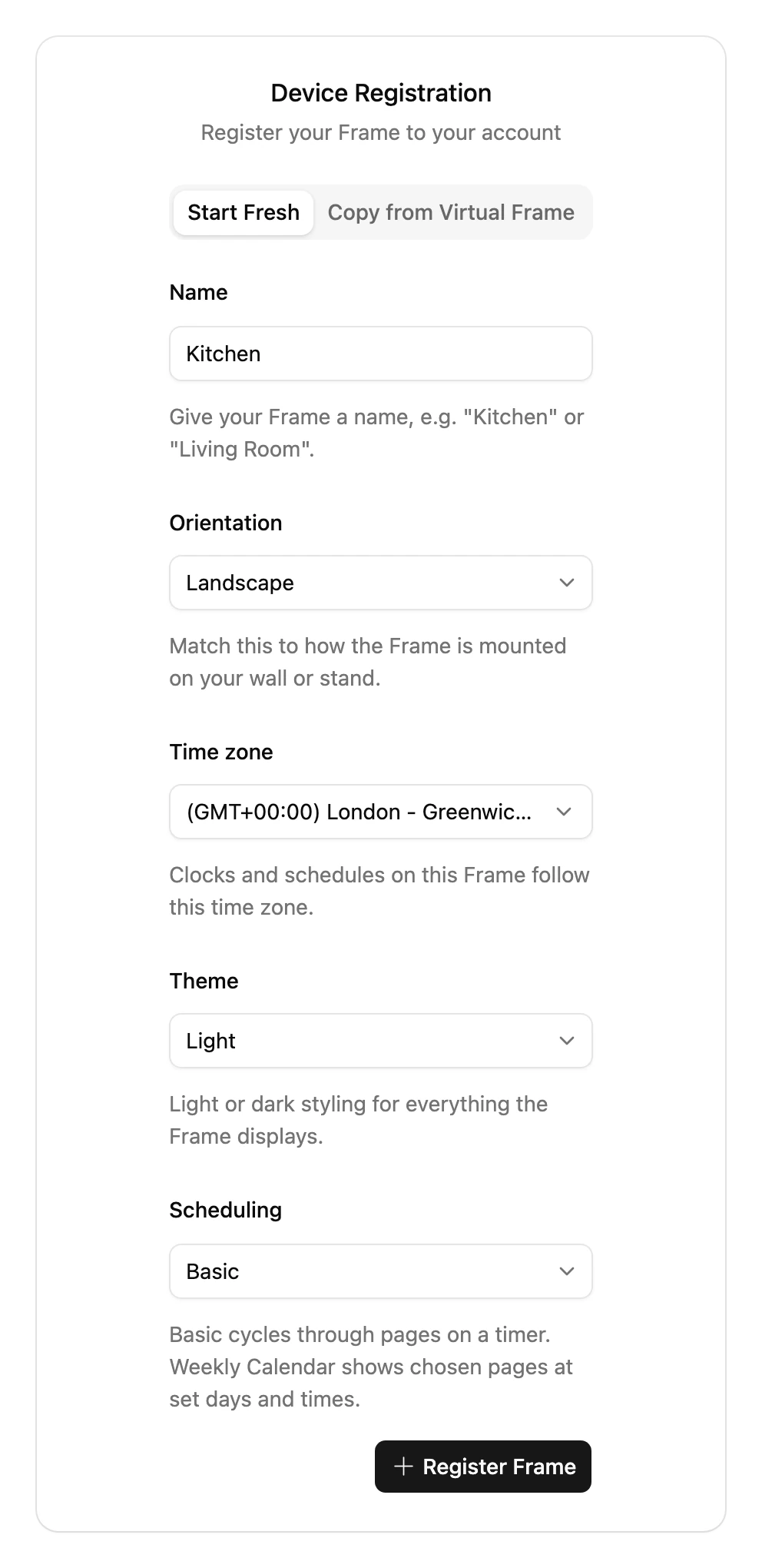
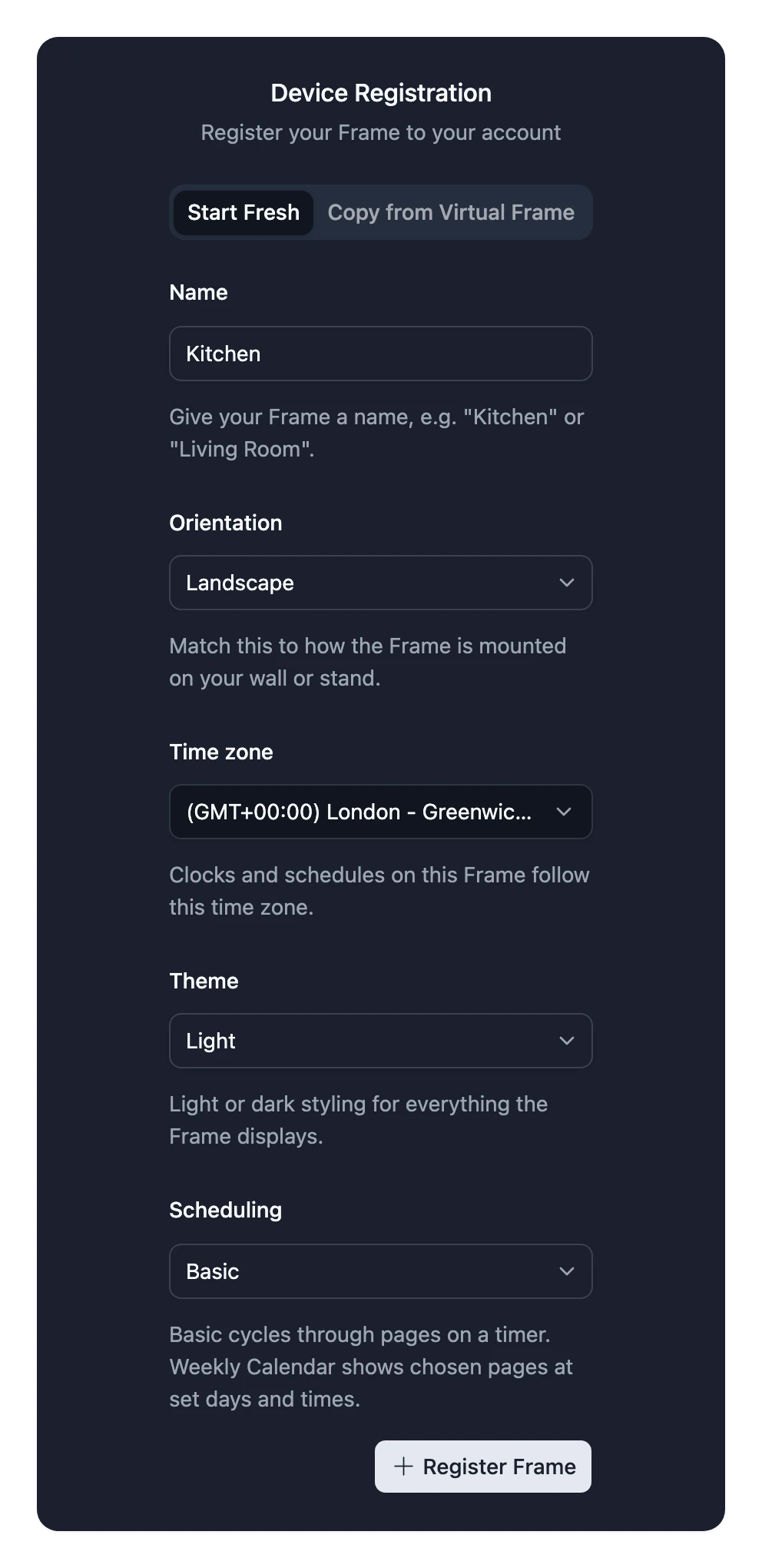
- Under Device Registration, choose Start Fresh. Give the Frame a name, such as Living Room, and pick its orientation, time zone and theme. You can change any of them later.
- Choose Register Frame.
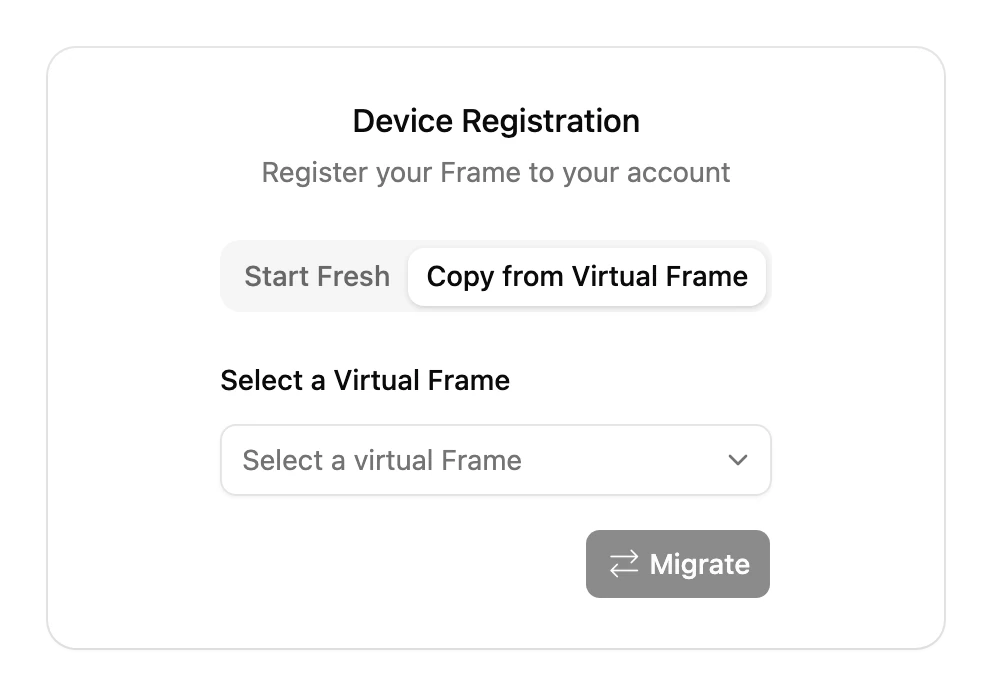
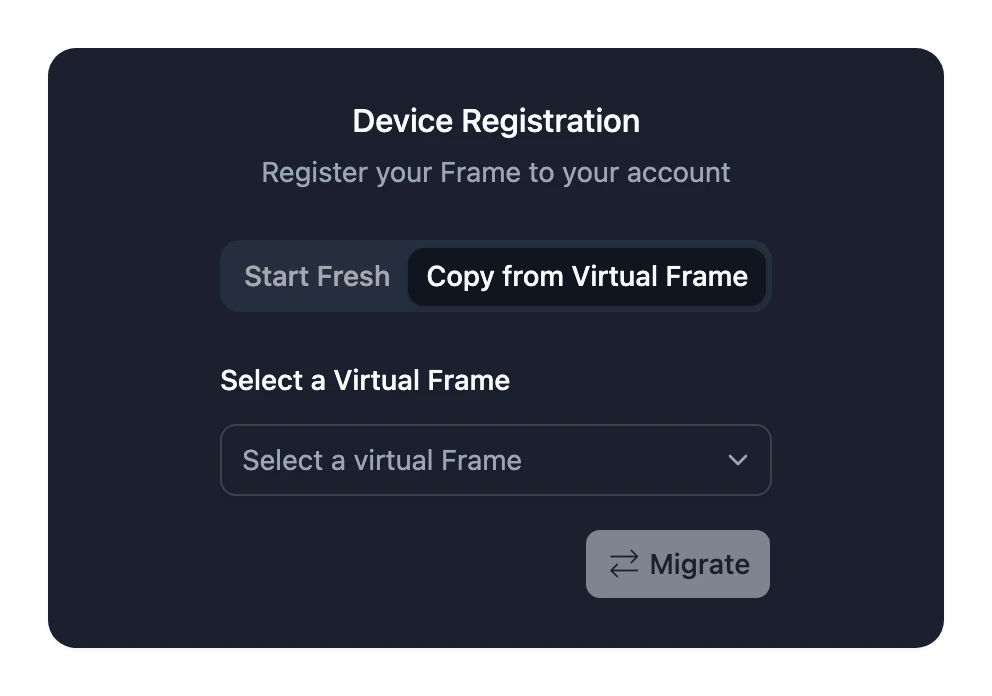
Already set up a Virtual Frame? Choose Copy from Virtual Frame instead, to move its Pages and schedule onto your new Frame.
4. See your first Page
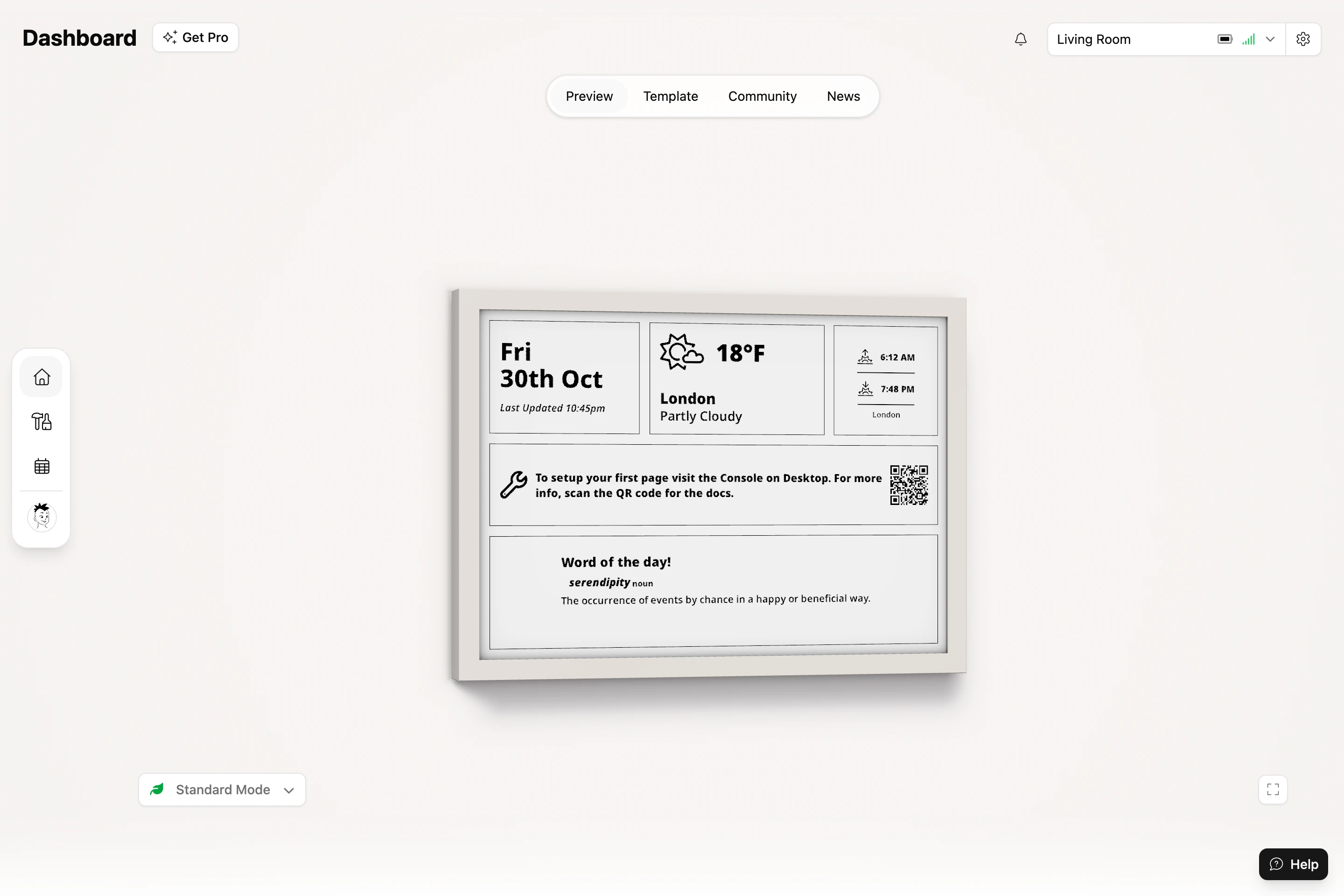
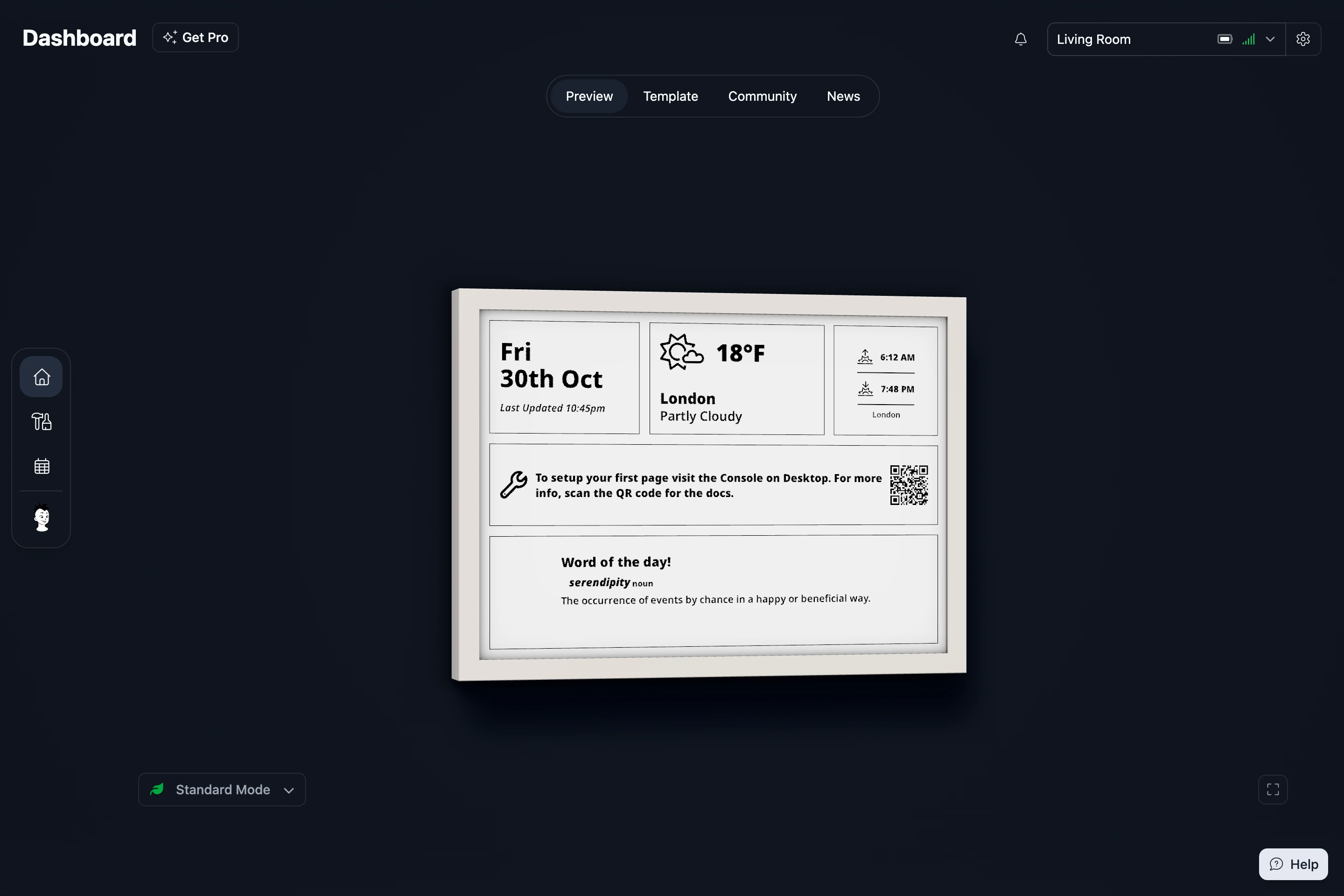
The Console says Success! Your Frame now has an Example Page with the date and time, the weather, sunrise and sunset, a word of the day and a few tips.
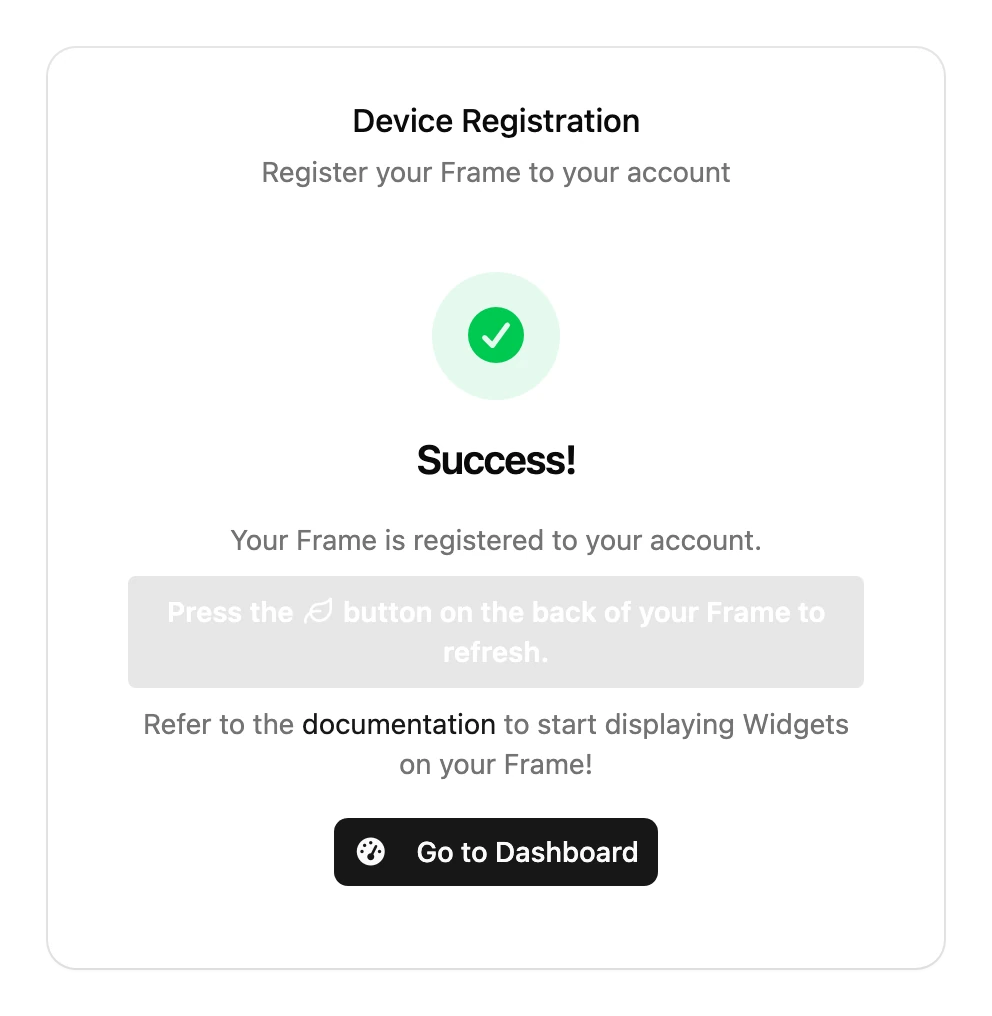
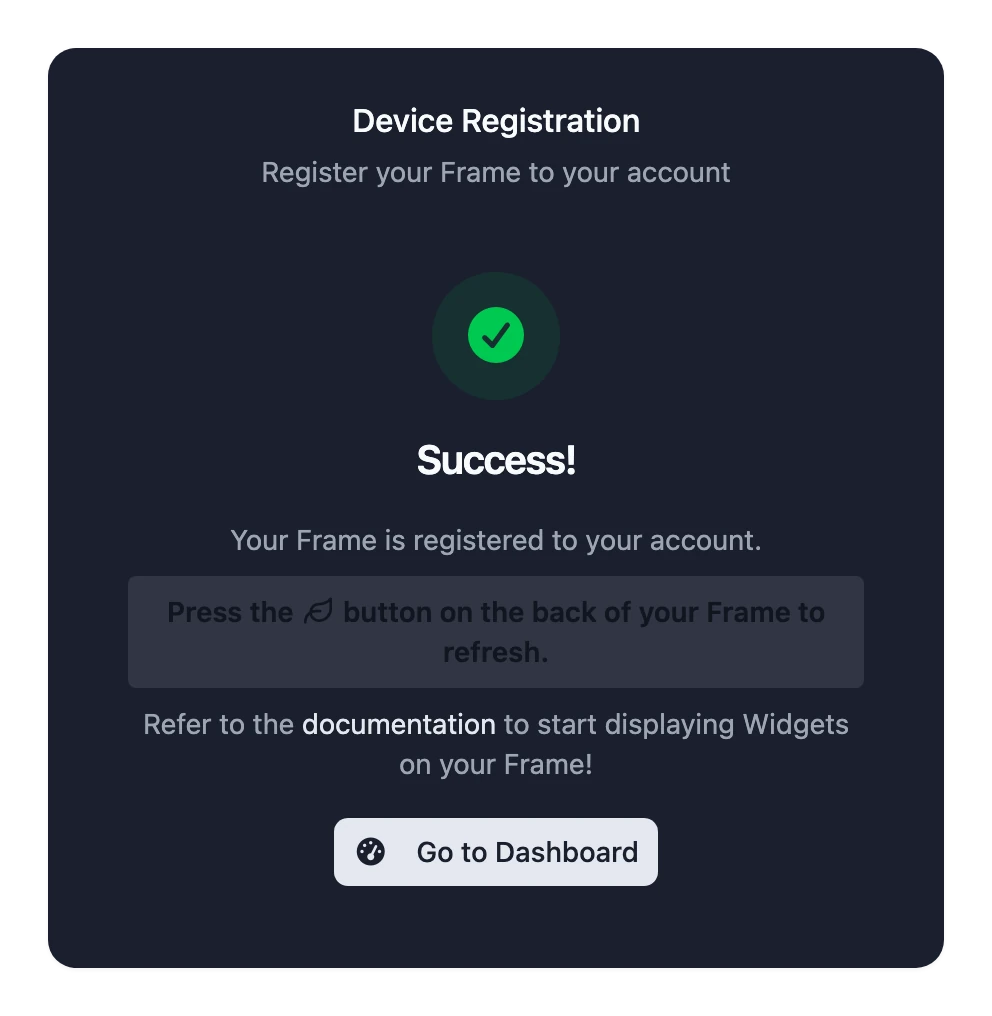
Press the button with the leaf () on the back of the Frame to show it straight away. Otherwise it appears by itself within a few minutes.
Your Frame is set up.
Next steps
You choose what your Frame shows in the Blotch Console, at console.blotch.app. Use it on a computer: the editor needs a bigger screen than a phone has.
- Find and install Widgets to show the information you care about.
- Arrange Widgets on a Page to lay them out.
- Choose when each Page shows, such as train times in the morning and your to-do list in the evening.
- Mount it on a wall.
- Learn what the buttons on the back do.