Upgrade a Widget
Widget creators keep improving their Widgets. Most updates reach your Frame by themselves. But some updates change what you set up when you added the Widget, such as a setting it no longer uses or a new one it needs. Those come as a new major version, and your Frame keeps the version you set up until you choose to upgrade, so nothing breaks.
Spot an update
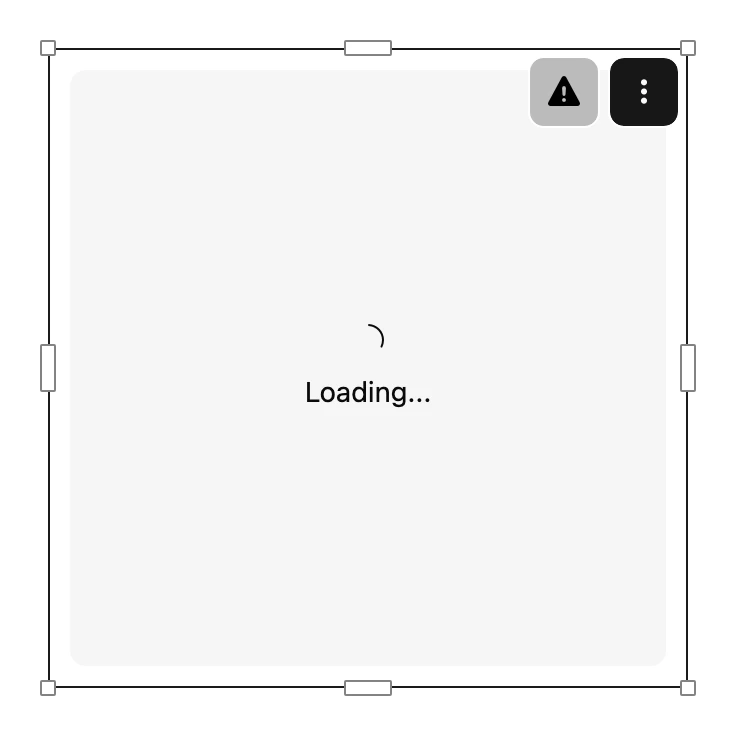
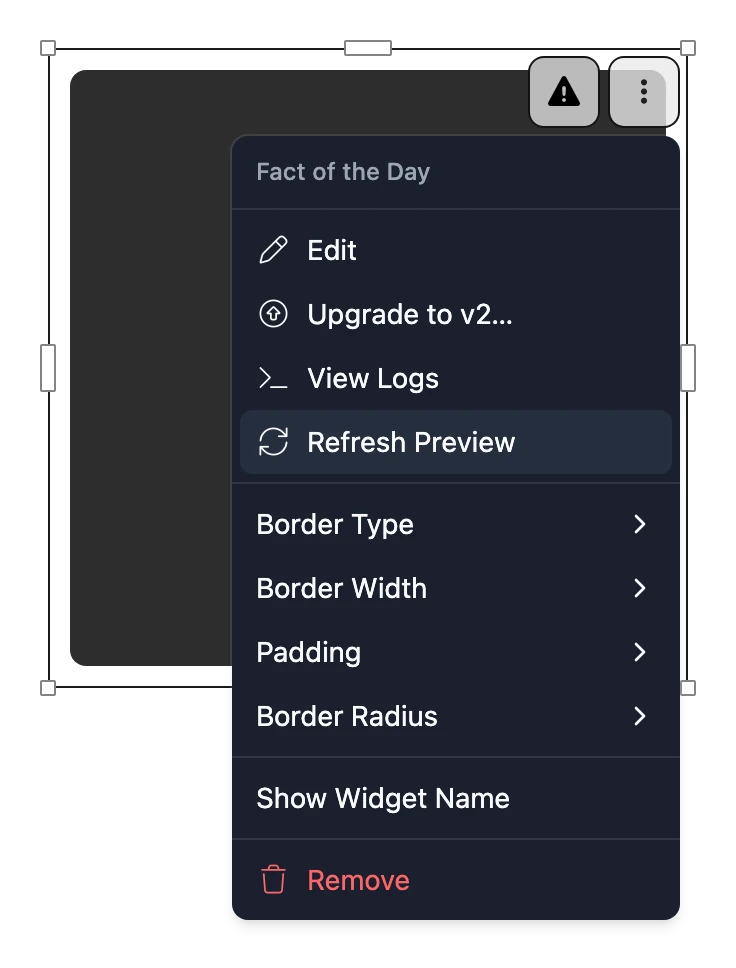
- In the Editor, a warning triangle appears beside the ⋮ of a Widget with a new version. Hover over it to see which version.
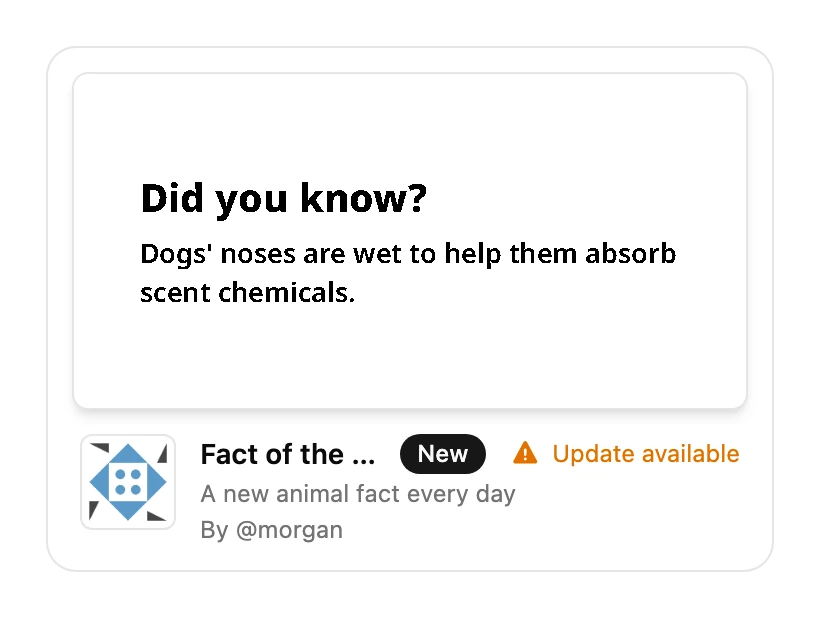
- In the Widget Library, the Widget shows Update available.
- When you choose Add to Frame on a Widget you've installed, each install shows its version, and Update available if there's a newer one.

Upgrade
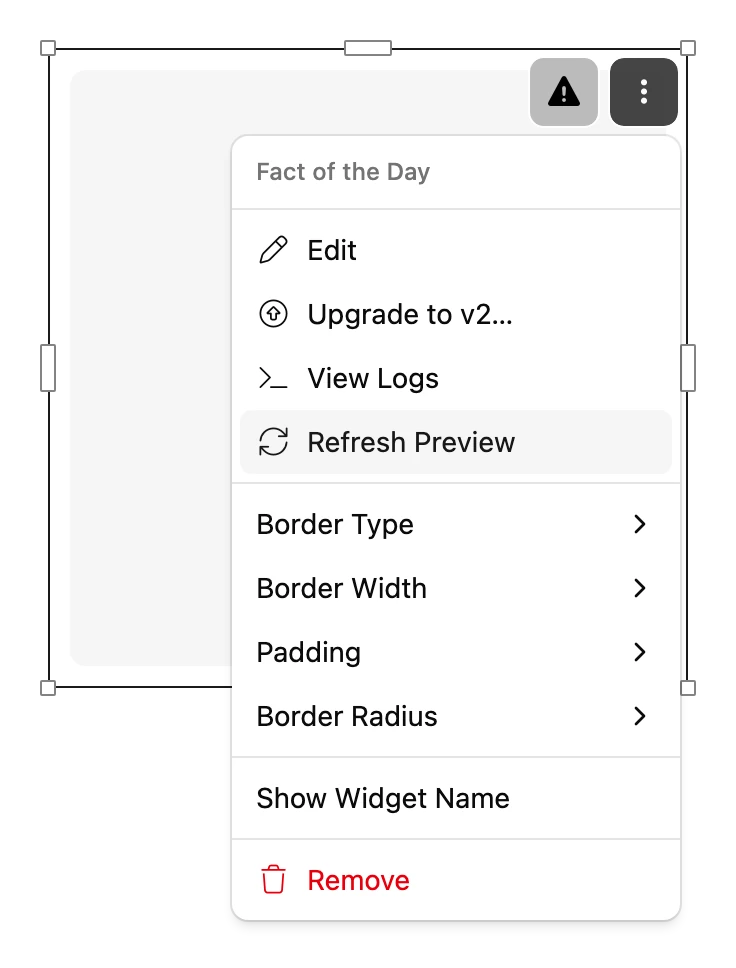
- Choose ⋮ on the Widget, or right-click it, and choose Upgrade to v….
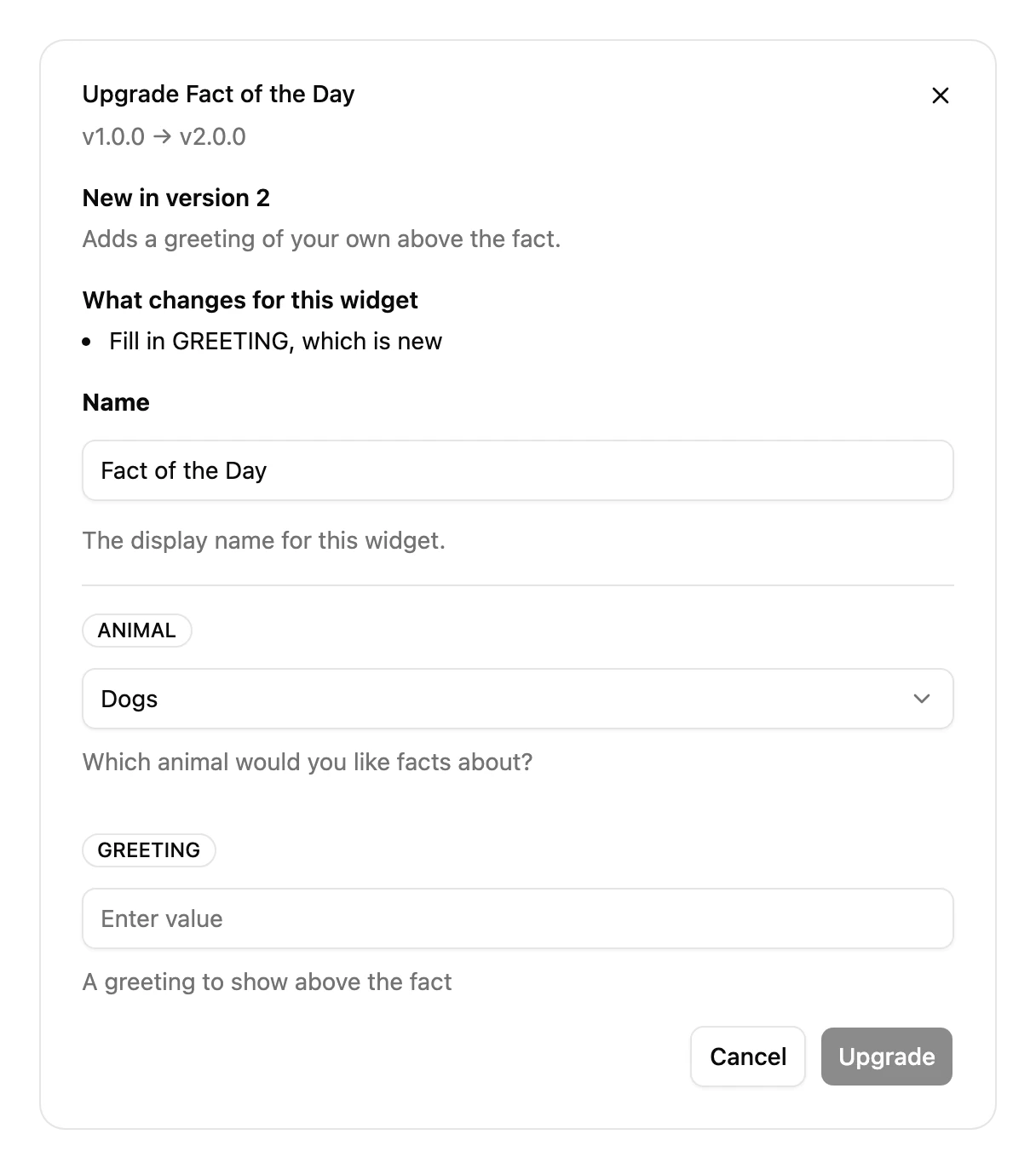
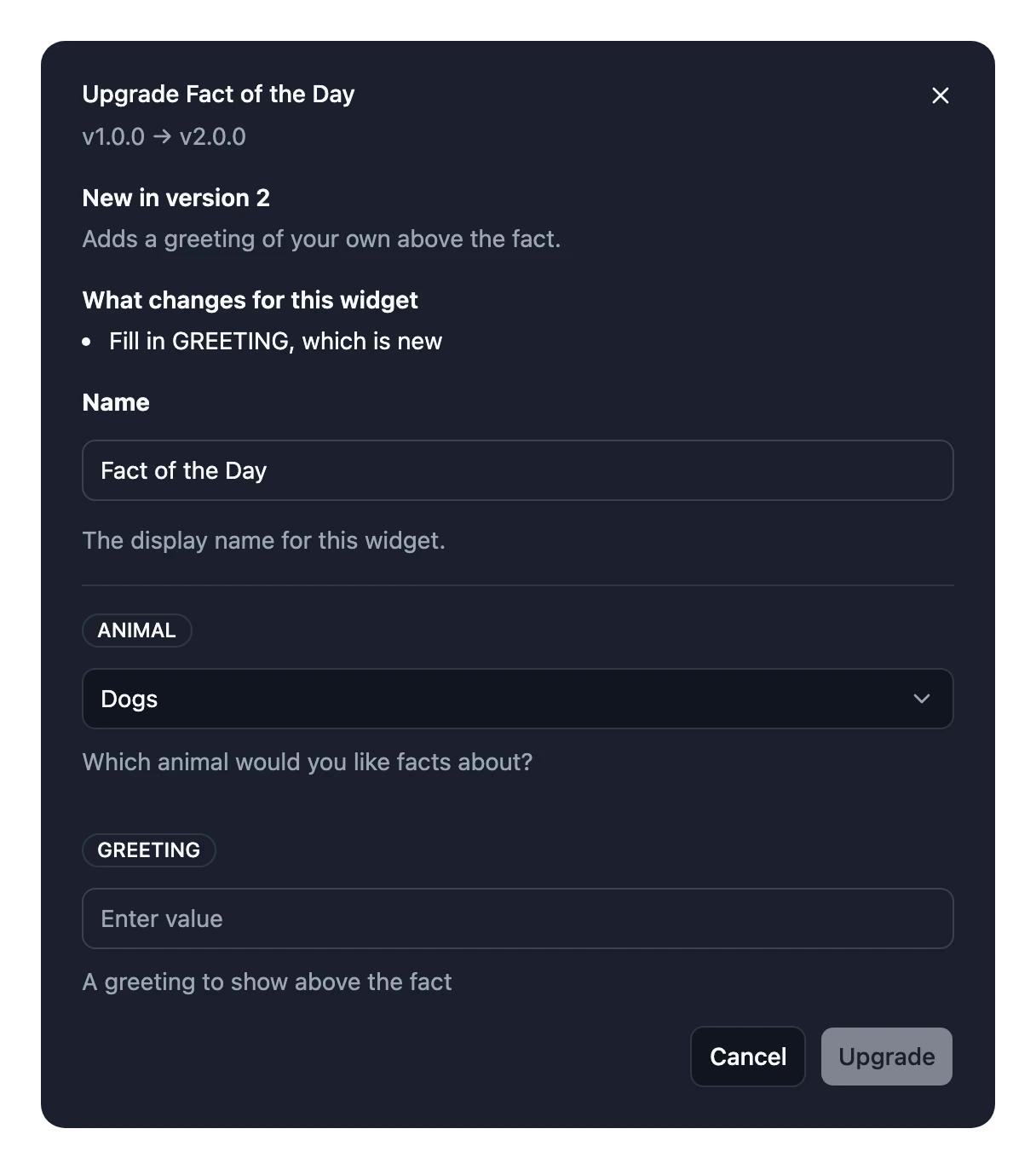
- Read New in version…, the creator's notes on what's new, and What changes for this widget, such as a setting that's no longer used or a new one to fill in.
- Check the settings. Everything that still fits the new version is filled in for you. Fill in anything new, and connect any new account the Widget asks for.
- Choose Upgrade.
Your Frame shows the new version the next time it refreshes.
info
You can't go back to an older version once you've upgraded.