Find and install Widgets
Widgets are the pieces a Page is made of: the weather, your calendar, train times, a quote of the day and many more. Most are made by people in the Blotch community. You find them in the Widget Library.
Open the Widget Library
- Pick your Frame in the frame selector at the top right of the Console.
- Choose Editor in the menu on the left.
- Select the Page you want the Widget on, then choose Add a Widget under the Frame.
The Widget Library has three tabs:
- Explore shows the whole library, in shelves: Widgets we love, picked by the Blotch team, then Popular widgets, Recently added, and shelves such as Trending and Hidden gems. Choose See all to see everything on a shelf.
- Installed shows the Widgets already on this Frame.
- Your Creations shows Widgets you've built yourself that aren't on this Frame yet.
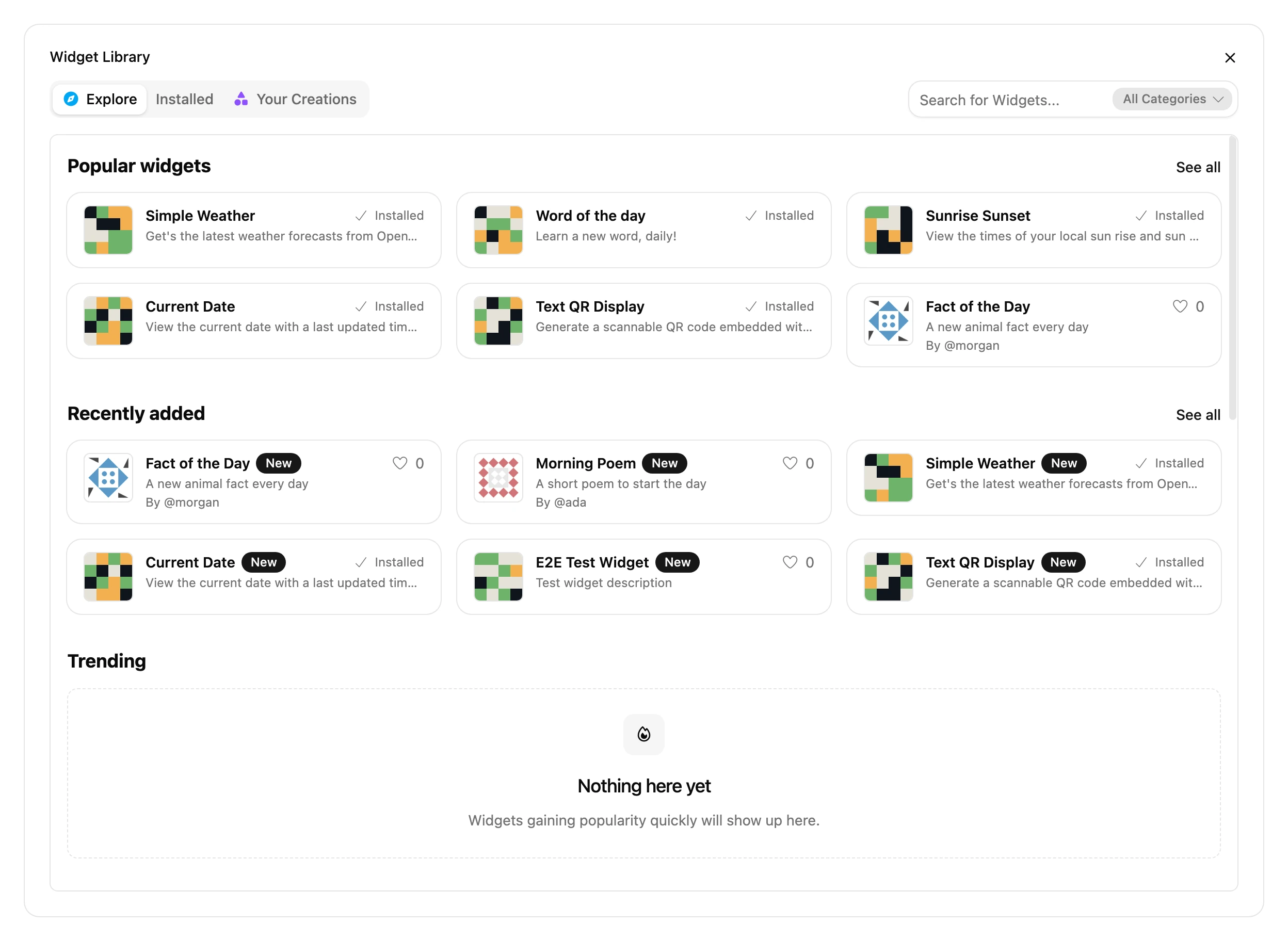
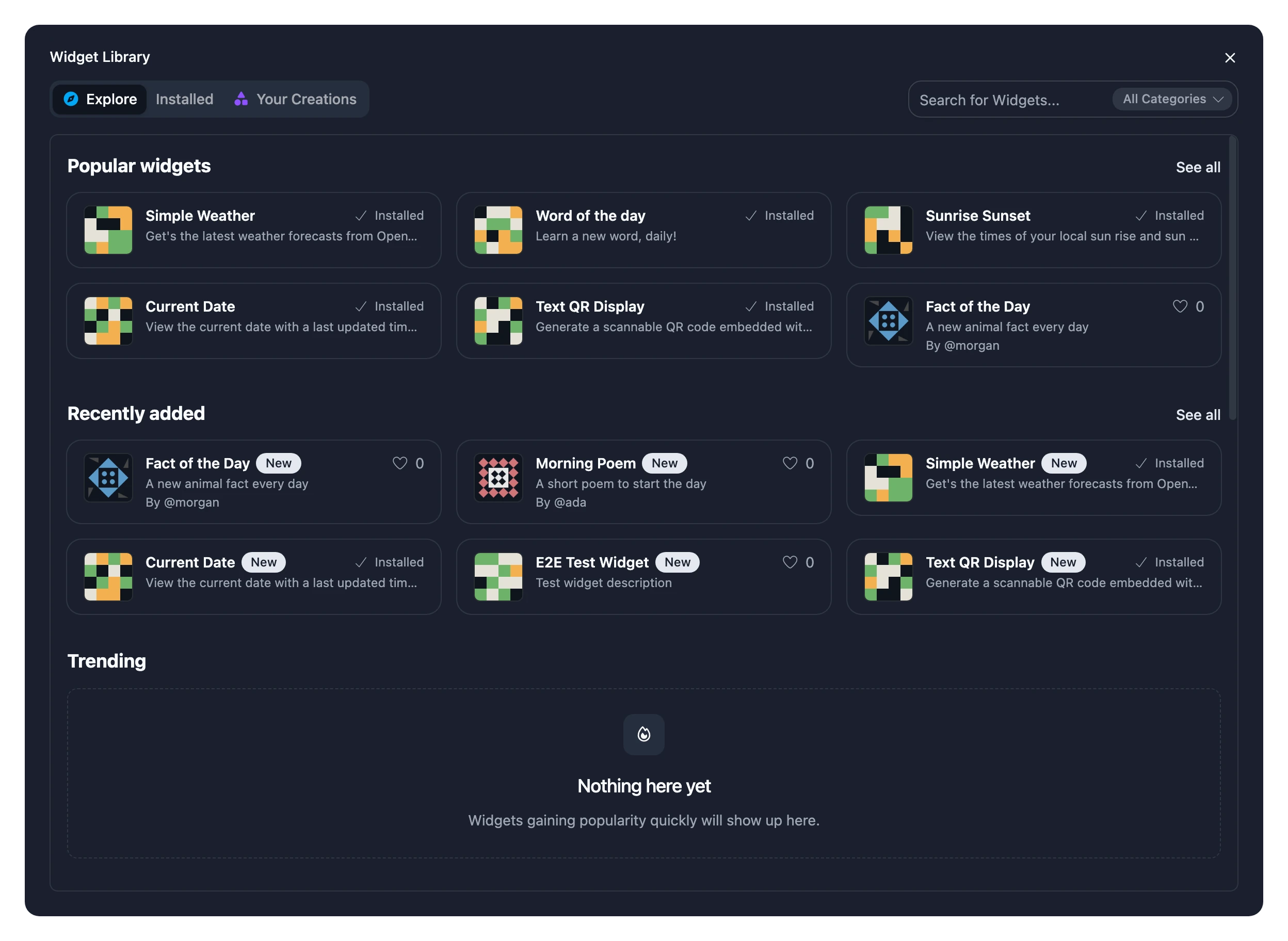
Search
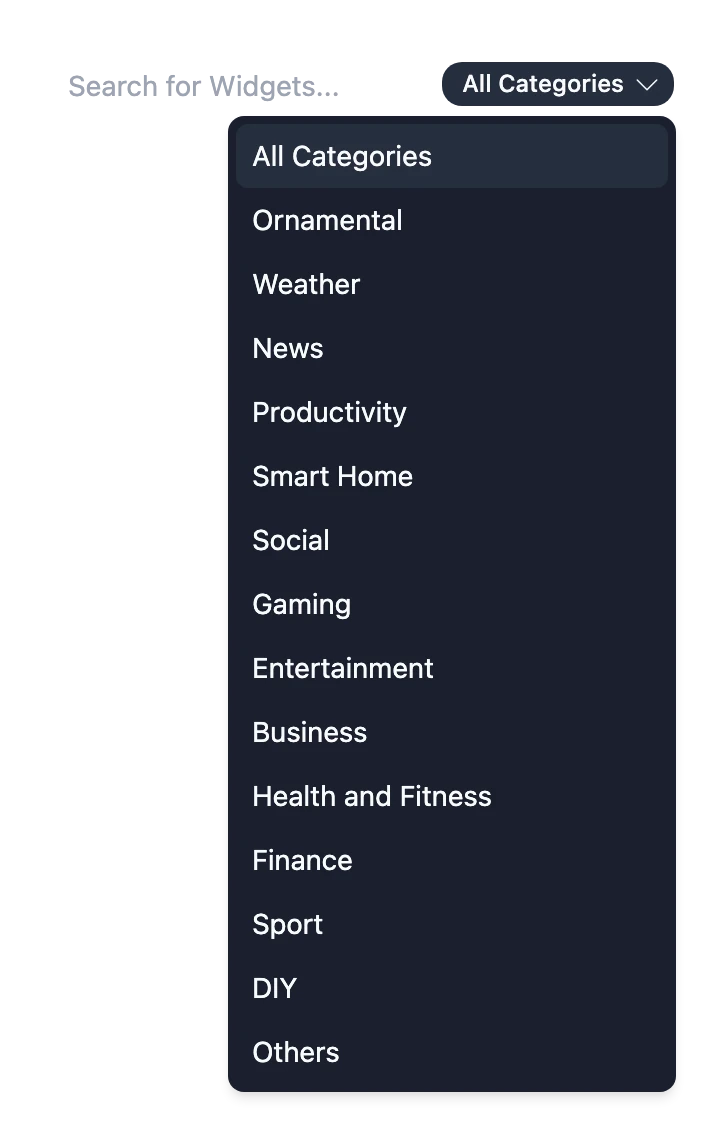
Type in Search for Widgets... to find a Widget by name or by what it does. To narrow it down, pick a category from the list beside the search box: Ornamental, Weather, News, Productivity, Smart Home, Social, Gaming, Entertainment, Business, Health and Fitness, Finance, Sport, DIY or Others. Pick a category with nothing in the search box to see all of it.
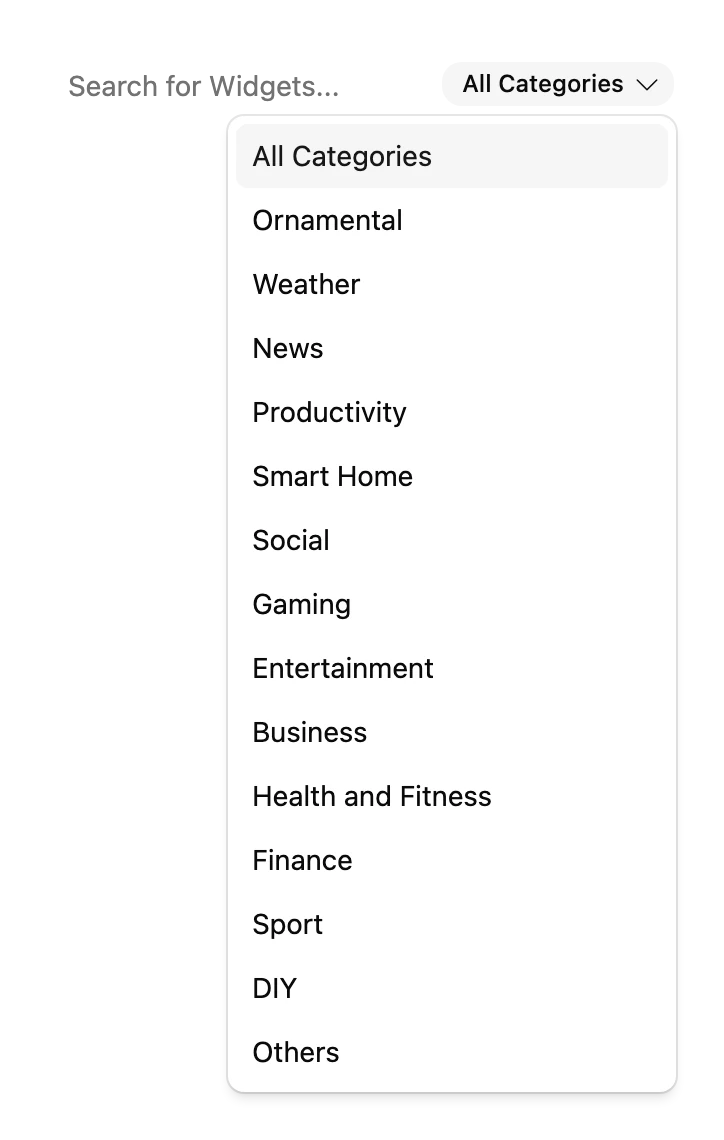
Install a Widget
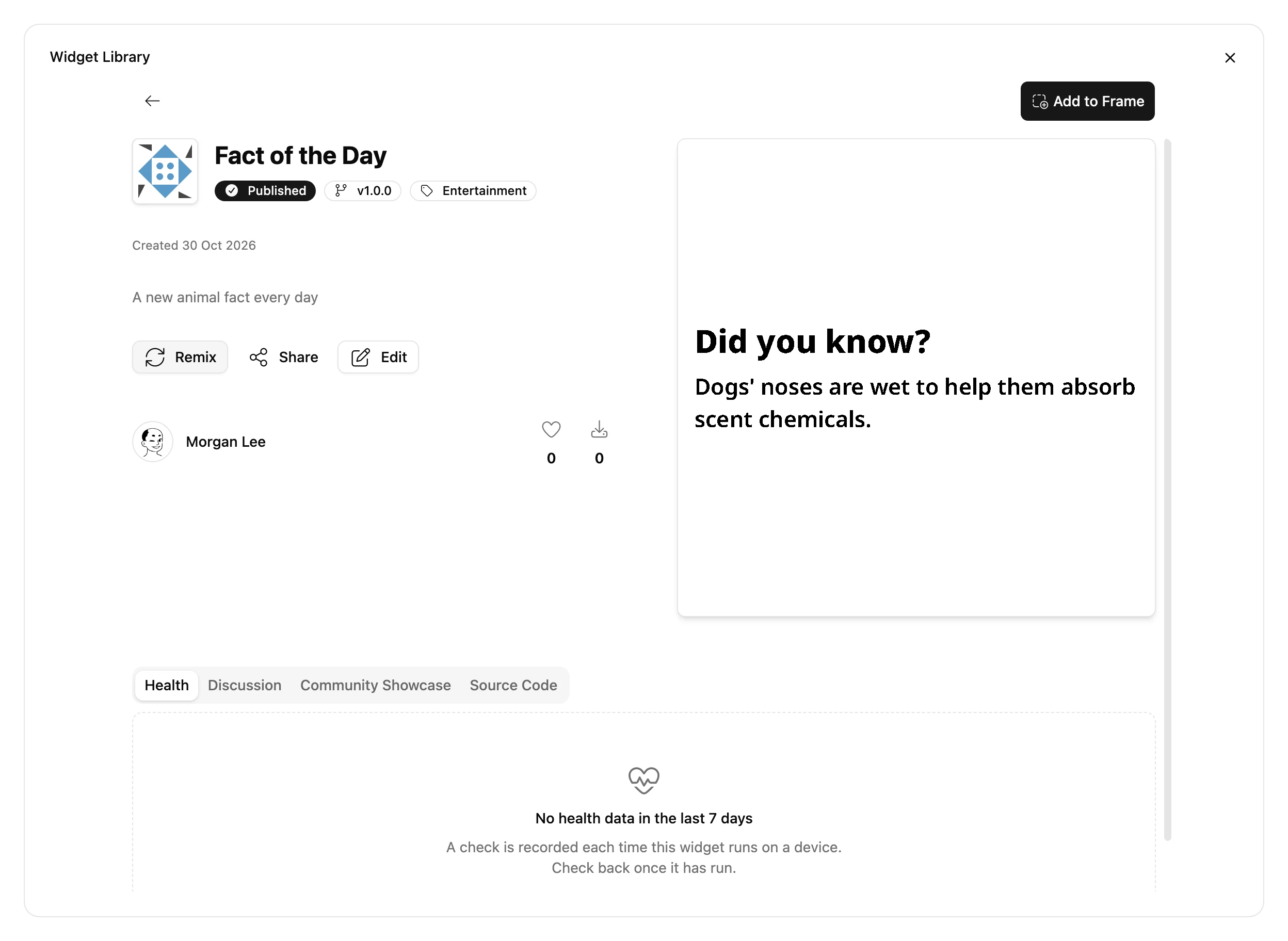
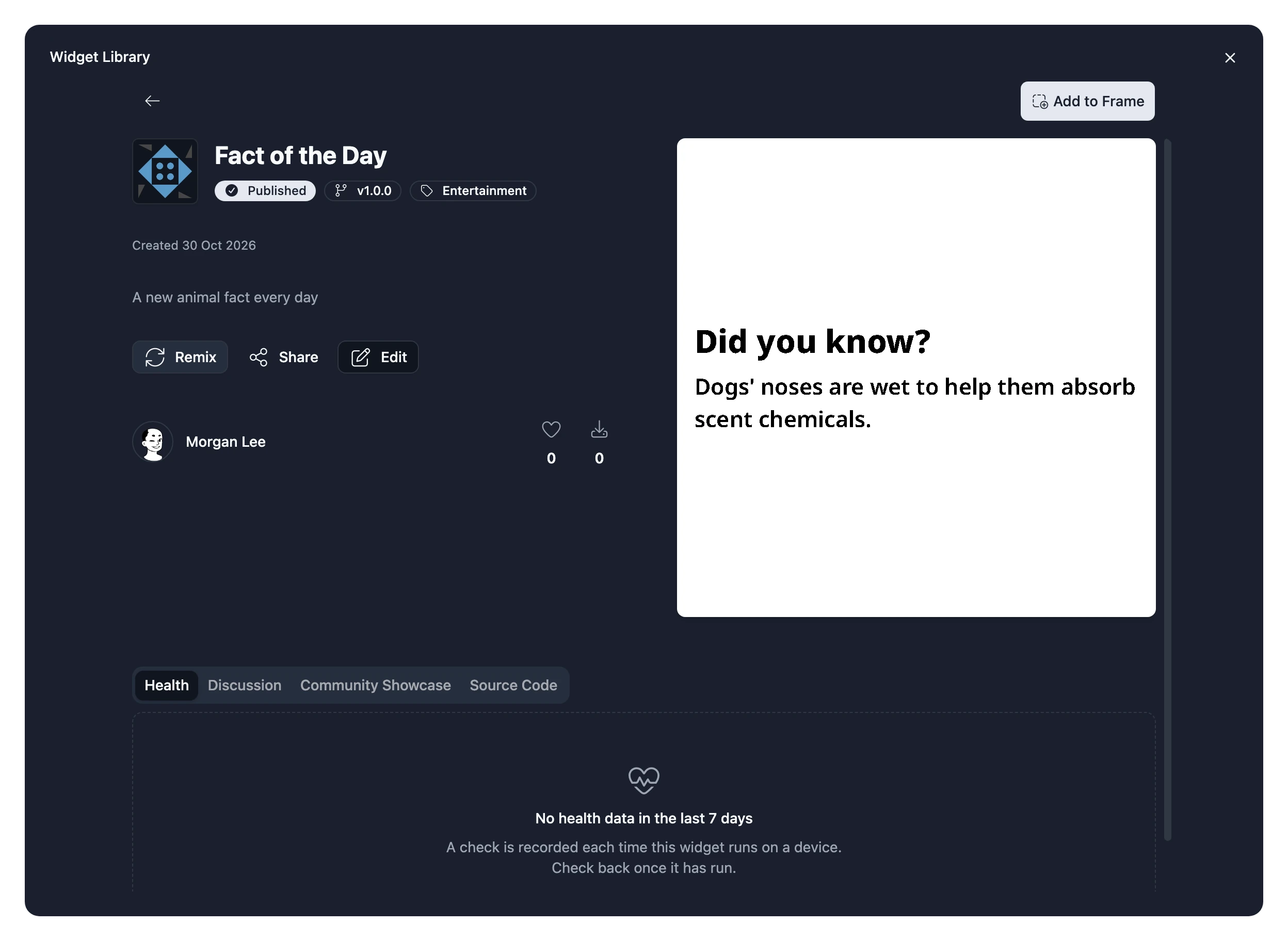
- Choose a Widget to open its page. It shows previews, what the Widget does and who made it.
- Choose Add to Frame.
- Fill in the Widget's settings, such as your city or which calendar to show. Each Widget asks for different things.
- Choose Create.
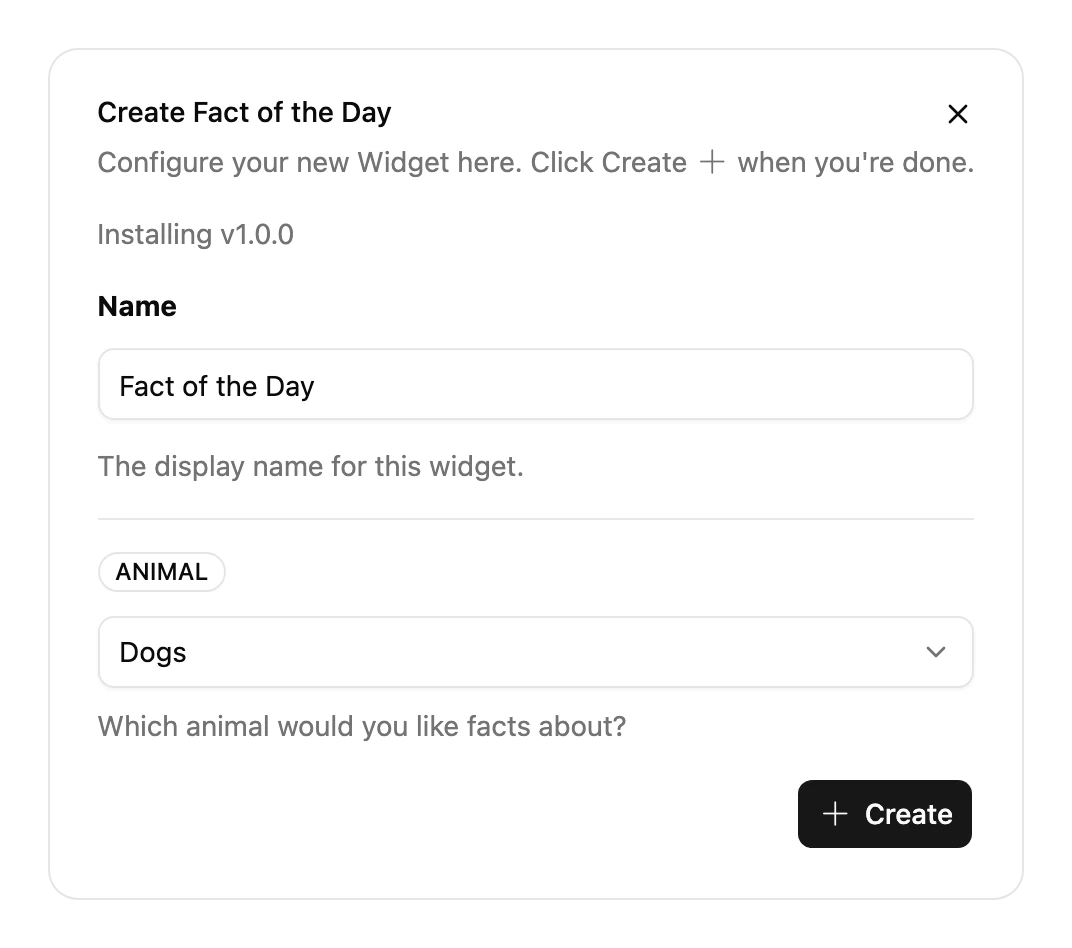
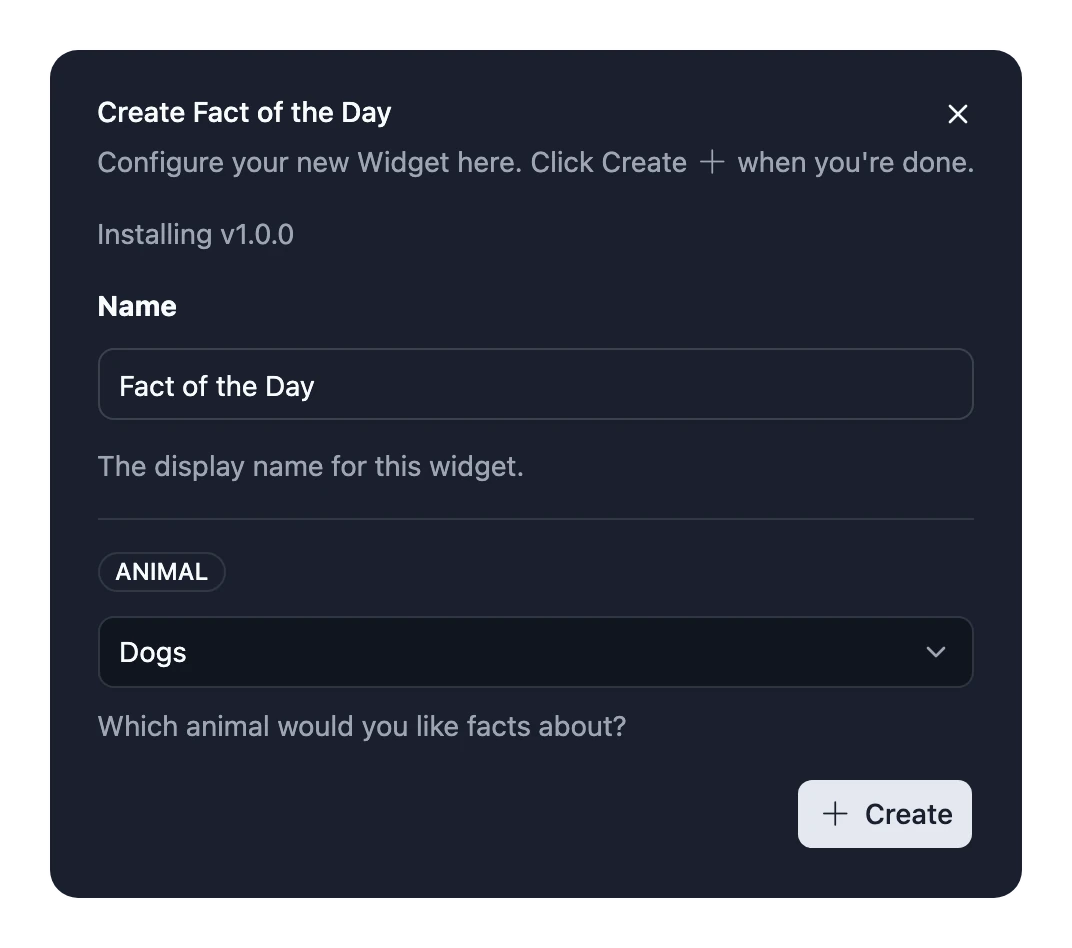
The Widget is installed on your Frame and placed on the Page you have open. Next, arrange it on the Page.
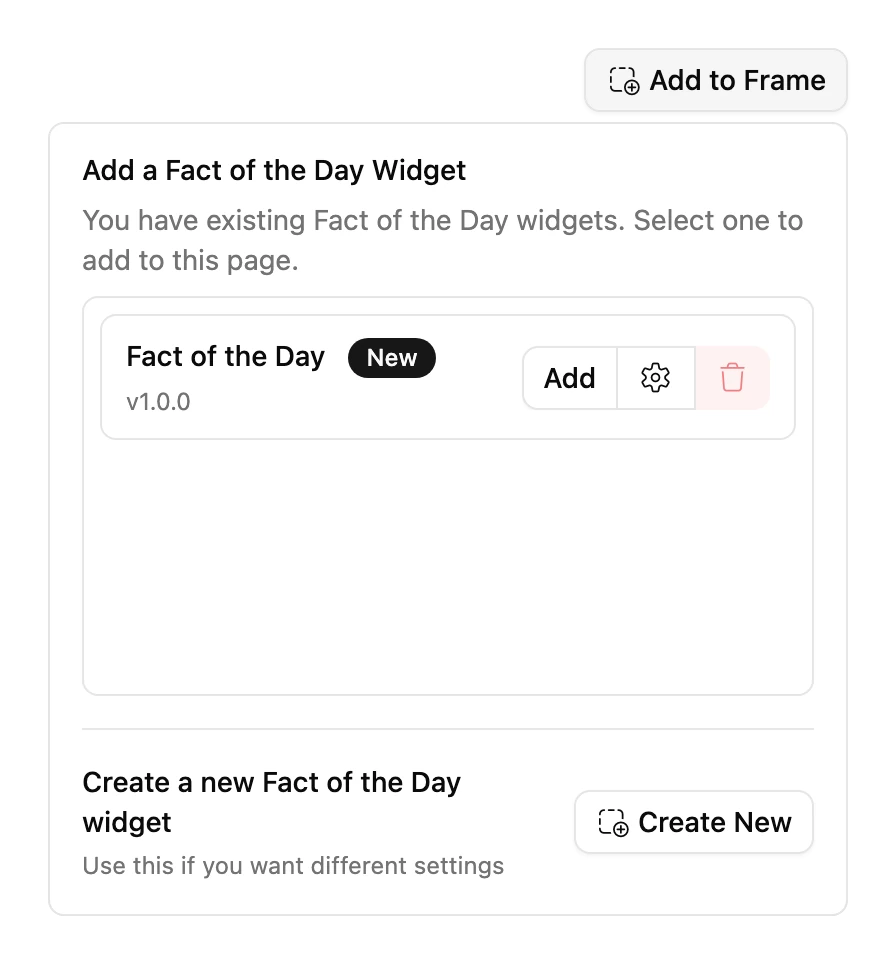
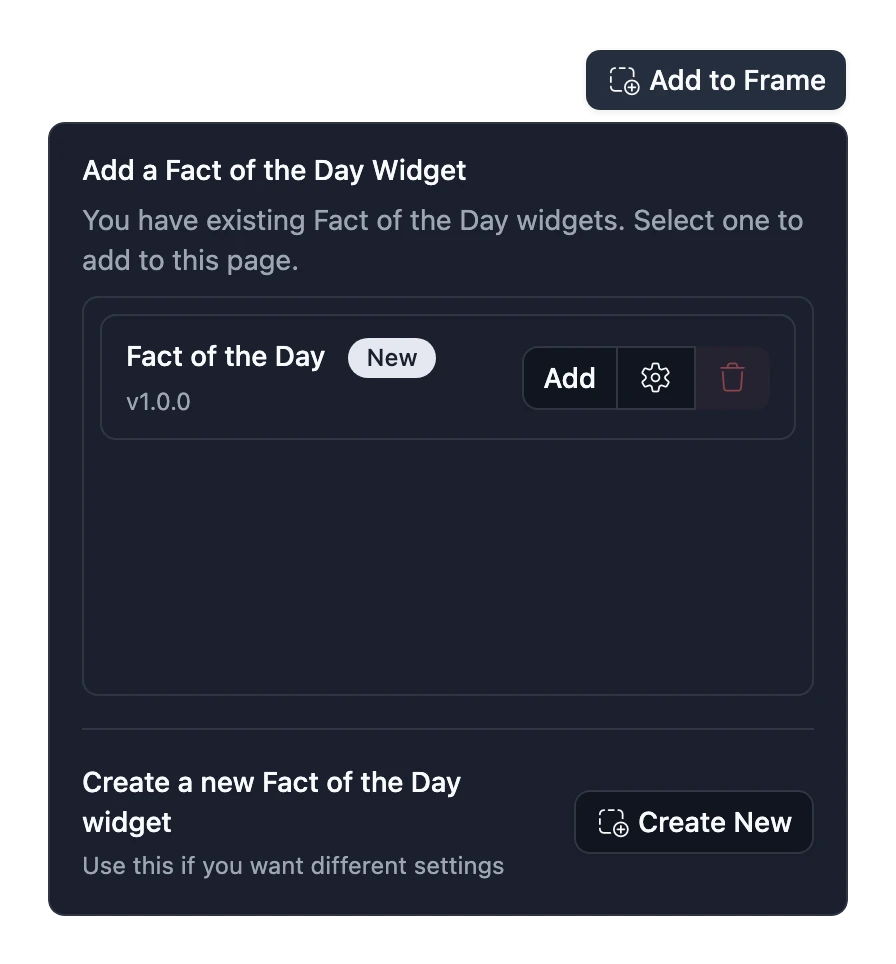
You can install the same Widget more than once with different settings, for example to show the weather in two cities. Choosing Add to Frame on a Widget you've already installed lists your installs: choose Add beside one to place it on this Page as well, or Create New to install it again with different settings.
Limits
- A Frame can have up to 100 installed Widgets.
- How many Widgets fit on one Page depends on your plan. The Add a Widget button shows how many you've placed out of how many you can. See Plans.
- If a Widget is installed but the Page is full, it isn't placed. Remove another Widget from the Page, then add it from the Installed tab.
Can't add a Widget?
- View only: someone shared this Frame with you as Can view. Ask an Admin for Can edit. See Share a Frame.
- Drafts cannot be added to a frame: the creator hasn't published it yet.
- Private widgets: only the creator can add a Private Widget, to Frames they own, while they have Pro.
Make your own
Can't find what you want? Build your own Widget, and publish it for everyone to use.