Frame settings
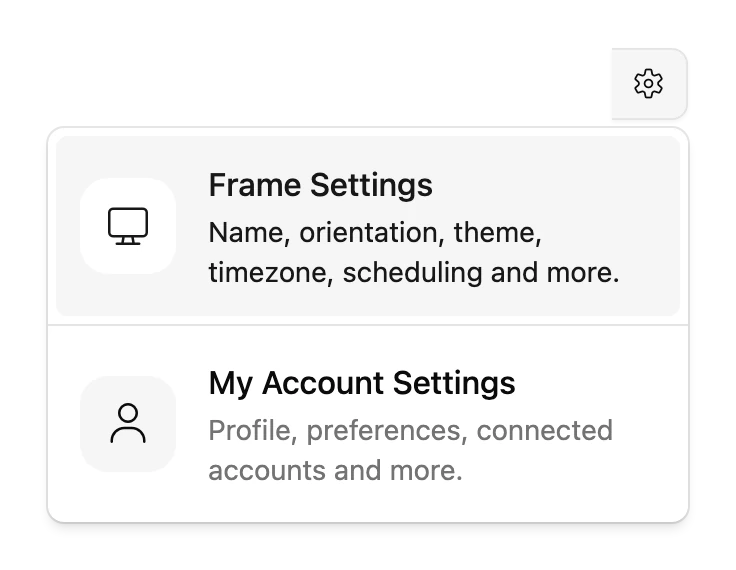
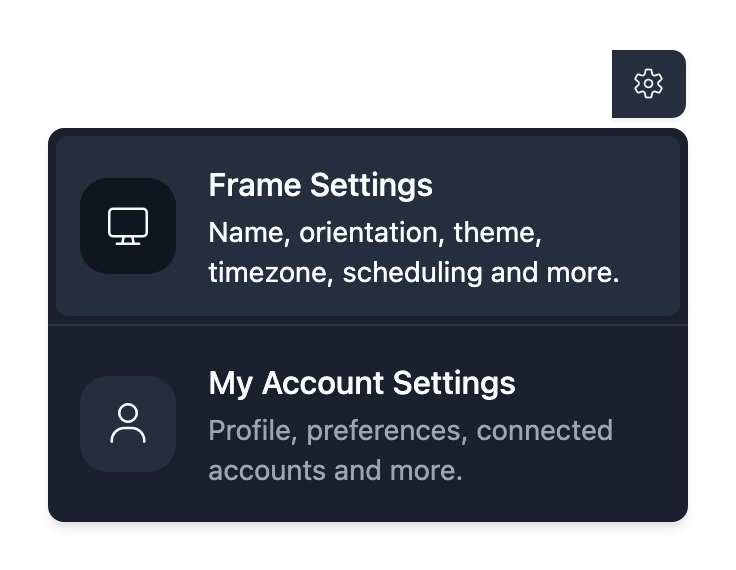
Each Frame has its own settings. To open them, pick the Frame in the frame selector at the top right of the Console, choose the gear beside it, then choose Frame Settings.
Choose Save to keep changes on the Frame Details and Locale and Schedule tabs. The other tabs act straight away.
Frame Details
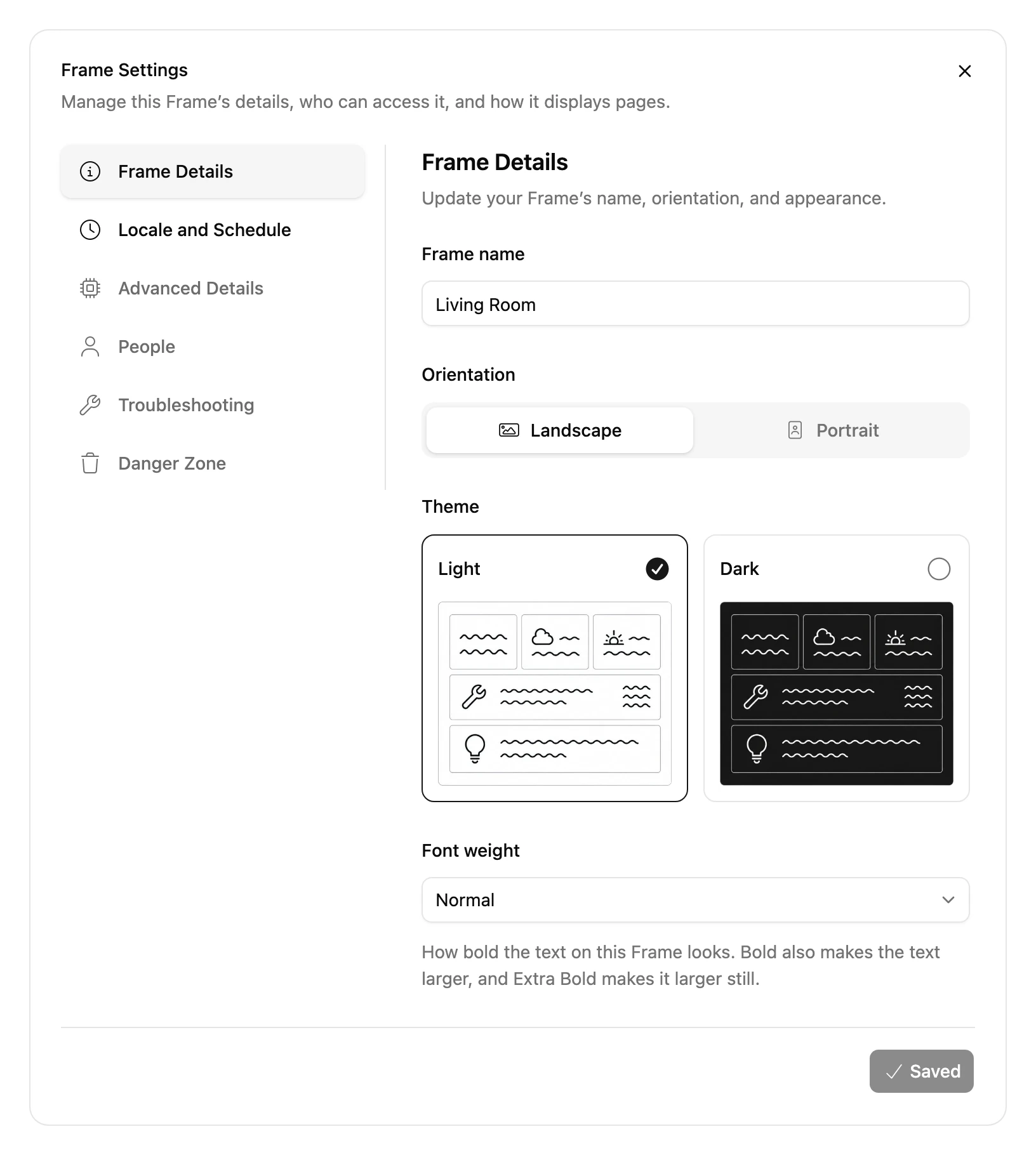
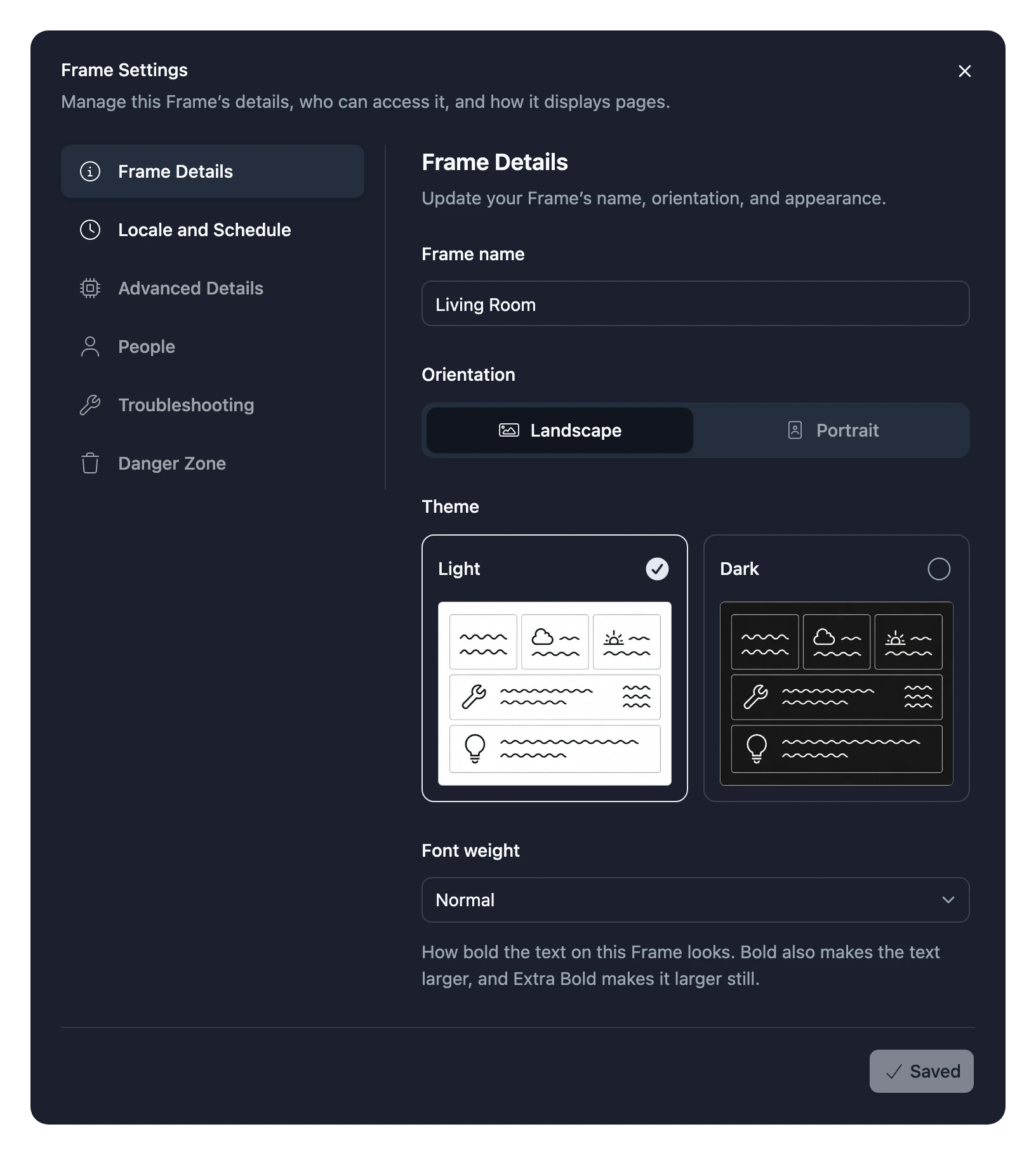
| Setting | What it does |
|---|---|
| Frame name | The name you see in the Console, such as Living Room. |
| Orientation | Landscape or Portrait. Match the way the Frame hangs, so your Pages are laid out the right way. |
| Theme | Light shows dark text on a light background. Dark shows light text on a dark background. |
| Font weight | Light, Normal, Bold or Extra Bold. Bold also makes text larger, and Extra Bold larger still. Useful if the Frame hangs far away. |
Locale and Schedule
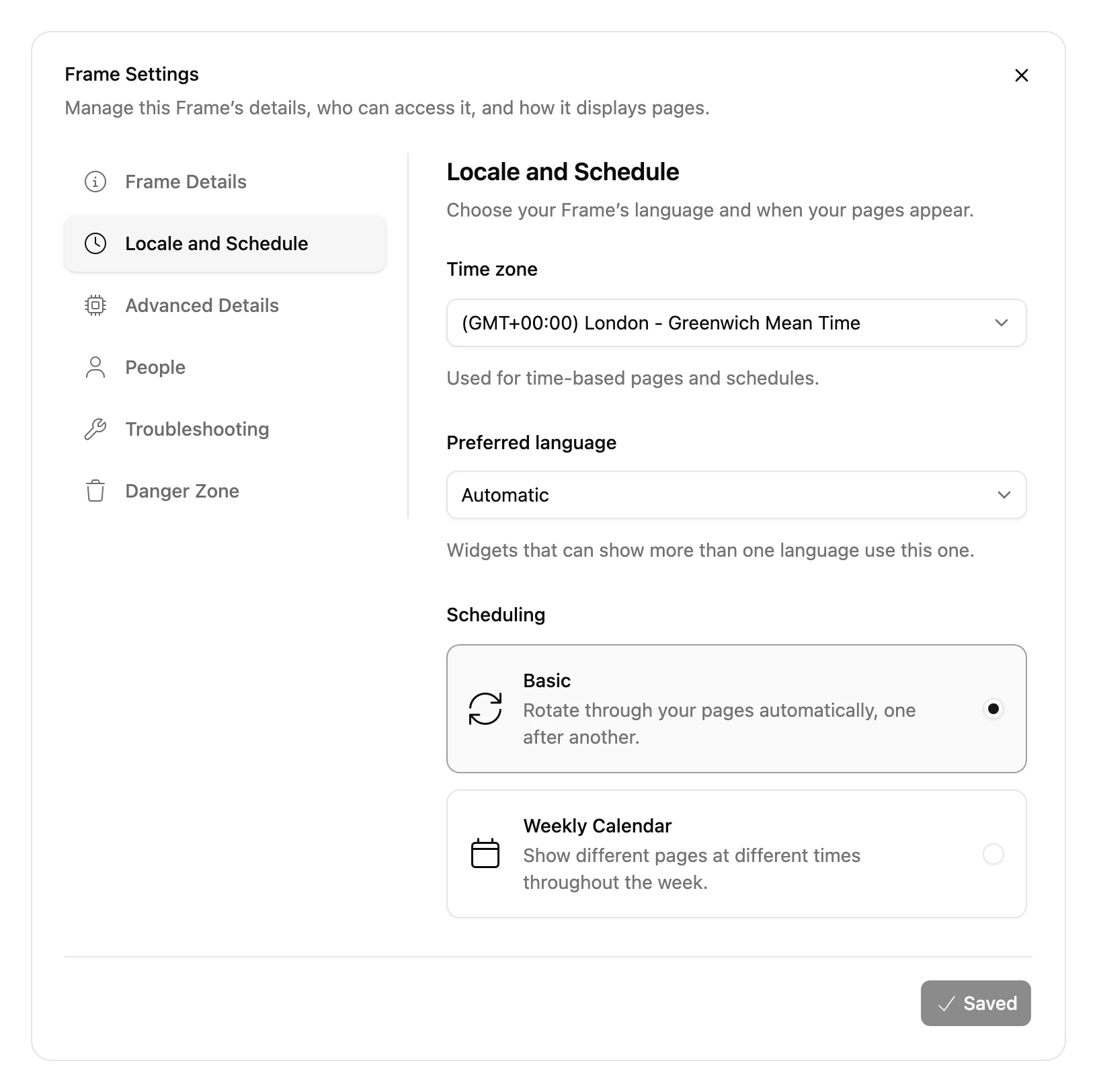
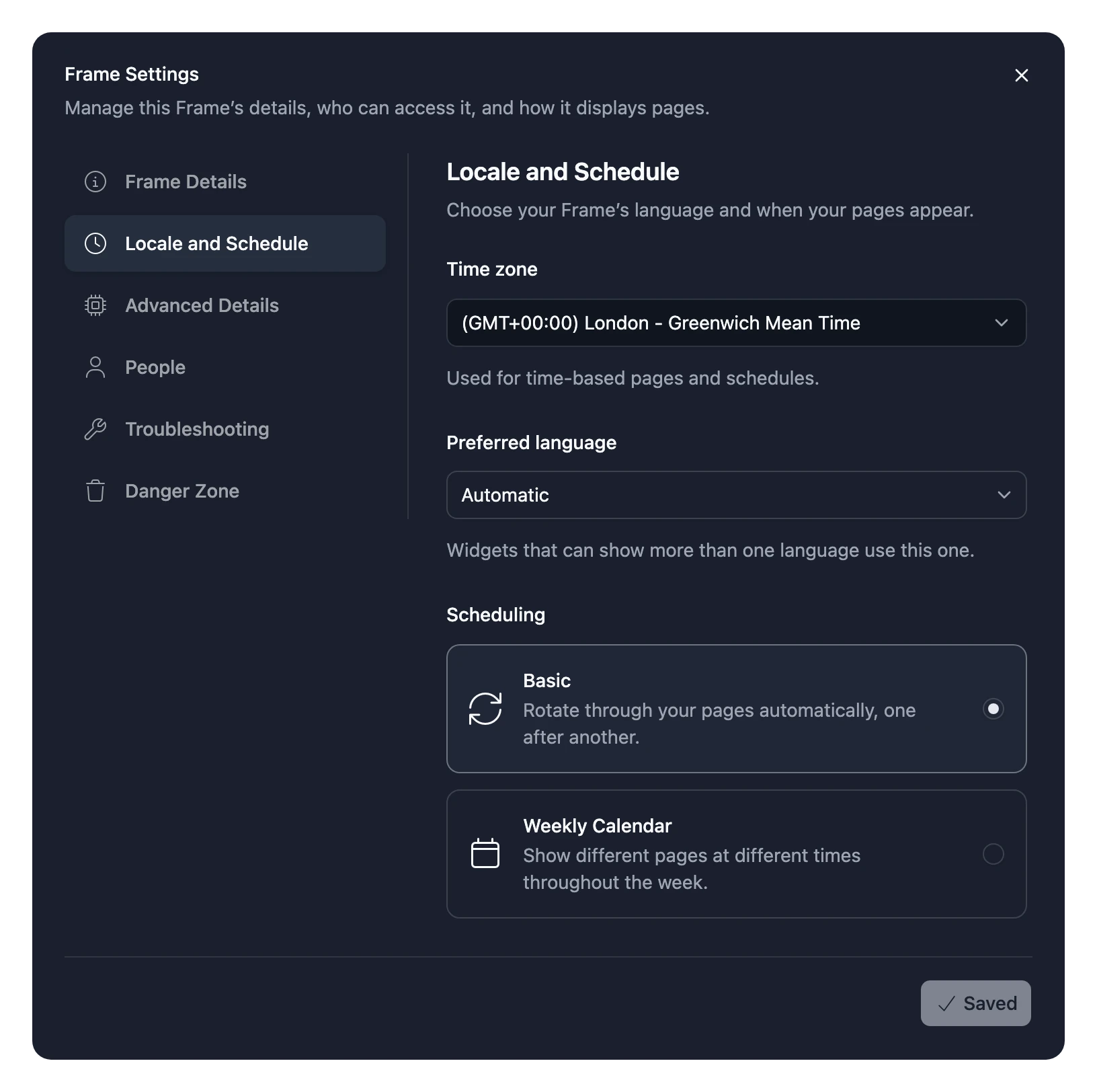
| Setting | What it does |
|---|---|
| Time zone | The time zone your schedule follows, and the one Widgets use to show the time. |
| Preferred language | The language Widgets use for dates, numbers and, when they've been translated, their words: English, Français, Deutsch, Italiano, Español or 日本語. Automatic uses English. |
| Scheduling | Basic rotates your Pages all day, every day. Weekly Calendar lets you choose a Page for each time of the week. See Choose when each Page shows. |
Switching Scheduling to Basic replaces your weekly events, and switching back doesn't bring them back.
Advanced Details
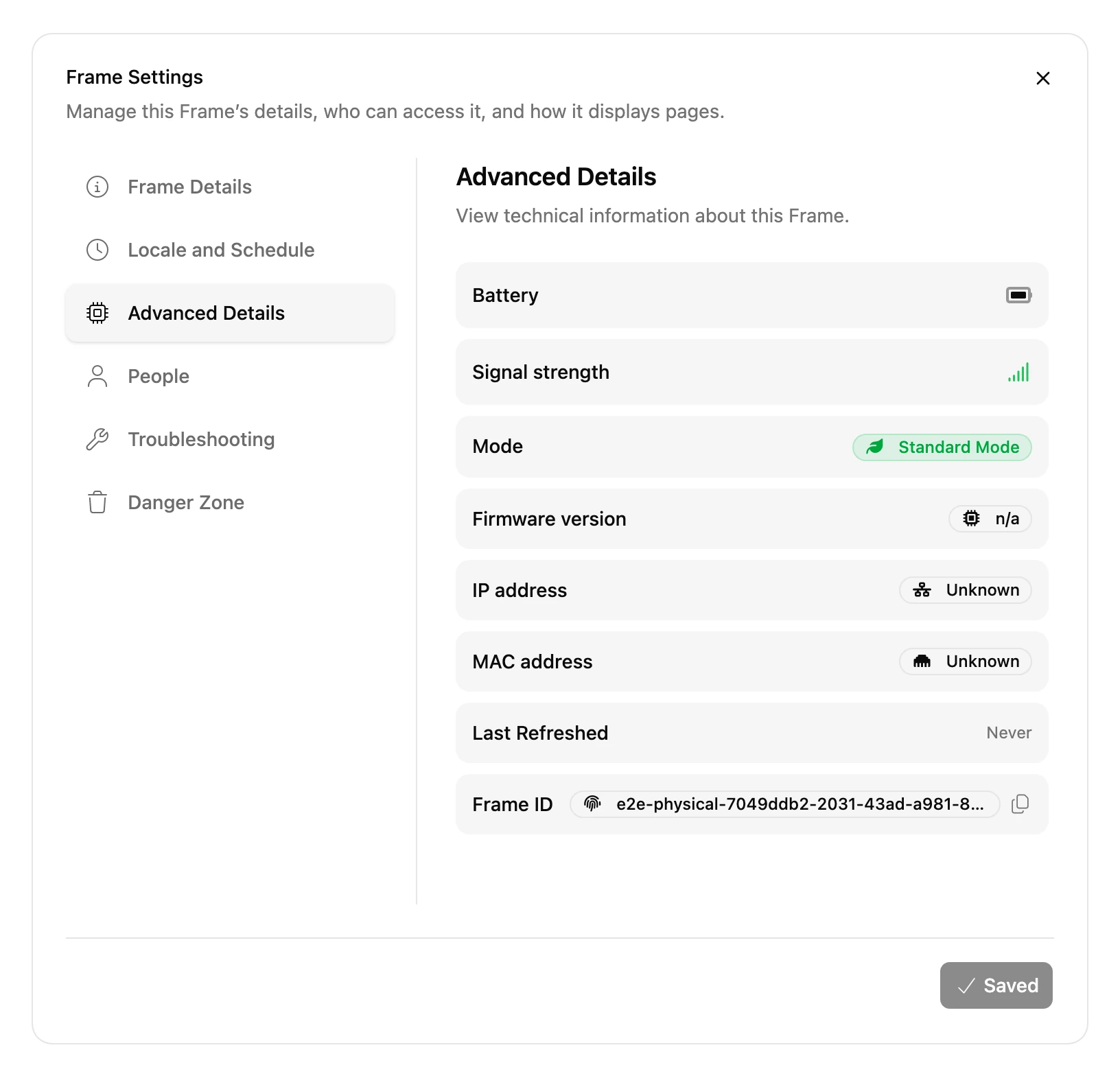
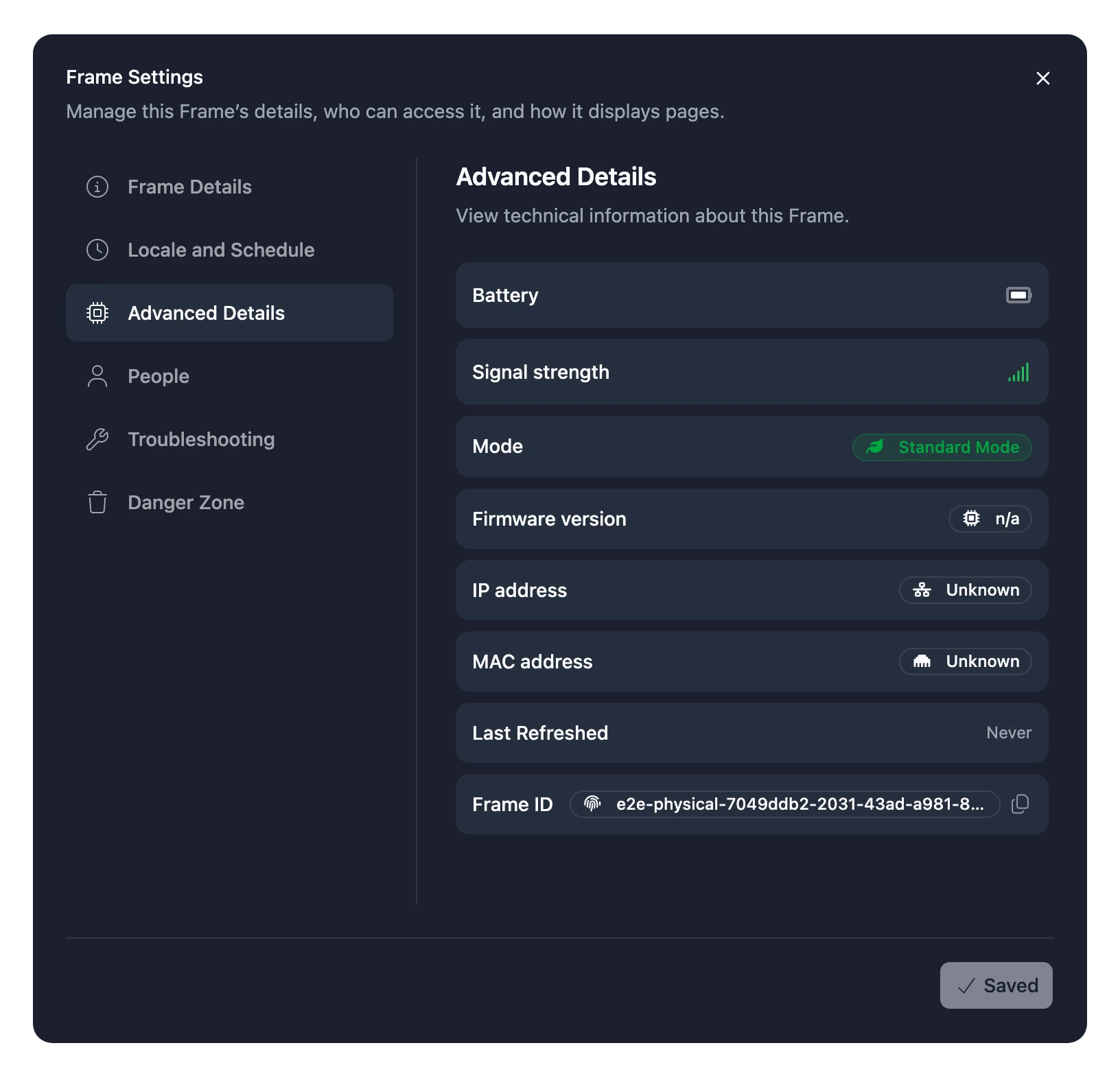
Read-only details that help when something goes wrong: battery level, whether it's charging, Wi-Fi signal strength, mode, software version, network addresses, when it last refreshed, and its Frame ID.
People
Who else can see or change the Frame. See Share a Frame.
Other tabs
Some tabs only appear for some Frames:
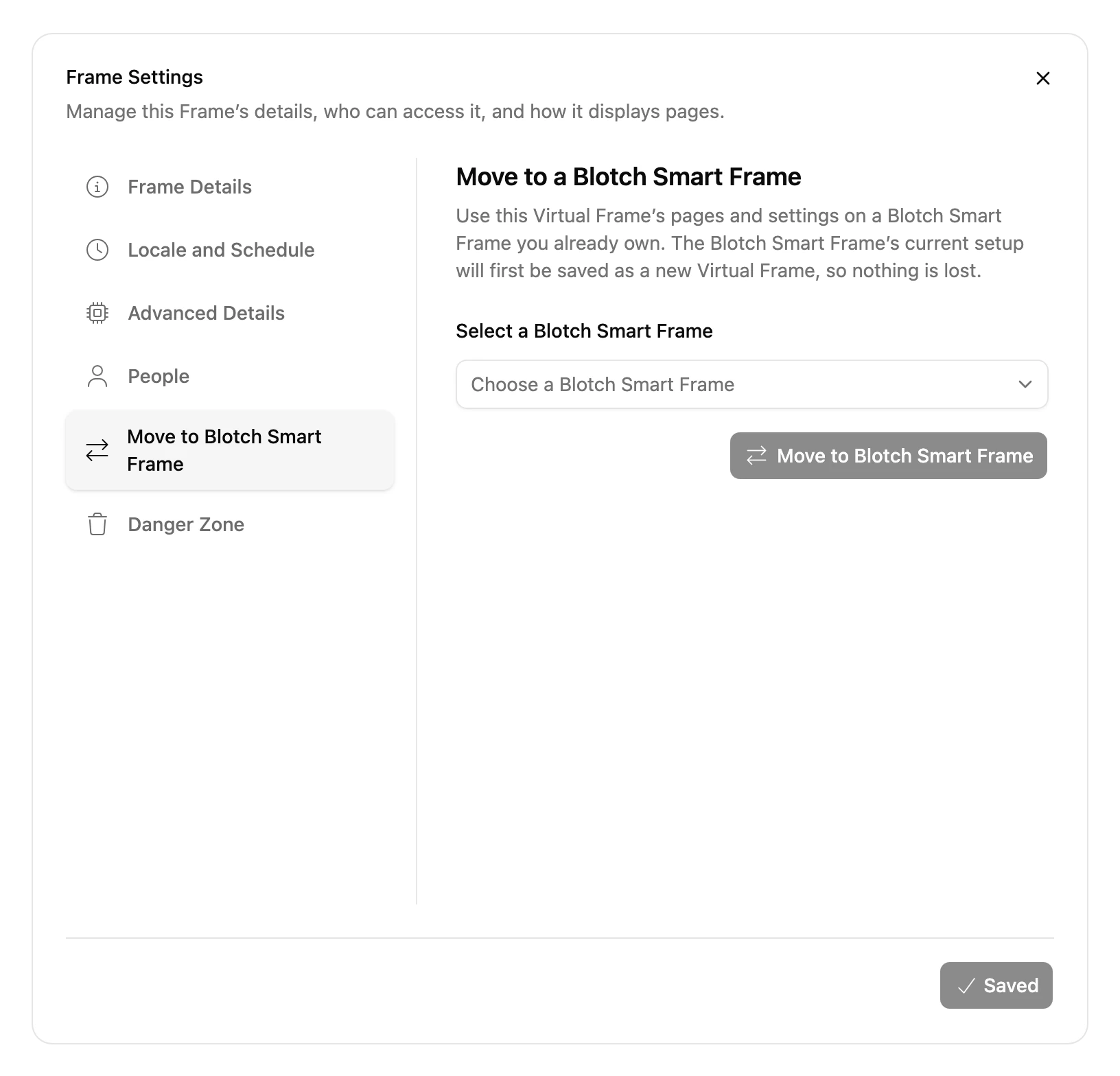
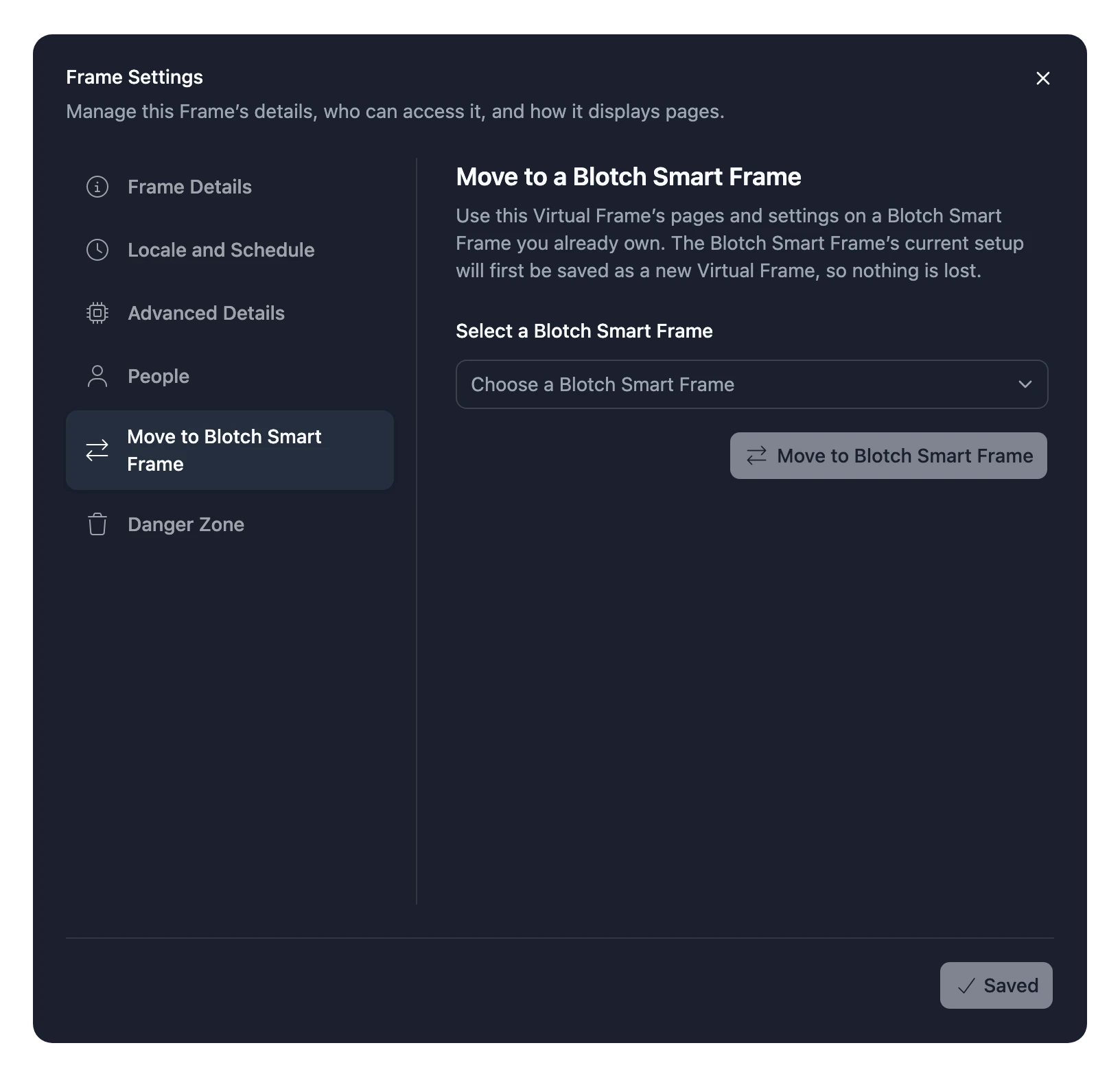
- Move to Blotch Smart Frame, on a Virtual Frame, moves it onto a Blotch Smart Frame.
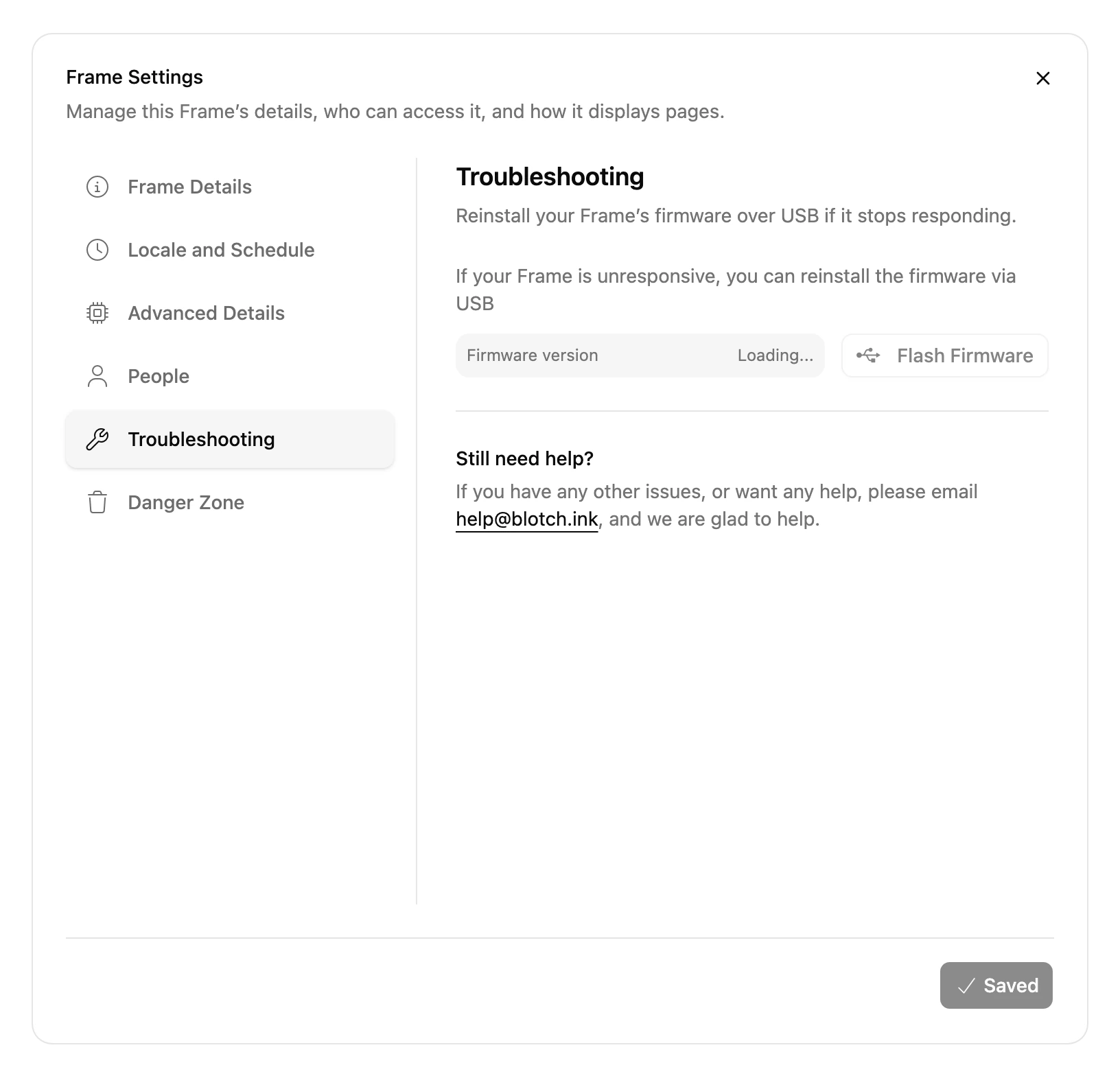
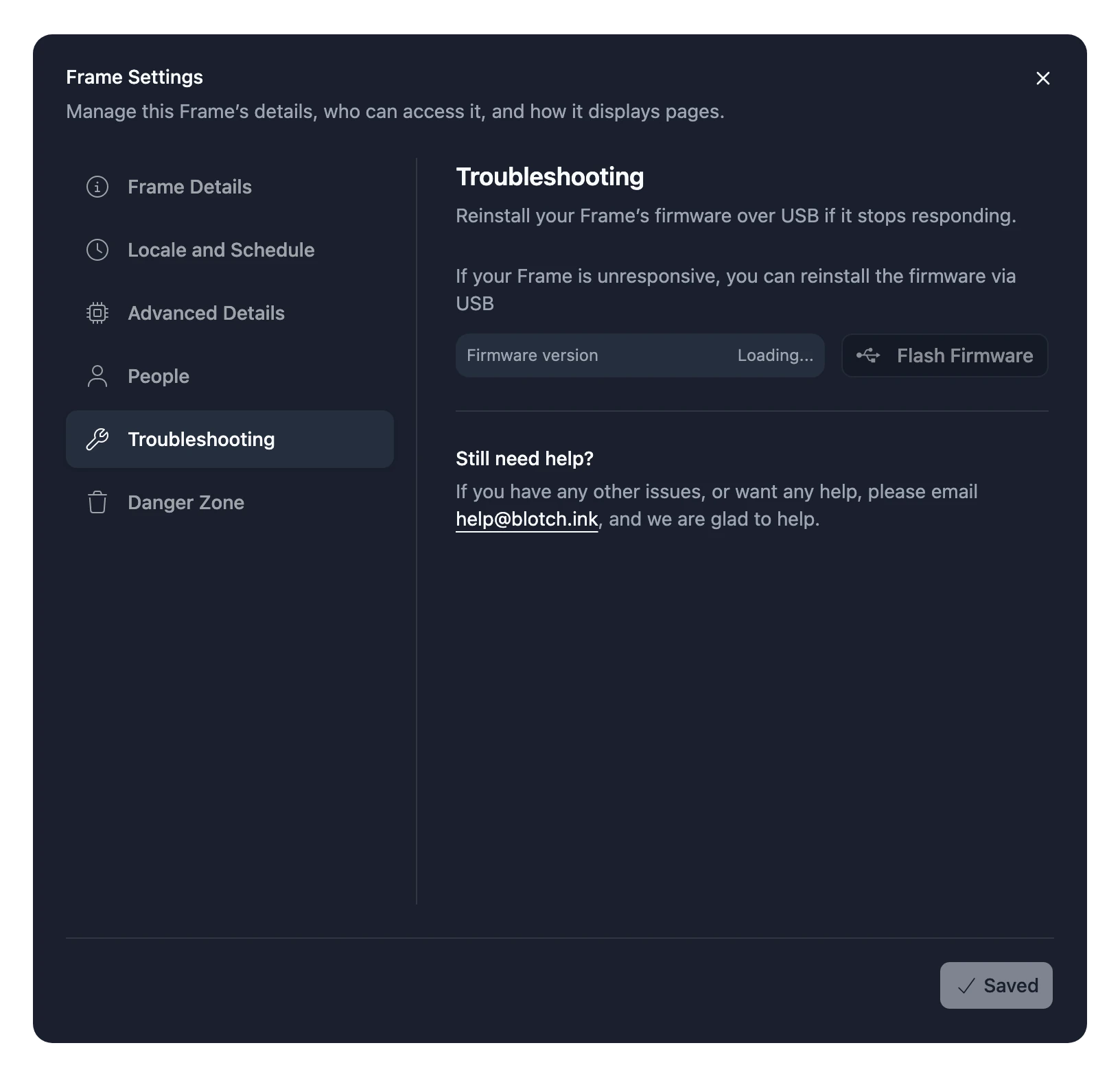
- Troubleshooting, on a Blotch Smart Frame, reinstalls its software over a USB cable. It needs Chrome or Edge on a computer. You only need it if support asks you to.
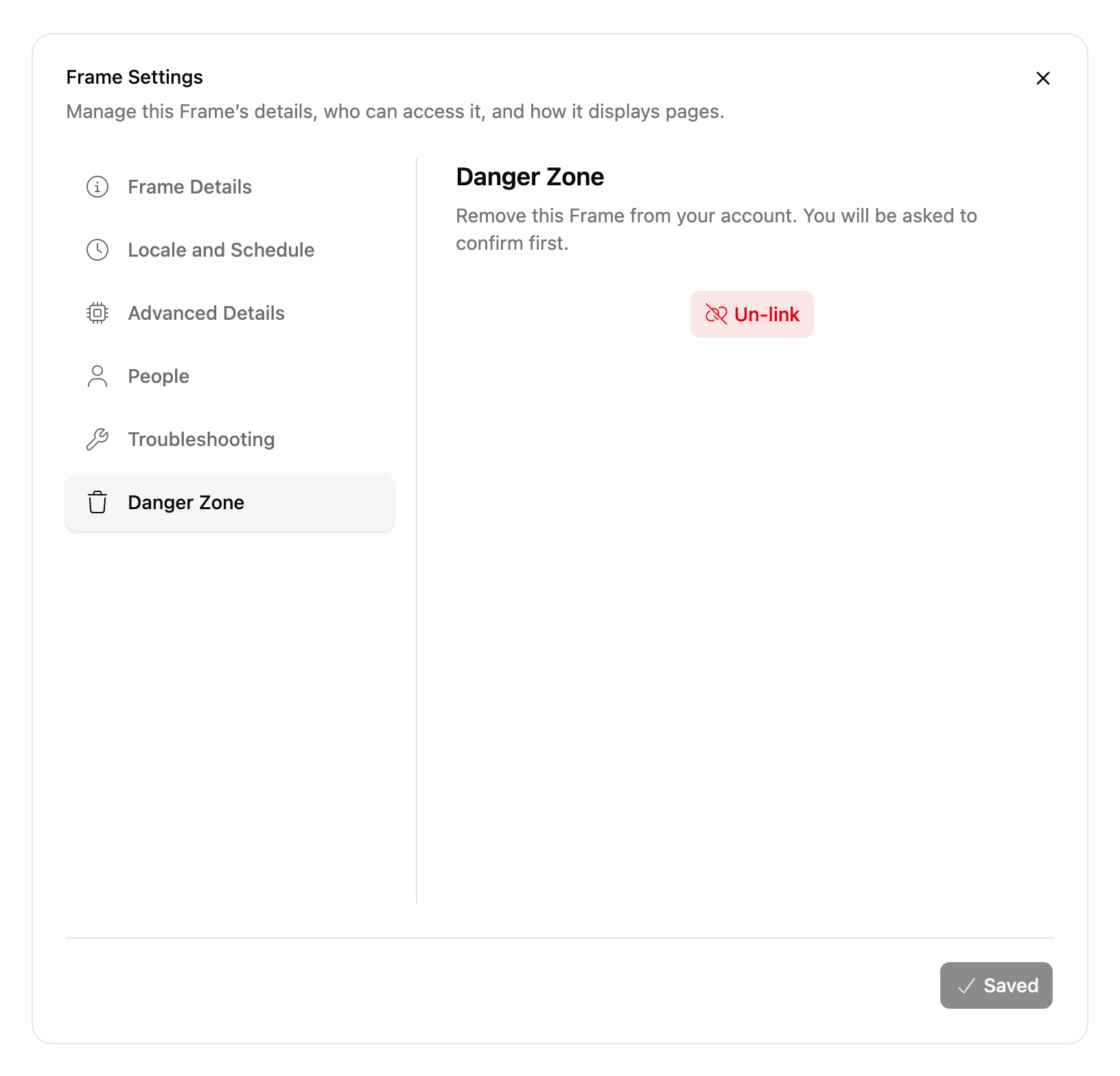
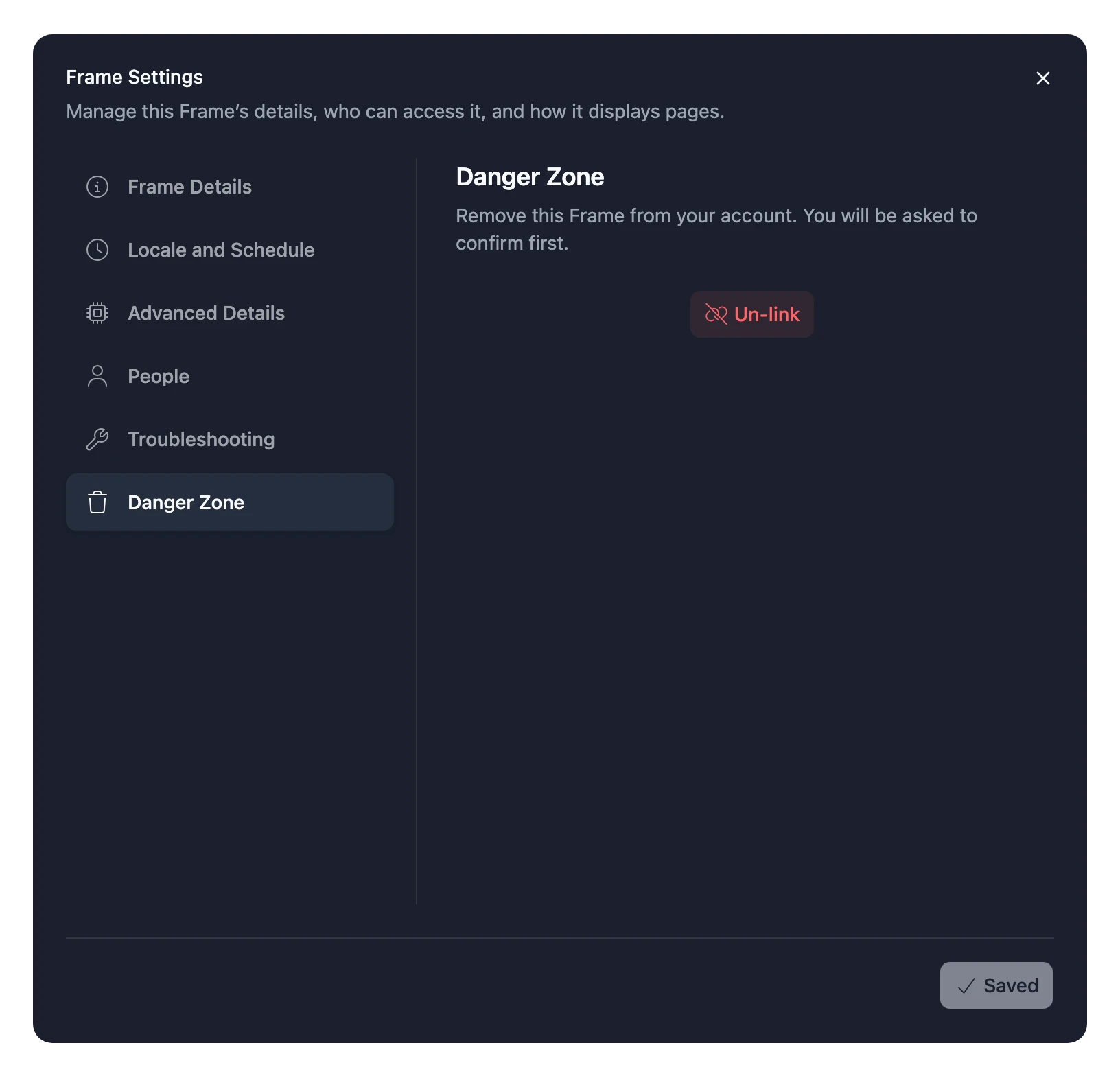
- Danger Zone, for Admins, removes the Frame from your account. On a Blotch Smart Frame this is Un-link; on a Virtual Frame it's Delete Virtual Frame.
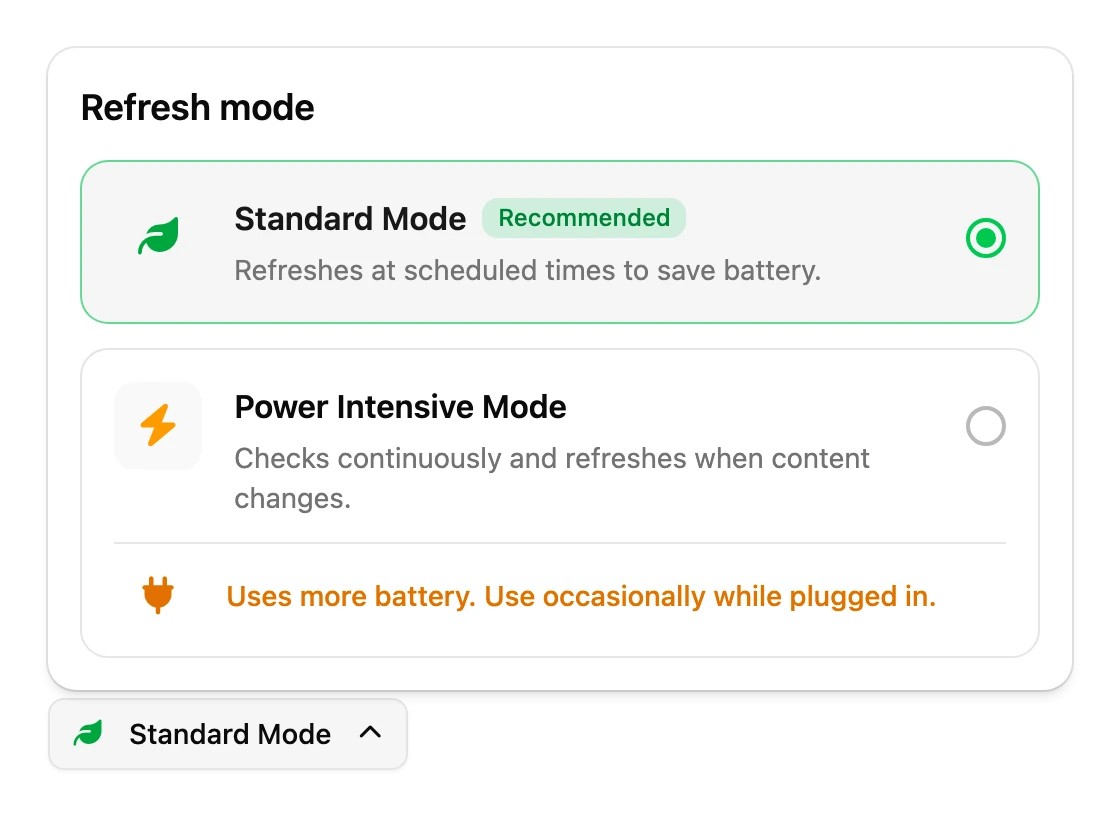
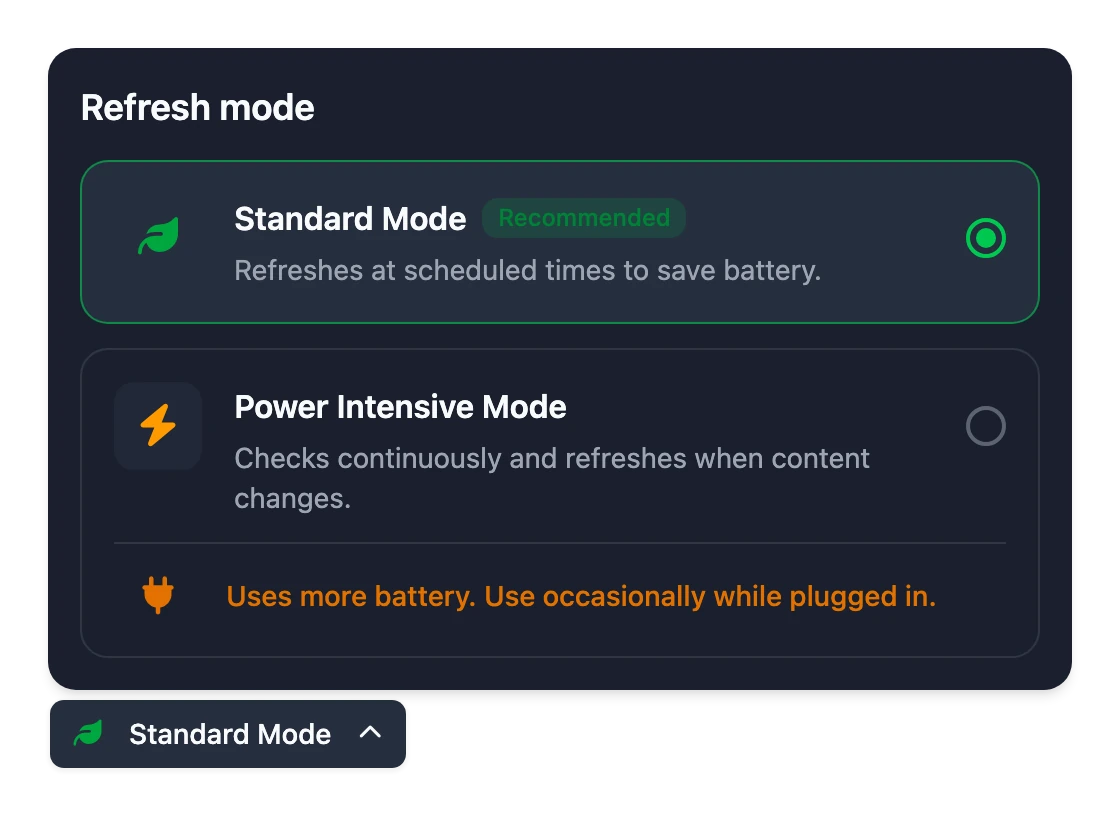
Refresh mode
A Blotch Smart Frame's mode isn't in Frame Settings. Choose it under the Frame's preview on your dashboard: Standard Mode or Power Intensive Mode. The Frame switches the next time it checks in. See Buttons and modes.