Arrange Widgets on a Page
A Page is one screen of Widgets. You lay out each Page in the Editor: pick your Frame in the frame selector at the top right of the Console, then choose Editor in the menu on the left.
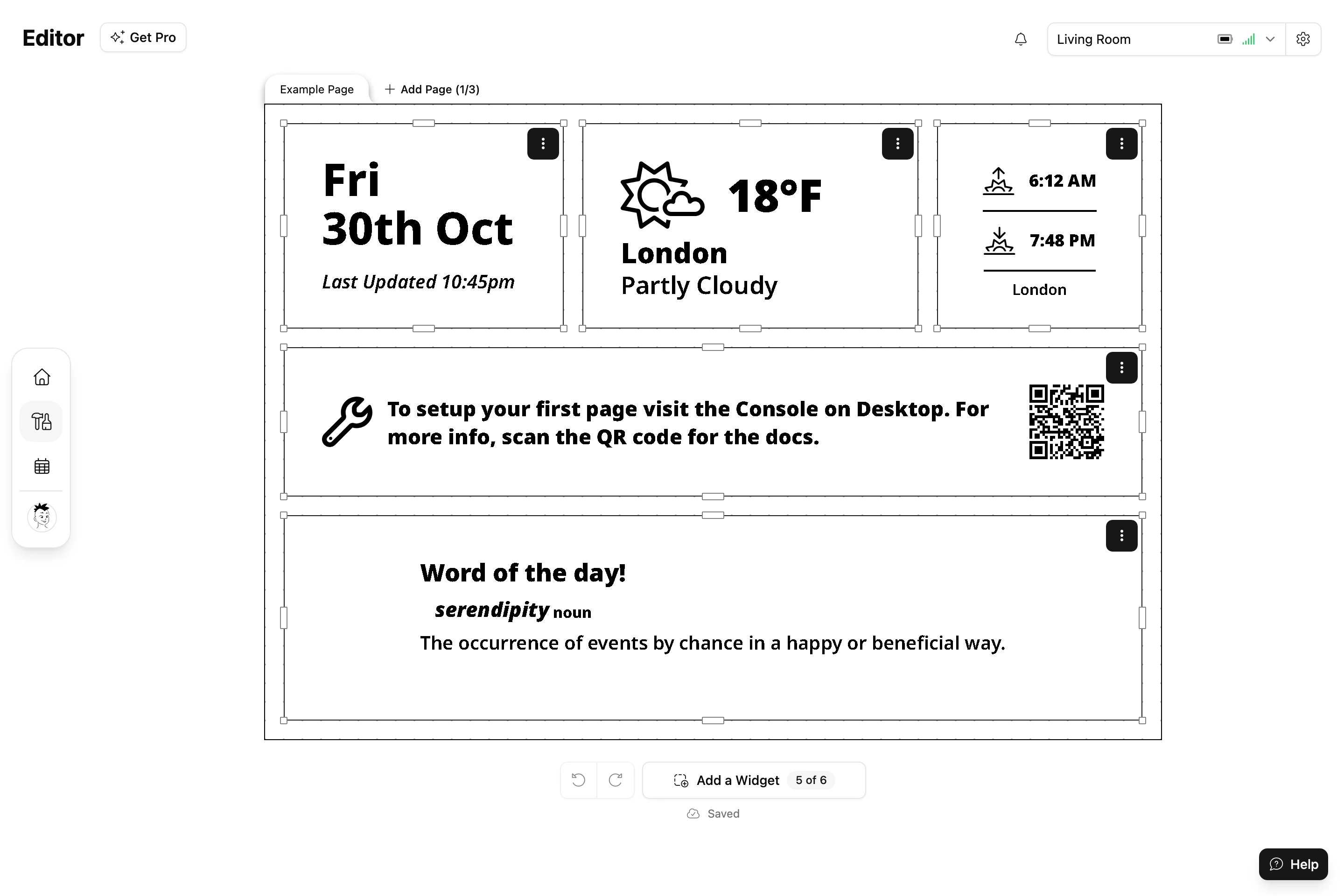
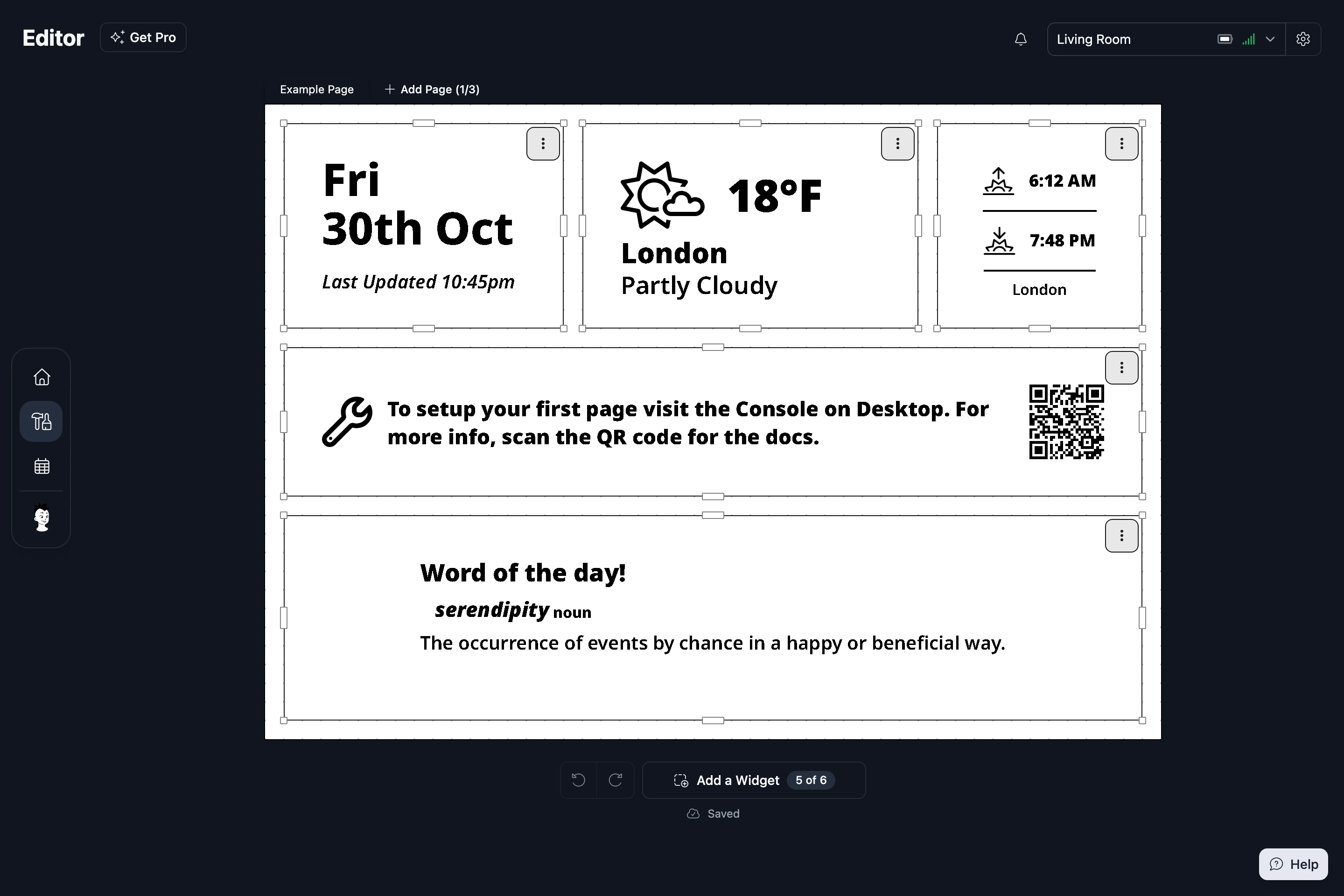
The Editor shows your Frame as a canvas, with a tab for each Page above it. Changes save as you make them: the status under the canvas says Saving..., then Saved.
Add a Page


Choose Add Page at the end of the tabs. Then:
- Rename a Page by double-clicking its tab.
- Reorder Pages by dragging their tabs, or right-click a tab and choose Move Left or Move Right.
- Delete a Page by right-clicking its tab and choosing Delete Page.


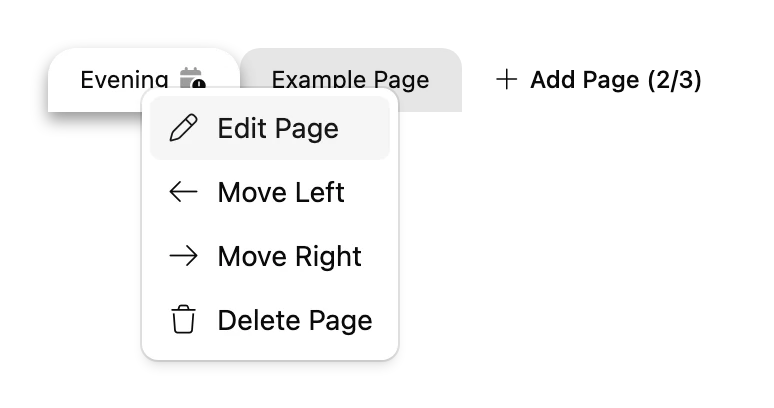
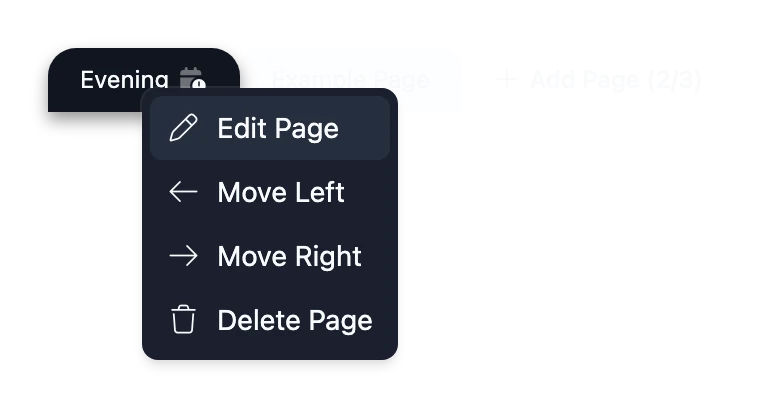
How many Pages a Frame can have depends on your plan. The Add Page button shows how many you've used. See Plans.
A Page only appears on your Frame once it's on the schedule. A tab with a calendar warning icon isn't scheduled yet. On a Basic schedule, add it with Add page in the Schedule. On a Weekly Calendar, right-click the tab and choose Add to Schedule. See Choose when each Page shows.
Want a ready-made layout? Choose a Page Template from the Template section of your dashboard, then Add this Page.
Place a Widget
Choose Add a Widget under the canvas, find a Widget and choose Add to Frame. See Find and install Widgets. The Widget lands on the open Page.
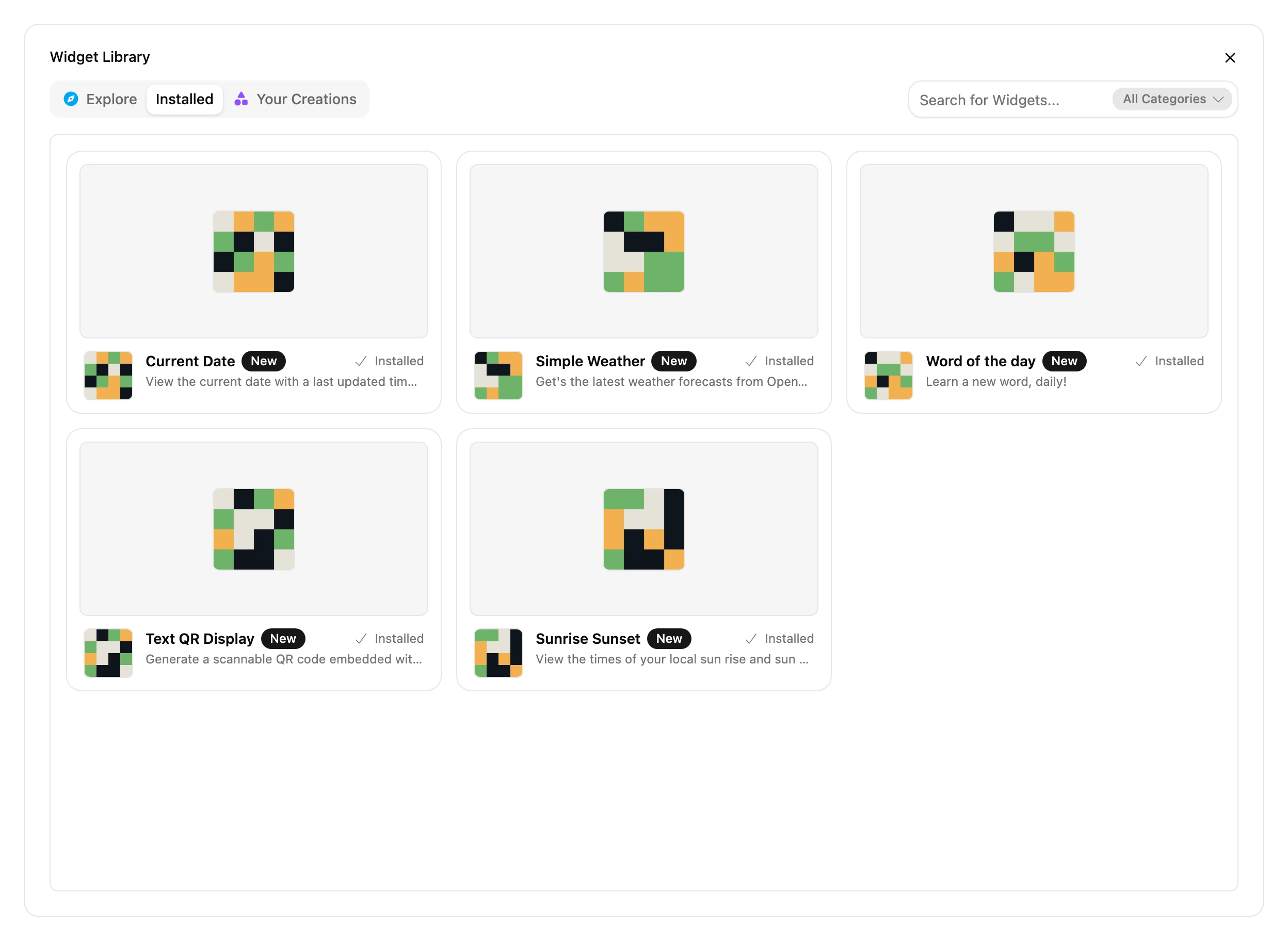
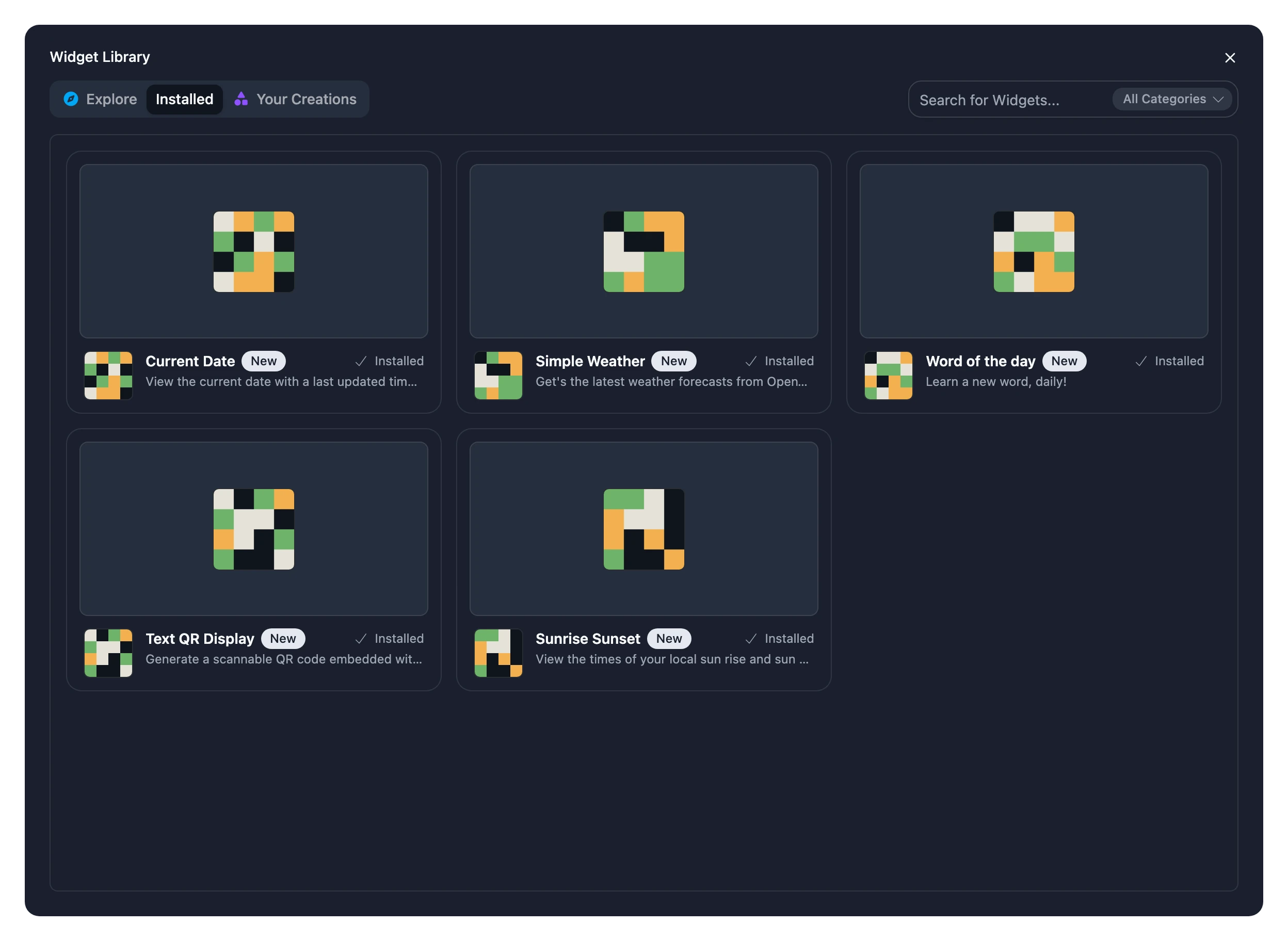
To place a Widget you've already installed, open it in the Widget Library's Installed tab, choose Add to Frame, then Add beside the install you want.
Move and resize
- Drag a Widget to move it.
- Drag the handles on its edges and corners to resize it.
Widgets snap to a grid so they line up neatly. Widgets that overlap are highlighted, so you can spot them. Most Widgets rearrange themselves to suit their size, so try a few shapes to see which looks best.
The Widget menu
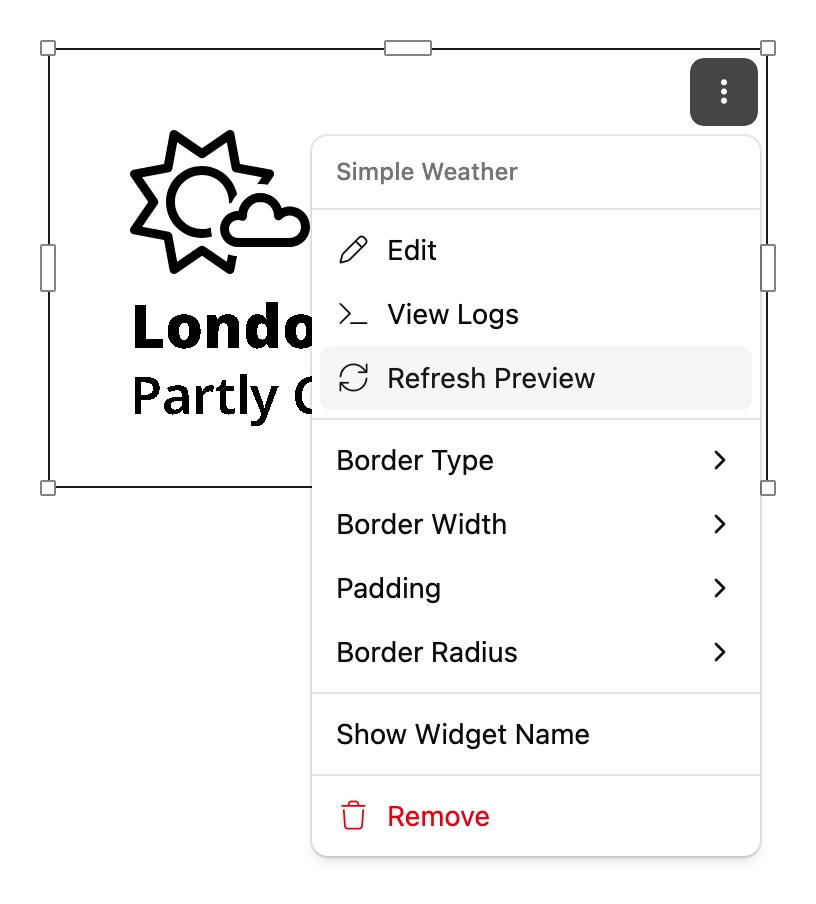
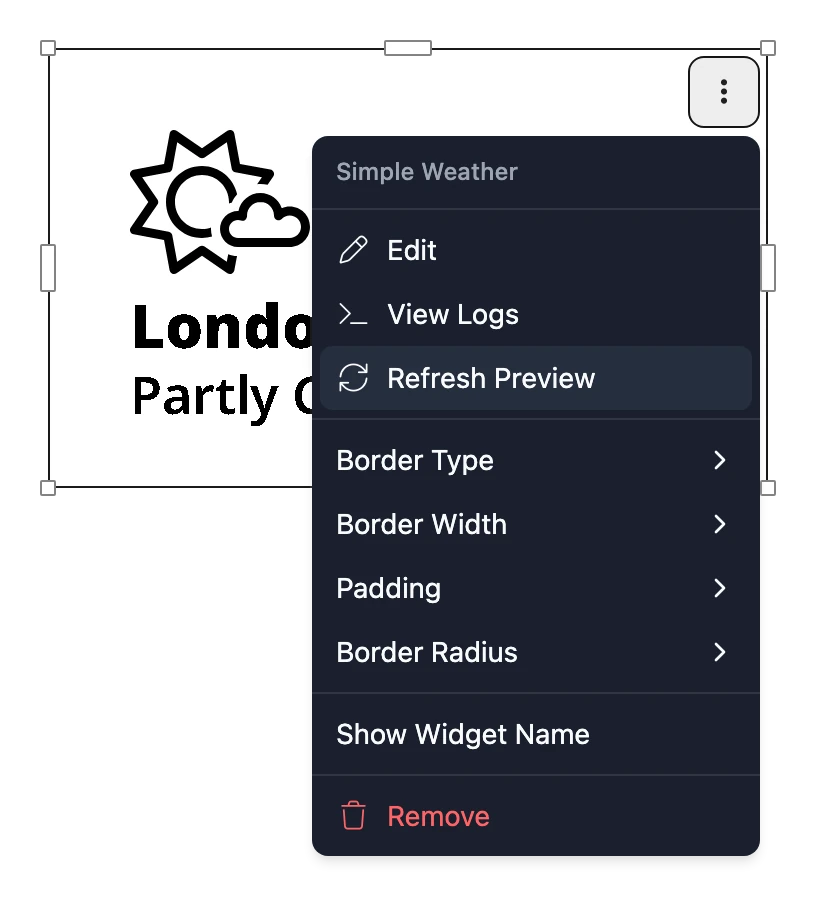
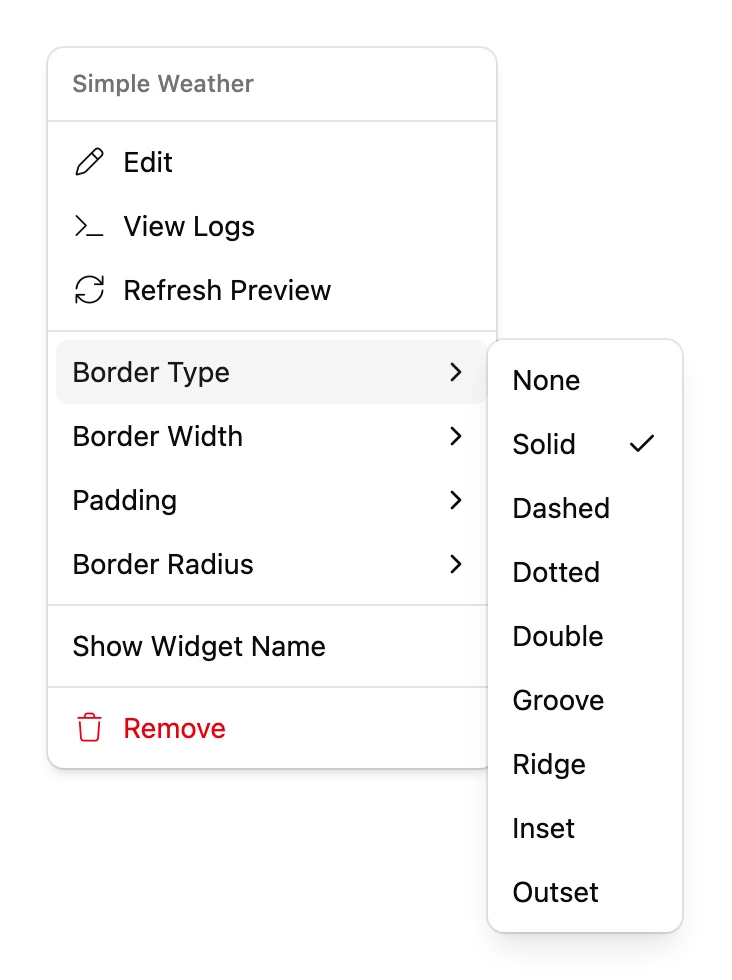
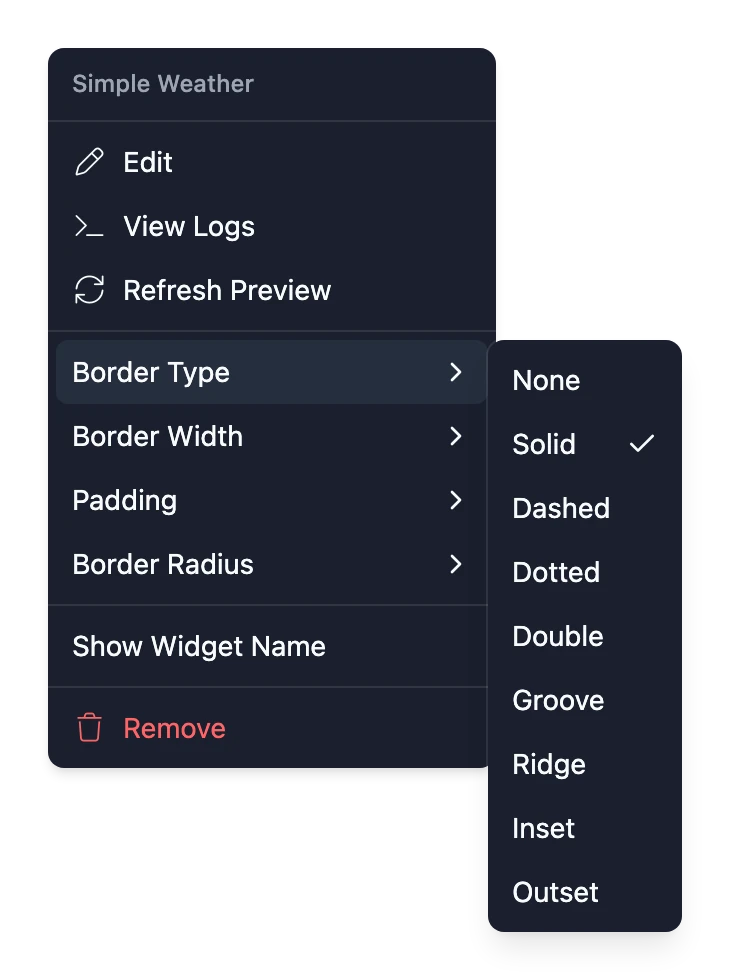
Choose ⋮ on a Widget, or right-click it, for more:
| Option | What it does |
|---|---|
| Edit | Change the Widget's settings, such as its city or calendar. |
| Upgrade to v… | Appears when there's a new version. See Upgrade a Widget. |
| View Logs | Shows what the Widget reported while it was drawn. Useful when it shows an error. |
| Refresh Preview | Draws the Widget again in the Editor. |
| Border Type, Border Width, Padding, Border Radius | Style the box around the Widget. See Borders and padding. |
| Show Widget Name | Adds a bar across the top of the Widget with its name. |
| Remove | Takes the Widget off this Page. It stays installed on the Frame. |
Borders and padding
| Setting | Options |
|---|---|
| Border Type | None, Solid, Dashed, Dotted, Double, Groove, Ridge, Inset, Outset |
| Border Width | Very Thin, Thin, Medium, Thick |
| Padding | None, Small, Medium, Large |
| Border Radius | Sharp, Slight, Rounded, Pill |
A new Widget has a very thin solid border, small padding and sharp corners. For a borderless look, set Border Type and Padding to None.
Undo and redo
Choose Undo or Redo under the canvas, or press Ctrl+Z (⌘Z on a Mac) to undo and Ctrl+Y (⌘Y) to redo. They cover adding, removing, moving, resizing and restyling Widgets, and renaming Pages.
Uninstall a Widget
Removing a Widget from a Page leaves it installed on the Frame. To uninstall it completely:
- Remove it from every Page it's on.
- In the Widget Library's Installed tab, open the Widget and choose Add to Frame.
- Choose the bin beside the install.
Working together
If you've shared the Frame, several people can edit it at once, and you see each other's cursors on the canvas.