Let people set up your Widget
Inputs are the settings someone fills in when they add your Widget to their Frame, such as their city, a stock symbol or which news source to show. They let one Widget work for everyone, without anyone touching the code.
Add an Input
- In the Widget Studio, choose File > Inputs.
- On the Public Inputs tab, choose Create new input.
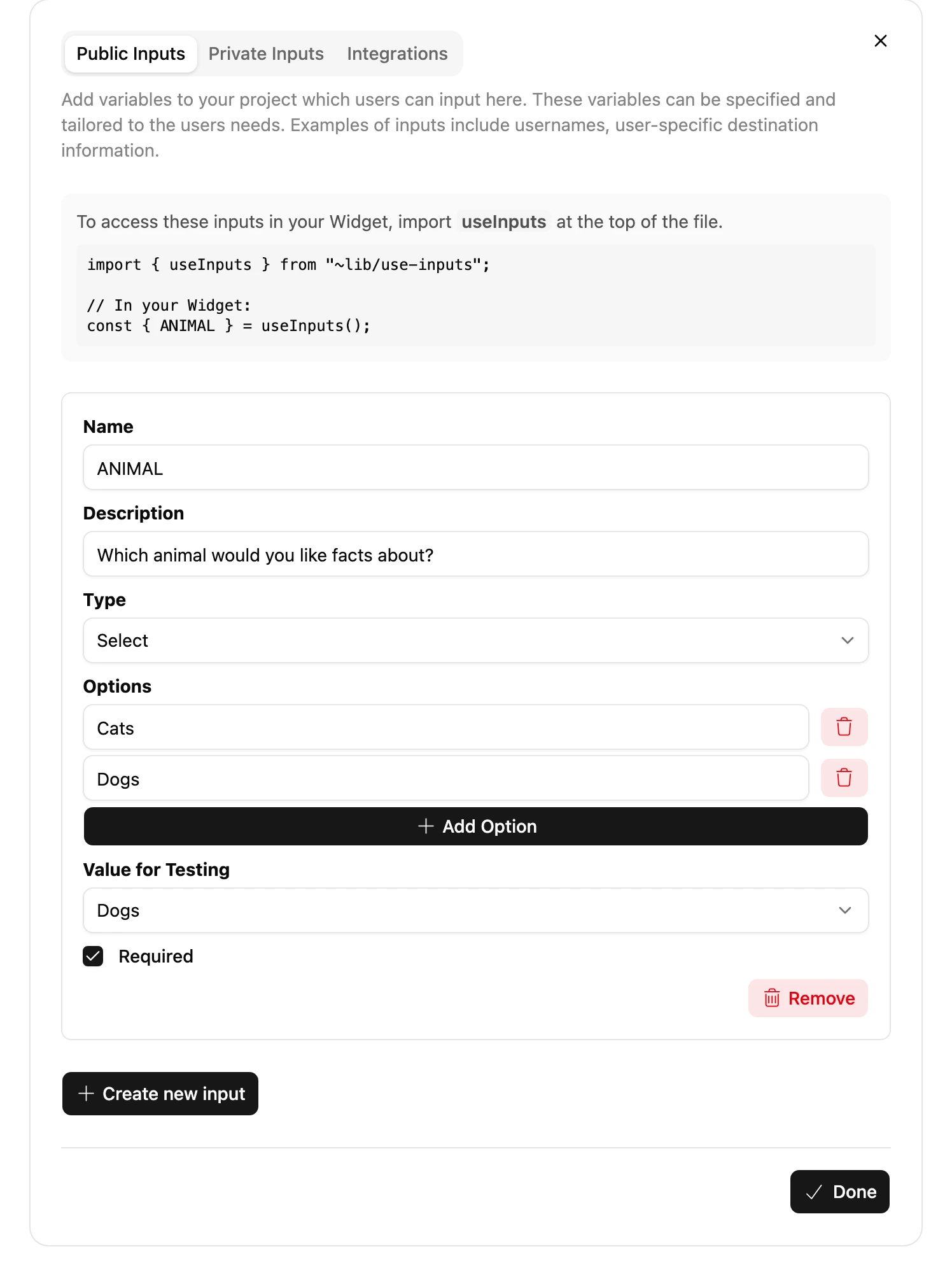
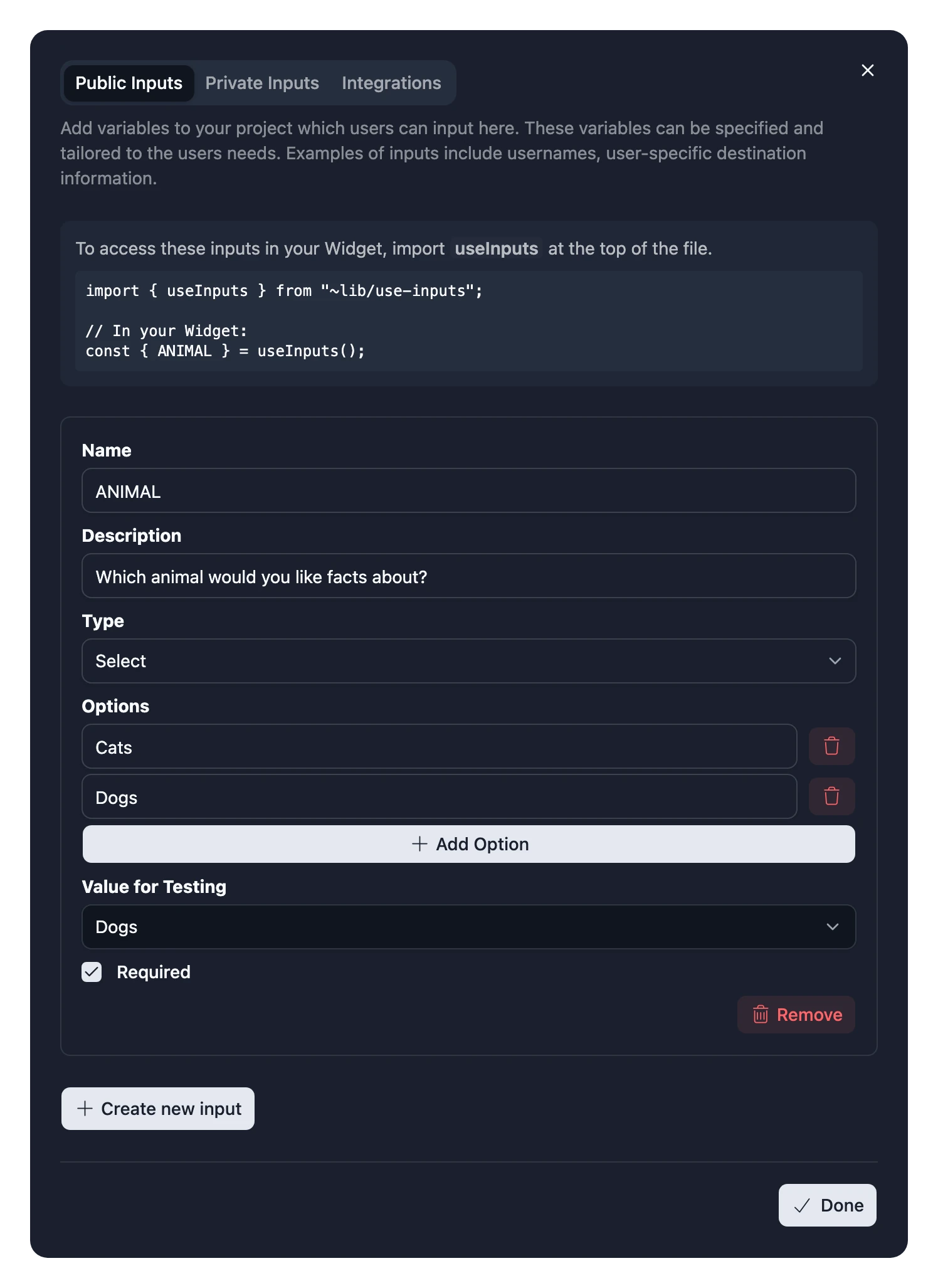
- Fill in:
- Name: the name you use in your code, such as
CITY. Letters, digits and underscores only, and it can't start with a digit. Capitals make Inputs easy to spot in your code. - Description: what people see when they set up your Widget, such as
Which city's weather would you like to see? - Type: the kind of field they fill in. See Input types.
- Required: whether they must fill it in before the Widget can be added. New Inputs are required.
- Name: the name you use in your code, such as
- Close the dialog to save your Inputs.
Read it in your code
Read Inputs with useInputs:
import { Heading } from "~lib/typography";
import { useInputs } from "~lib/use-inputs";

export const Widget = () => {
  const { CITY } = useInputs();

  return <Heading>{CITY}</Heading>;
};
Each Input comes as the type that suits it: text as a string, a Number as a number, a Multi-Select as a list of strings, and so on. An Input left blank comes as undefined. The Widget Studio knows your Inputs, so it auto-completes their names and flags a misspelled one.
Try it in the preview
Give each Input a Value for Testing to see how your Widget looks when someone fills it in. Test values only last until you reload the Widget Studio, and nobody else sees them.


If a Required Input has no value, the preview shows Inputs Required instead of your Widget, listing what's missing. Frames never show this, because a required Input must be filled in before the Widget can be added.
Optional Inputs
An optional Input left blank comes as undefined, so give it a fallback, or show something helpful in its place:
import { EmptyState } from "~lib/feedback/empty-state";

const { CITY } = useInputs();
const city = String(CITY ?? "").trim();

if (city === "") {
  return <EmptyState title="Choose a city in the Widget's settings" />;
}
Make Select options readable
Write the options of a Select for the people choosing them, then turn the choice into whatever your code needs. For example, if a football API wants a league code:
const LEAGUE_CODES: Record<string, string> = {
  "Champions League": "CL",
  "European Championship": "EC",
  "World Cup": "WC",
};

const { LEAGUE } = useInputs();
const code = LEAGUE_CODES[LEAGUE];
People see Champions League rather than CL when they set up your Widget.
Secrets and accounts
- For your own API key, which you don't want anyone to see, use a Private Input.
- To ask each person for their own API key, use a Sensitive Input, which hides what they type.
- To have people sign in to a service such as Google or Spotify, use an Integration.
Changing Inputs later
Once people use your Widget, changing its Inputs can change what they've set up. Adding an optional Input is safe, but removing or renaming one, or adding a required one, makes the next release a major version that people choose when to upgrade to. See Version numbers.