Add your own images
Upload images, such as a logo or a background pattern, to use in your Widget.
Upload an image
- In the Widget Studio, choose File > Assets.
- Drag images onto Upload Images, or choose Browse for image. JPEG, PNG and BMP files work, and you can upload several at once.
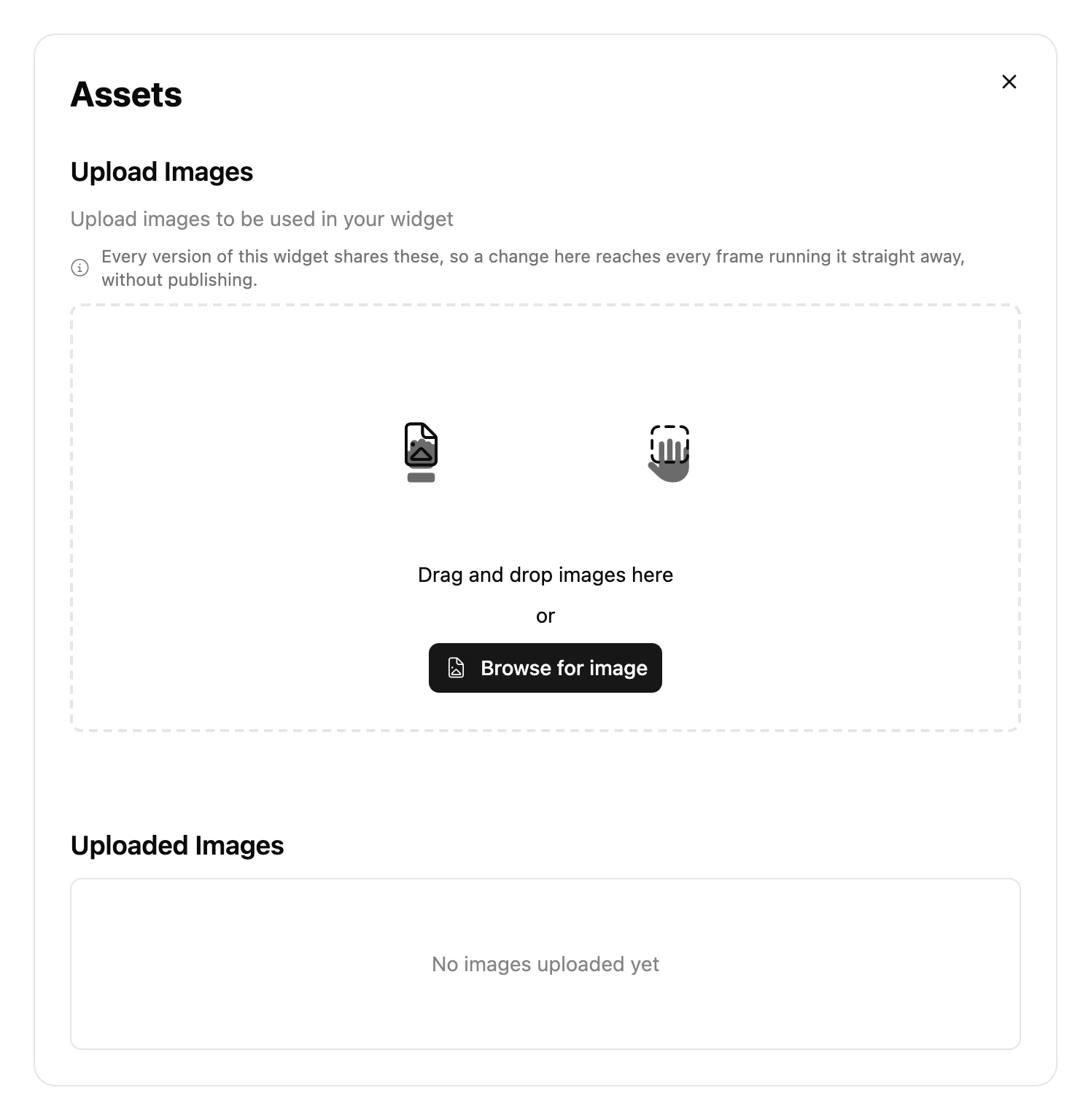
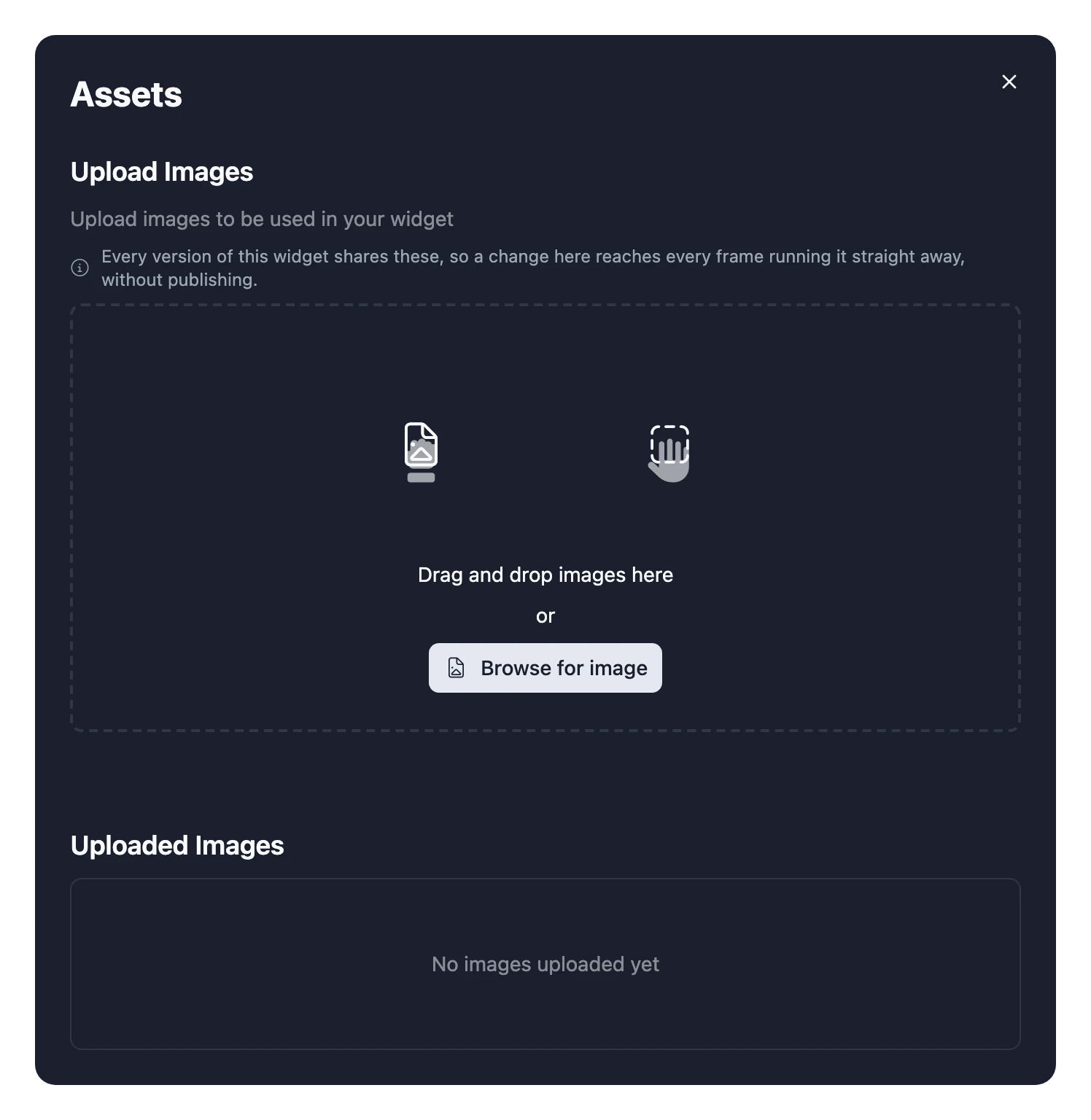
Each image gets a random name made of three words, such as happy_blue_fox. Choose an image under Uploaded Images to see its name.
Use it in your code
Get your images from useAssets, by name:
import { useAssets } from "~lib/use-assets";

export const Widget = () => {
  const assets = useAssets();

  return (
    <img
      src={assets.happy_blue_fox}
      alt=""
      className="size-full object-contain"
    />
  );
};
The Widget Studio knows your images' names, so typing assets. lists them.
Things to know
- Images aren't versioned. Uploading or deleting one changes every Frame showing your Widget straight away, without publishing.
- Photos turn into dots. The screen is black and white, so shades of grey become patterns of dots. Simple, high-contrast images look best.
- Use the library's icons for icons.
Icondraws thousands of icons that stay sharp at any size.