Design for every size
People can make your Widget any size on their Page: a thin strip along the bottom, a small square in a corner, a column down the side or the whole screen. A good Widget looks deliberate at every one of them. The trick is to show less in a small box, not the same thing smaller.
Preview every size


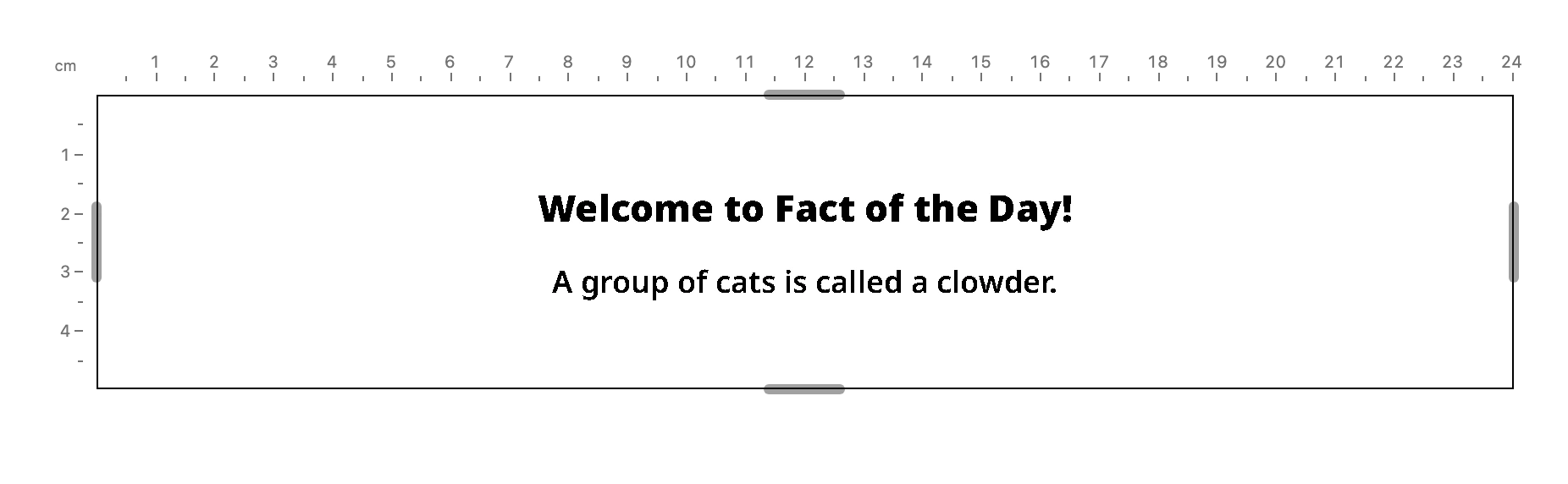
Above the preview in the Widget Studio, the Preview size tabs show your Widget in the common shapes:
| Preview size | Shape | Good for |
|---|---|---|
| Square | stack | The main block with a little detail under it |
| Brick | compact | The one thing that matters most, and no more |
| Wide | side | The main block with detail beside it |
| Banner | band | A single row |
| Tall | stack, tall | Room for more detail below |
| Column | narrow | A single stack, top to bottom |
| Full | side, tall | The whole screen: everything you have to show |
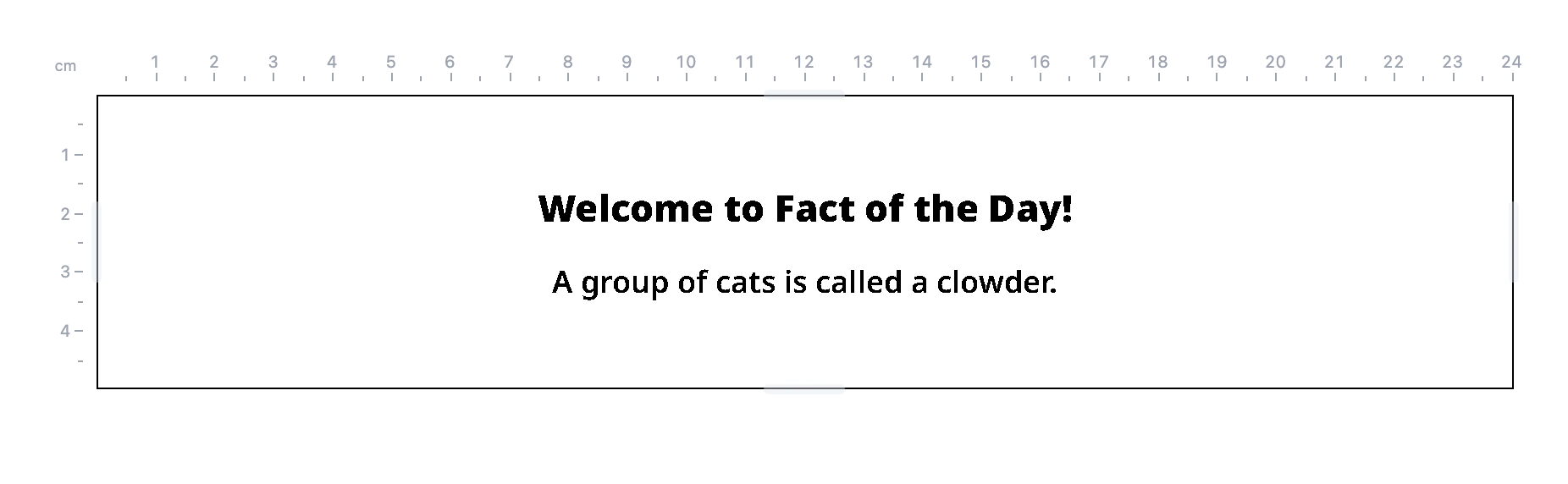
You can also drag the edges of the preview to try any size in between. Check every tab before you publish: when you publish, Blotch also saves a preview of your Widget at each size for the Widget Library.
Plan from the shape
useLayoutShape tells you which shape your Widget has to fill, so you can choose a layout for it:
import { Display, Paragraph } from "~lib/typography";
import { useLayoutShape } from "~lib/use-layout-shape";

export const Widget = () => {
  const { shape } = useLayoutShape();
  const temperature = <Display>18°</Display>;
  const summary = <Paragraph>Sunny, with a light breeze.</Paragraph>;

  if (shape === "compact") {
    return <div className="flex size-full items-center">{temperature}</div>;
  }

  if (shape === "band" || shape === "side") {
    return (
      <div className="flex size-full items-center gap-4">
        {temperature}
        {summary}
      </div>
    );
  }

  return (
    <div className="flex size-full flex-col gap-2">
      {temperature}
      {summary}
    </div>
  );
};
tall tells you whether the box has the height for a roomier version of its shape, such as Full compared with Wide. Use the shape rather than your own width checks, so your Widget changes layout at the same sizes as every other Widget.
Or use classes
For smaller changes, such as hiding an extra line, Tailwind classes that respond to the Widget's own size are simpler:
| Class prefix | Applies when the Widget is… |
|---|---|
@sm: | At least as wide as a slim column |
@md: | At least half the screen wide |
@lg: | Wide enough for a block beside the main one |
short: | Short and wide, like Banner |
compact: | Short and small, like Brick |
tall: | Tall, like Tall and Full |
@max-sm:, @max-md: and @max-lg: apply below those widths. For example, className="short:hidden" hides an element in a strip, and className="flex flex-col @lg:flex-row" puts two blocks side by side once there's room.
These measure the Widget's box, not the screen, so don't use Tailwind's screen prefixes such as sm: and md:.
See Breakpoints in the reference for the exact sizes.
Leave the edges to the Frame
The person who places your Widget chooses a border, padding and, if they like, a name bar across the top. Blotch draws them around your Widget, and gives your Widget only the room inside. So:
- Don't add padding around your Widget. Let its content run to the edges of its box.
- Don't add a title naming your Widget. The Frame can show its name. Headings are for the content, such as a match's teams or a film's title.
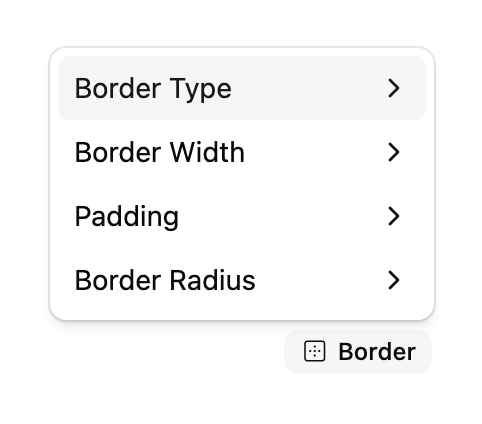
To see how your Widget looks inside a border, set one with the Border menu above the preview.
Fit, don't overflow
Content that runs past the edge of the box is cut off. To keep things inside:
- Size things in percentages or with flexbox, not in pixels worked out from the box.
- Use the typography components, which can limit text to a number of lines and end it with "…".
- Wrap a block that should take whatever height is left in a
Brim, which fades it out neatly where it's cut off.