Build your first Widget
In this tutorial you'll build a Widget that shows a random fact about a topic the person installing it picks. Along the way you'll edit code in the Widget Studio, preview it at different sizes, add a setting, fetch data from an API, publish it and put it on your Frame.
You'll need a computer, and a Frame on your account. A Virtual Frame is fine.
1. Create the Widget
- In the Console, choose My Profile in the menu on the left.
- Beside your Widgets, choose Create.
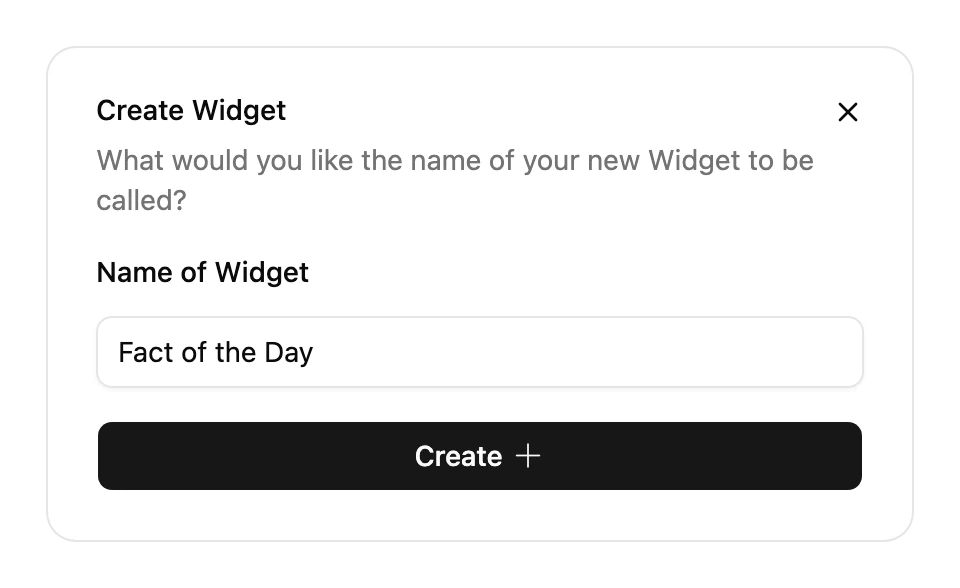
- Under Name of Widget, type
Fact of the Day, then choose Create. - Your new Widget's page opens. Choose Edit.


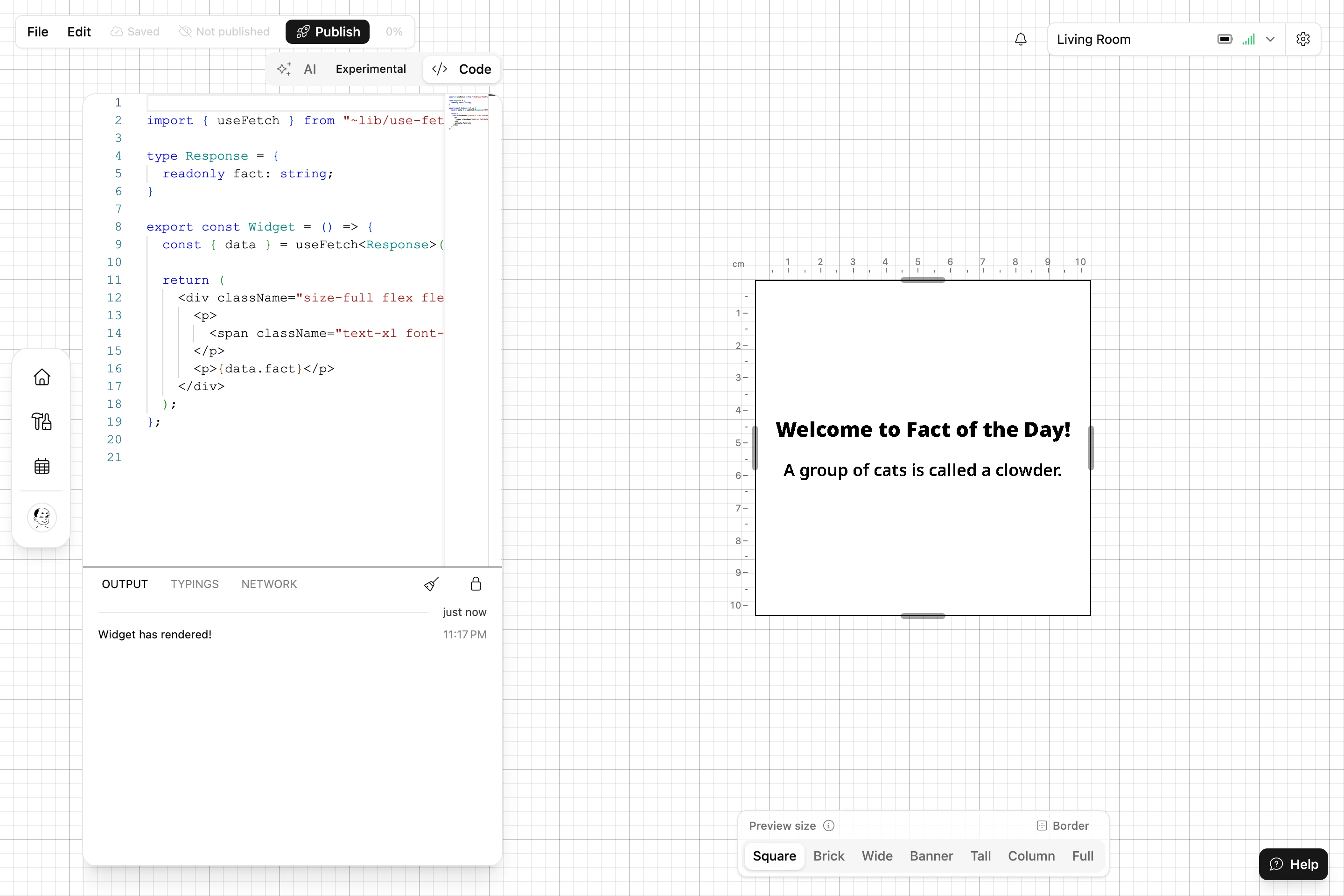
The Widget Studio opens. Choose the Code tab on the left. You'll see the starter code every new Widget gets:
import { useFetch } from "~lib/use-fetch";

type Response = {
  readonly fact: string;
};

export const Widget = () => {
  const { data } = useFetch<Response>("https://catfact.ninja/fact");

  return (
    <div className="size-full flex flex-col items-center justify-center gap-4">
      <p>
        <span className="text-xl font-bold">
          Welcome to {"Fact of the Day"}!
        </span>
      </p>
      <p>{data.fact}</p>
    </div>
  );
};
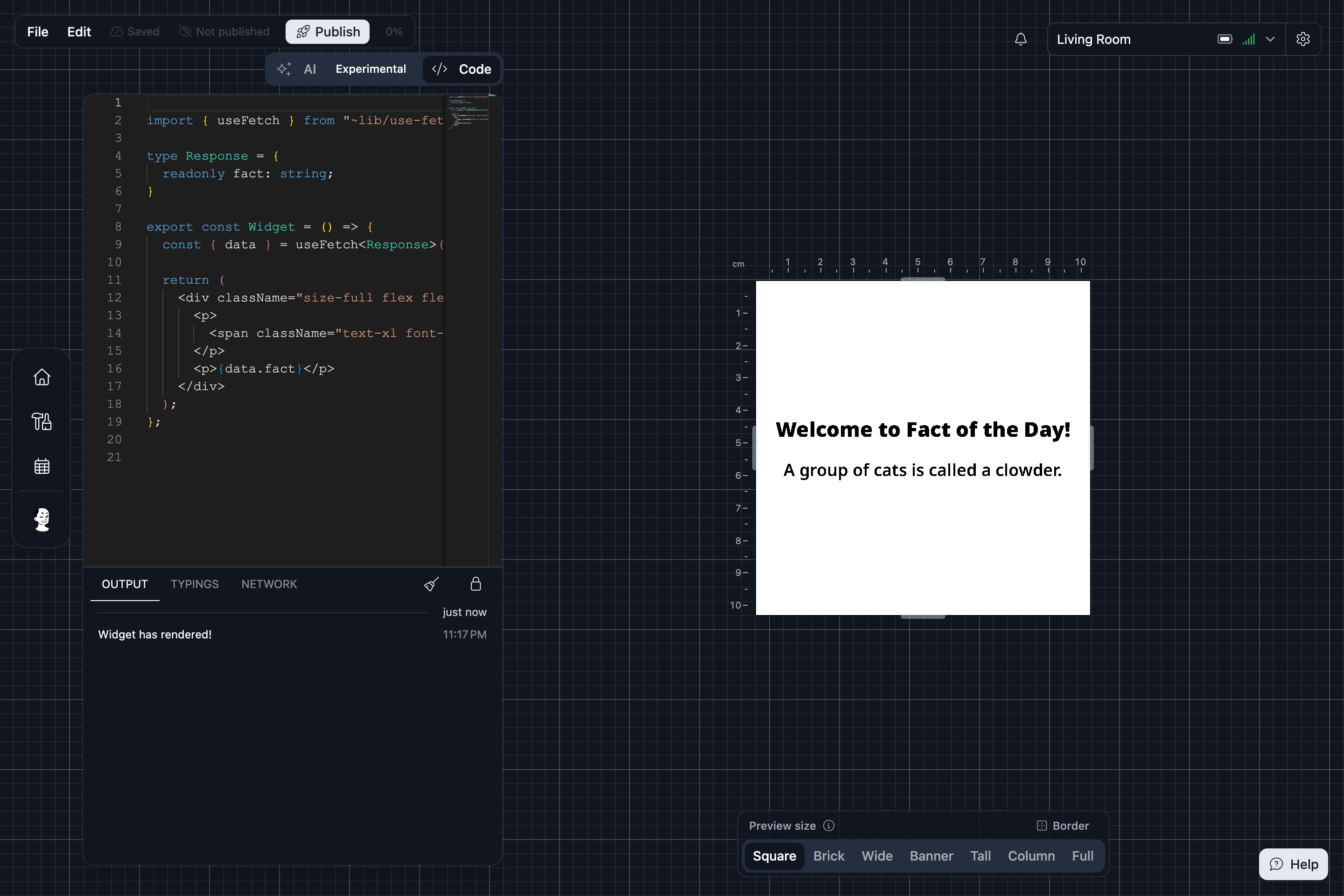
On the right, the preview shows the Widget, with a cat fact in it. A Widget is a React component called Widget. This one fetches a fact with useFetch and shows it.
2. Use the library's typography
Text on a Frame reads best in the sizes the Blotch Library's typography components set. Replace the code with this:
import { Heading, Paragraph } from "~lib/typography";
import { useFetch } from "~lib/use-fetch";

type Response = {
  readonly fact: string;
};

export const Widget = () => {
  const { data } = useFetch<Response>("https://catfact.ninja/fact");

  return (
    <div className="size-full flex flex-col justify-center gap-2">
      <Heading level={3}>Did you know?</Heading>
      <Paragraph>{data.fact}</Paragraph>
    </div>
  );
};
The preview updates a couple of seconds after you stop typing. Notice there's no padding around the edge, and no heading naming the Widget: the Frame adds both around every Widget, so a Widget leaves them out.
Press Ctrl+S (⌘S on a Mac) to save.
3. Try other sizes
People can make a Widget any size on their Page. Above the preview, choose each Preview size, from Square to Full. At Banner, a long fact may not fit under the heading.


Fix that by showing less in a short box. The short: class applies when the Widget is short and wide, so hide the heading there:
<div className="short:hidden">
  <Heading level={3}>Did you know?</Heading>
</div>
Check each size again. Design for every size covers this in depth.
4. Let people pick a topic
Next, let the person installing the Widget choose cats or dogs.
- Choose File > Inputs.
- On the Public Inputs tab, choose Create new input.
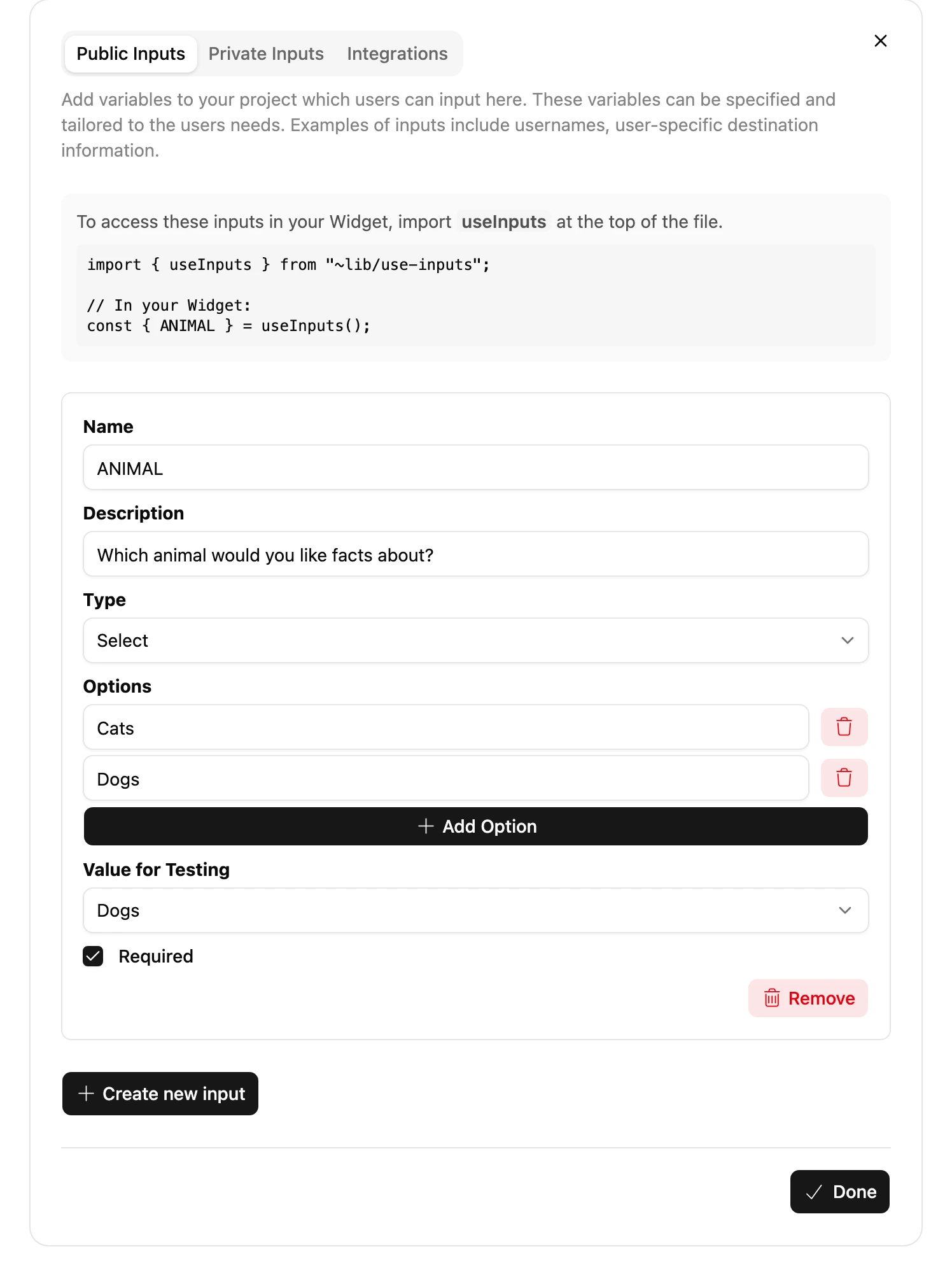
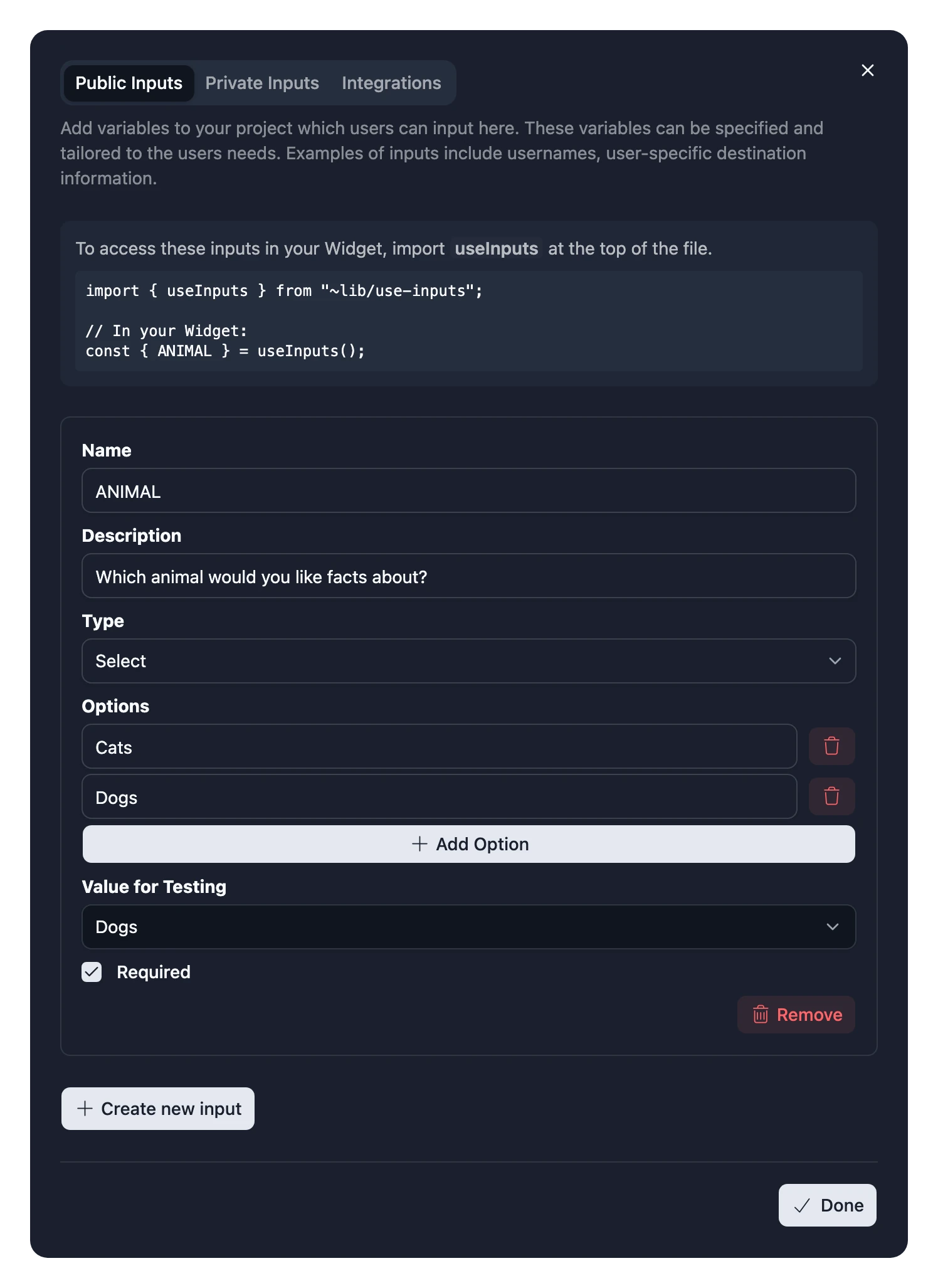
- Set its Name to
ANIMAL, its Description toWhich animal would you like facts about?and its Type to Select. - Add two options,
CatsandDogs. - Set its Value for Testing to
Dogs, so the preview has something to show, then close the dialog.
Read the input with useInputs, and fetch from a different API for each animal:
import { Heading, Paragraph } from "~lib/typography";
import { useFetch } from "~lib/use-fetch";
import { useInputs } from "~lib/use-inputs";

type CatFact = {
  readonly fact: string;
};

type DogFacts = {
  readonly data: { readonly attributes: { readonly body: string } }[];
};

const CatFactText = () => {
  const { data } = useFetch<CatFact>("https://catfact.ninja/fact");
  return <Paragraph>{data.fact}</Paragraph>;
};

const DogFactText = () => {
  const { data } = useFetch<DogFacts>("https://dogapi.dog/api/v2/facts");
  return <Paragraph>{data.data[0].attributes.body}</Paragraph>;
};

export const Widget = () => {
  const { ANIMAL } = useInputs();

  return (
    <div className="size-full flex flex-col justify-center gap-2">
      <div className="short:hidden">
        <Heading level={3}>Did you know?</Heading>
      </div>
      {ANIMAL === "Dogs" ? <DogFactText /> : <CatFactText />}
    </div>
  );
};
The preview now shows a dog fact. Change Value for Testing to Cats to check the other one. Save.
5. Publish it
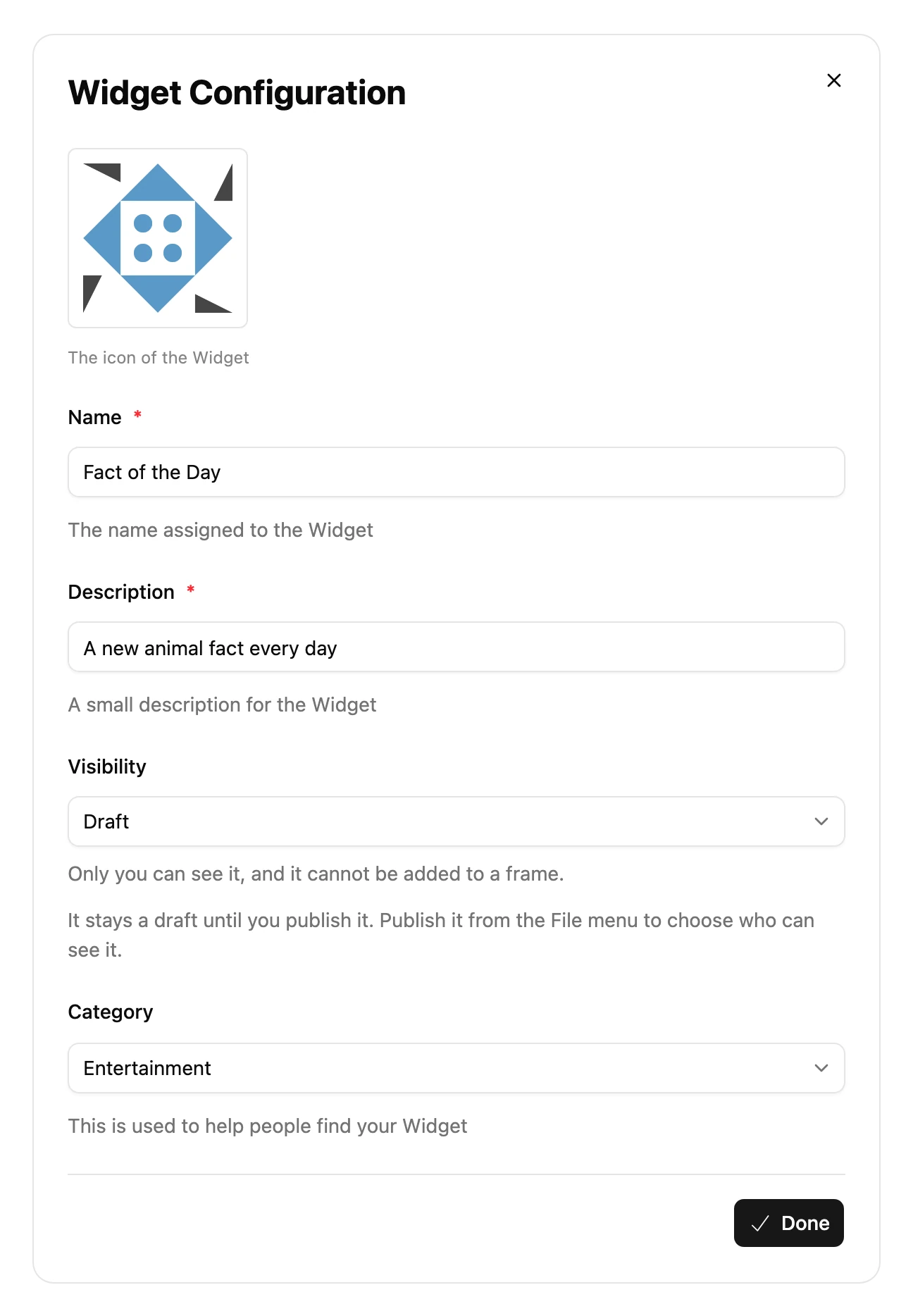
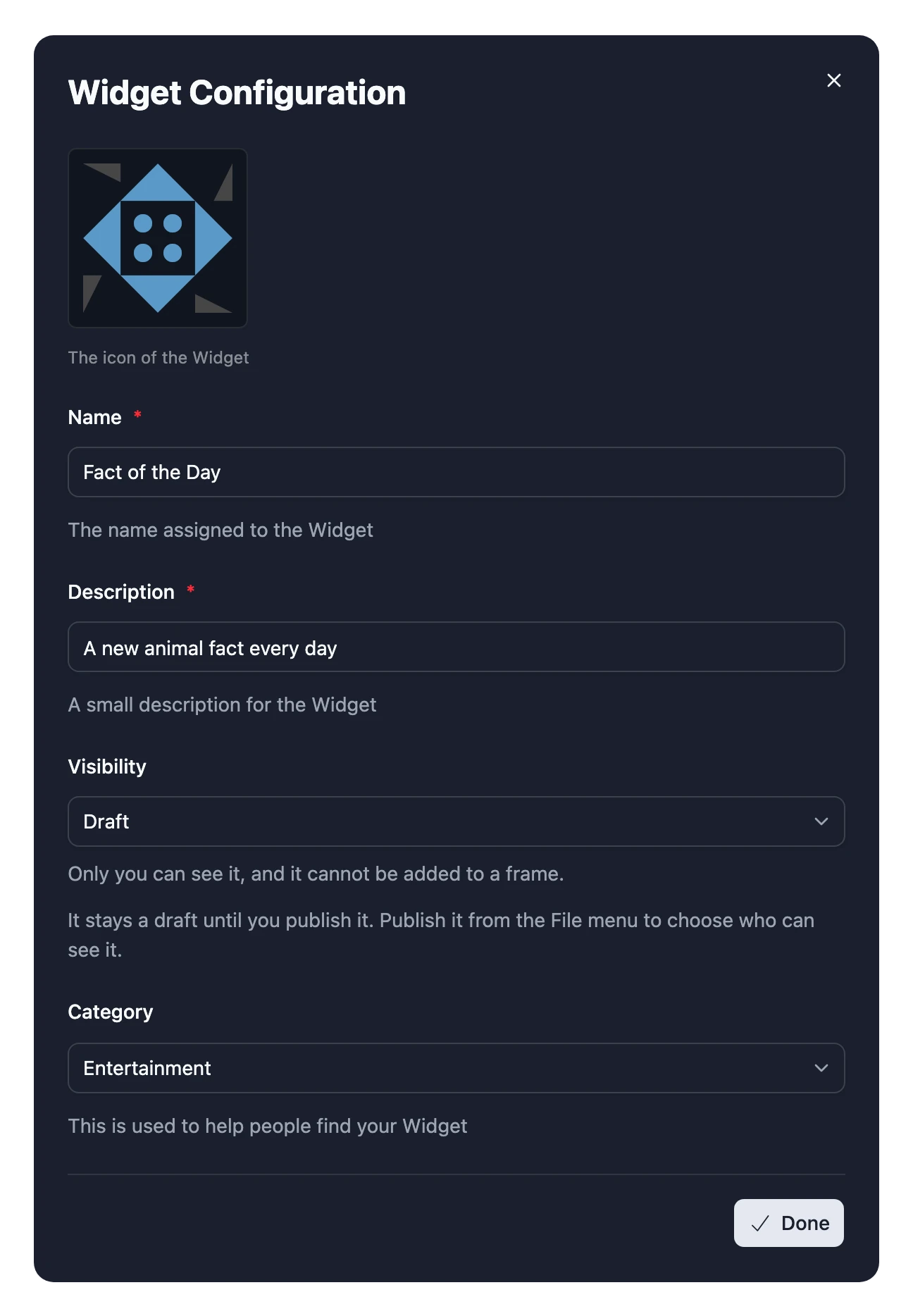
- Choose File > Widget Config. Add a Description, such as
A new animal fact every day, pick a Category, and choose Done. - Choose Publish in the toolbar.
- Under visibility, choose Published to let anyone use it, or Private to keep it to yourself if you have Pro.
- Choose Publish.
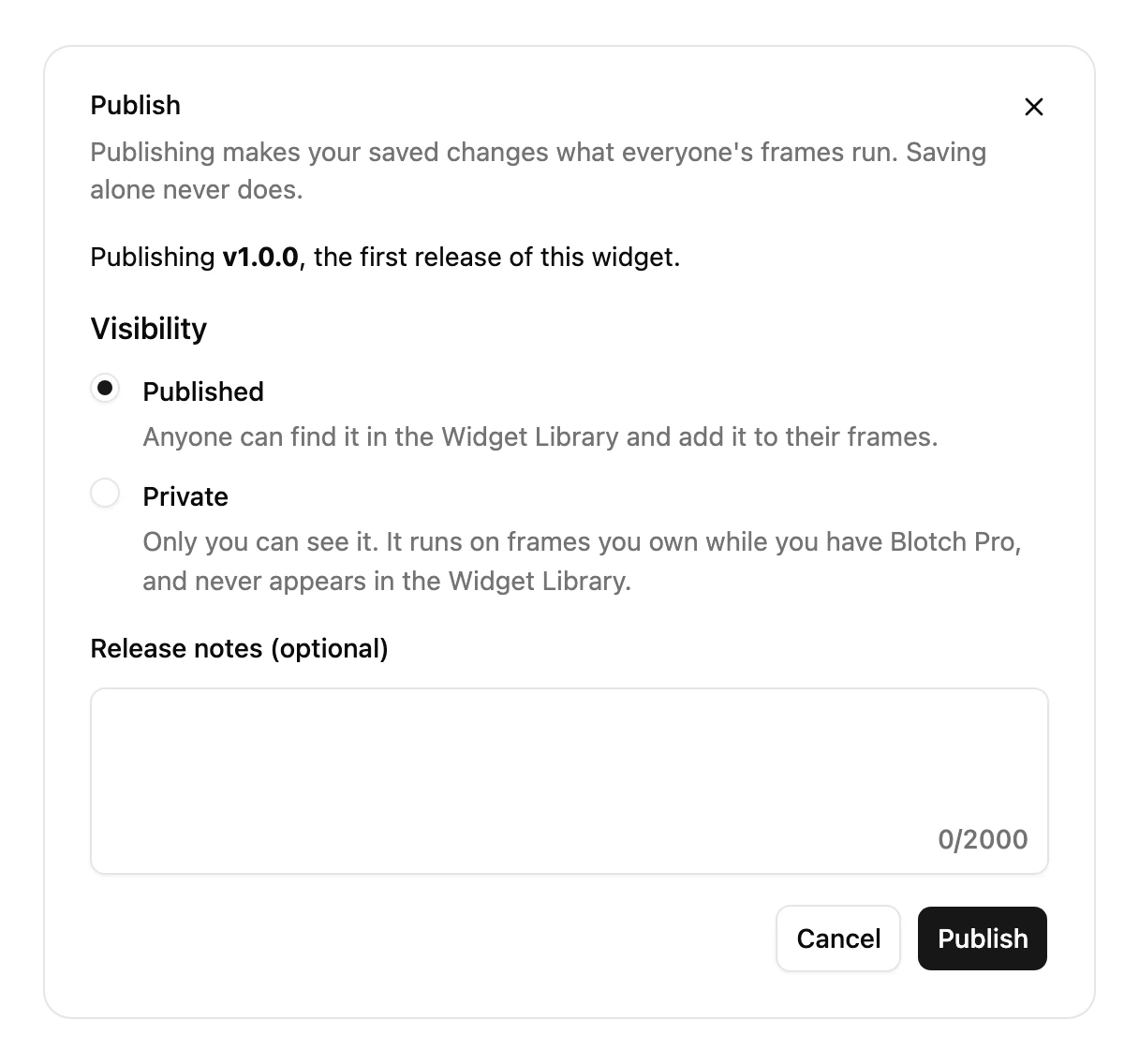
You've released version 1.0.0.
6. Put it on your Frame
- Pick your Frame in the frame selector, then choose Editor in the menu on the left.
- Choose Add a Widget, then the Your Creations tab.
- Choose Fact of the Day, then Add to Frame.
- Pick an animal, then choose Create.
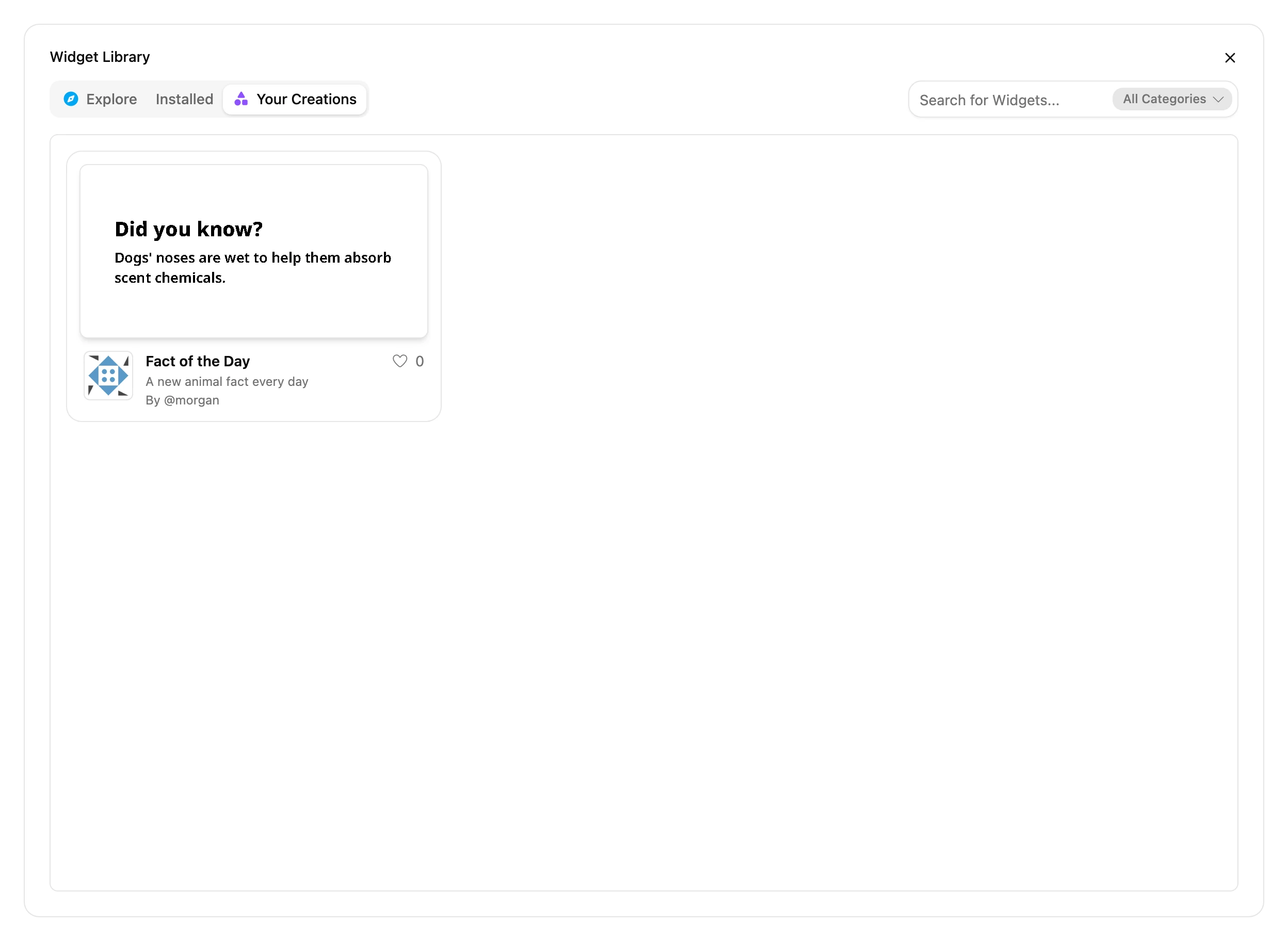
Your Widget is on your Page. You've built and published your first Widget.
Next steps
- How Widgets run explains what happens to your code between the Widget Studio and the Frame.
- Fetch data from an API covers caching, API keys and errors.
- Browse the Blotch Library for charts, calendars, icons and more.
- Publish and release versions explains what happens when you change a Widget people already use.