Keep API keys secret
Anyone can read a published Widget's code, so never write an API key, password or token into it. Where the secret goes depends on whose it is.
Your own key: a Private Input
When your Widget uses one key for everyone, such as your account with a weather service, store it as a Private Input. Only your Widget can read it. Nobody can see it, including you once it's saved, and people adding your Widget don't fill it in.
- In the Widget Studio, choose File > Inputs.
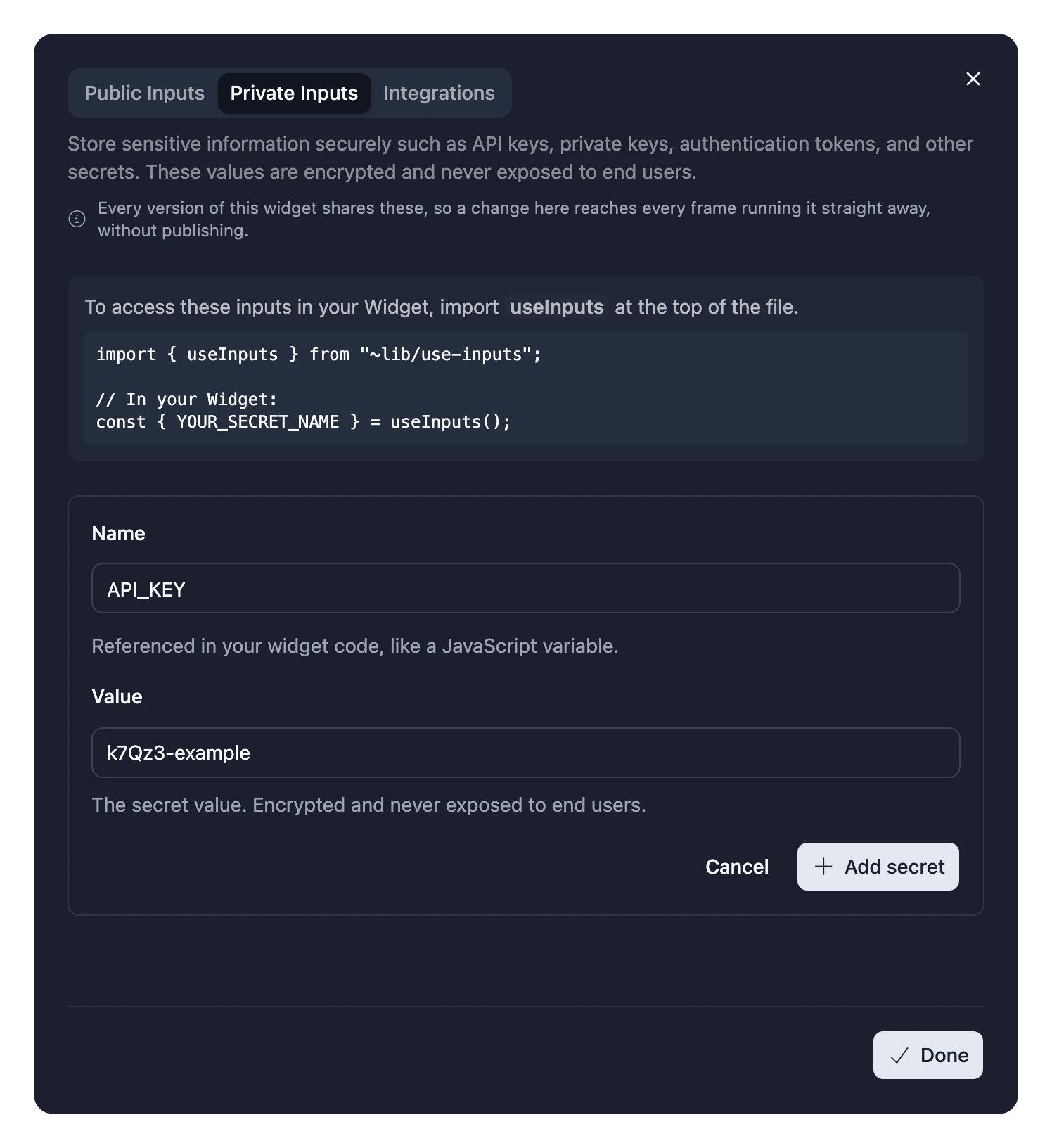
- Open the Private Inputs tab and choose Create new secret.
- Enter a Name, such as
API_KEY, and the Value, then choose Add secret.
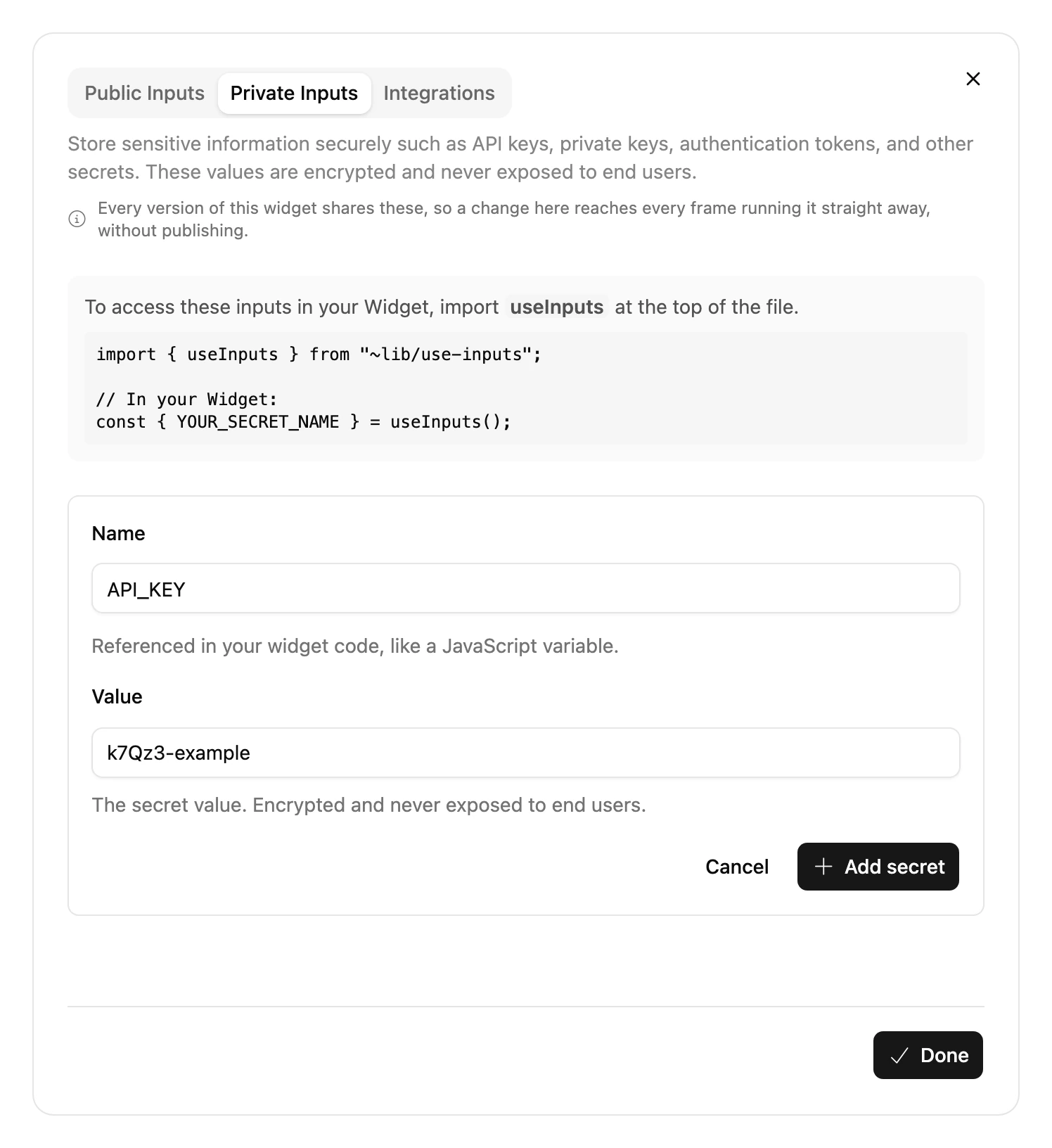
Read it with useInputs, like any other Input, and send it to the API in a header:
import { useFetch } from "~lib/use-fetch";
import { useInputs } from "~lib/use-inputs";

const { API_KEY } = useInputs();

const { data } = useFetch<Weather>("https://api.example.com/weather", {
  headers: { "X-Api-Key": API_KEY },
});
Things to know:
- You can't view or edit a saved value. To change it, delete it and add it again.
- Changes apply straight away, on every Frame, without publishing. Every version of your Widget shares the same Private Inputs.
- Remixes don't get them. When someone remixes your Widget, they have to add their own.
Their own key: a Sensitive Input
When each person needs their own key, for example to see their own account, ask for it with a Sensitive Input. It works like any other Input, but hides what's typed, like a password field.
Signing in to a service
For services people sign in to, such as Google, GitHub or Spotify, use an Integration instead. They sign in once, and your Widget gets a token to call the service for them.