Widget settings
A Widget's settings describe it to the people who find it in the Widget Library. To change them, choose File > Widget Config in the Widget Studio, then Done.
Changes apply straight away, without publishing.
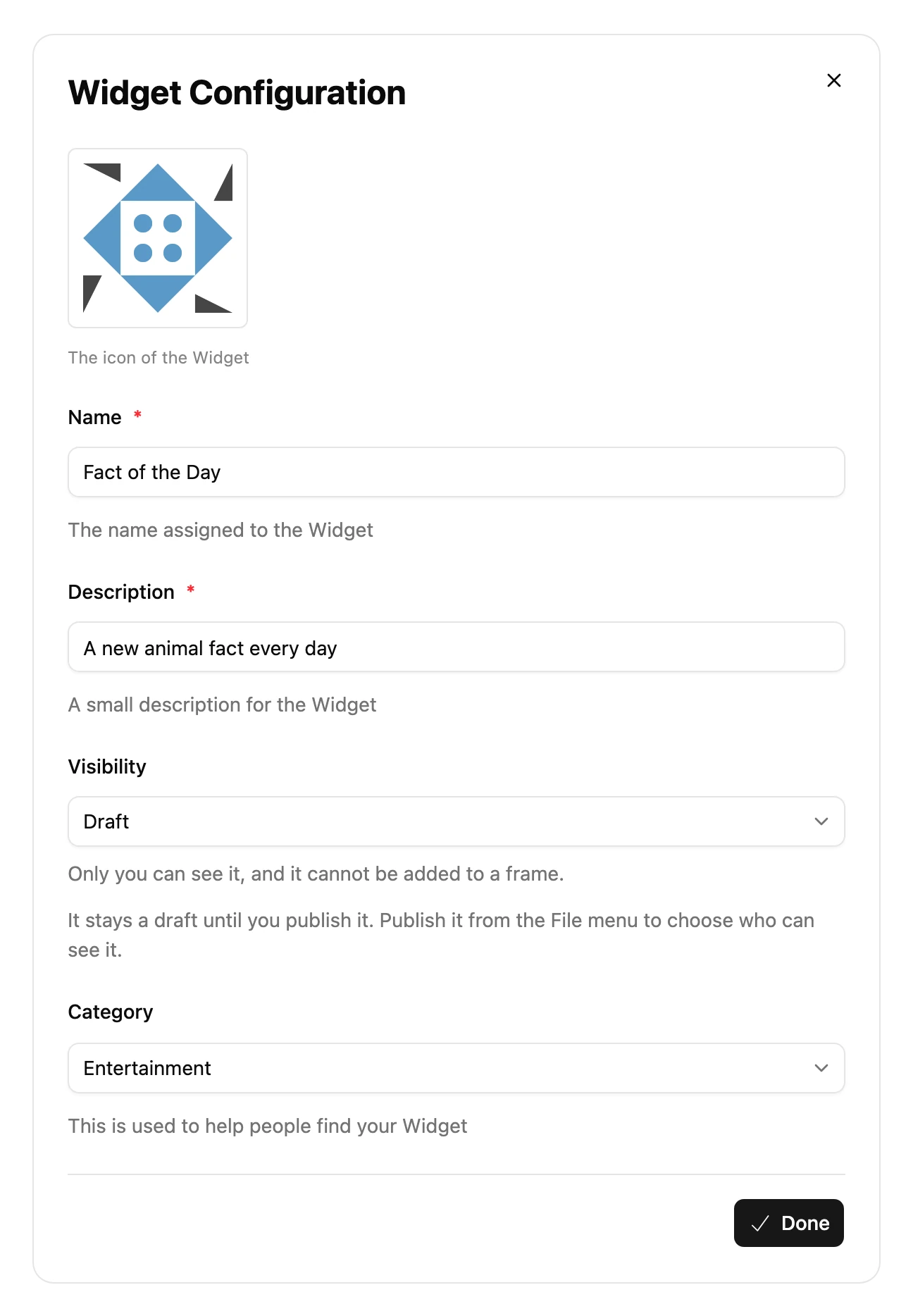
| Setting | What it does |
|---|---|
| Icon | The round picture shown wherever your Widget appears. Choose it to upload a new one. |
| Name | How people find and recognize your Widget. Required. |
| Description | What your Widget does, shown before people add it. Required. |
| Visibility | Who can see your Widget. See Visibility. |
| Category | Where your Widget is listed when people browse by category. New Widgets start in Others. |
Visibility
| Visibility | Who can see it |
|---|---|
| Draft | Only you can see it, and it can't be added to a Frame. |
| Private | Only you can see it. It runs on Frames you own while you have Pro, and never appears in the Widget Library. See Keep a Widget private. |
| Published | Anyone can find it in the Widget Library and add it to their Frames. |
| Deprecated | It keeps running wherever it's installed, marked as no longer maintained. |
- A new Widget is a Draft until you publish it. You choose Published or Private when you publish it for the first time.
- Once your Widget is installed on any Frame, it can't go back to Draft, and a published Widget can't become Private.
Categories
Ornamental, Weather, News, Productivity, Smart Home, Social, Gaming, Entertainment, Business, Health and Fitness, Finance, Sport, DIY and Others.