Schedule Editor
Make sure you have at least one Page set up before continuing.
The Schedule Editor controls when each Page is displayed on your Frame.
There are two scheduling modes:
- Basic Schedule
- Calendar Schedule
Basic Schedule
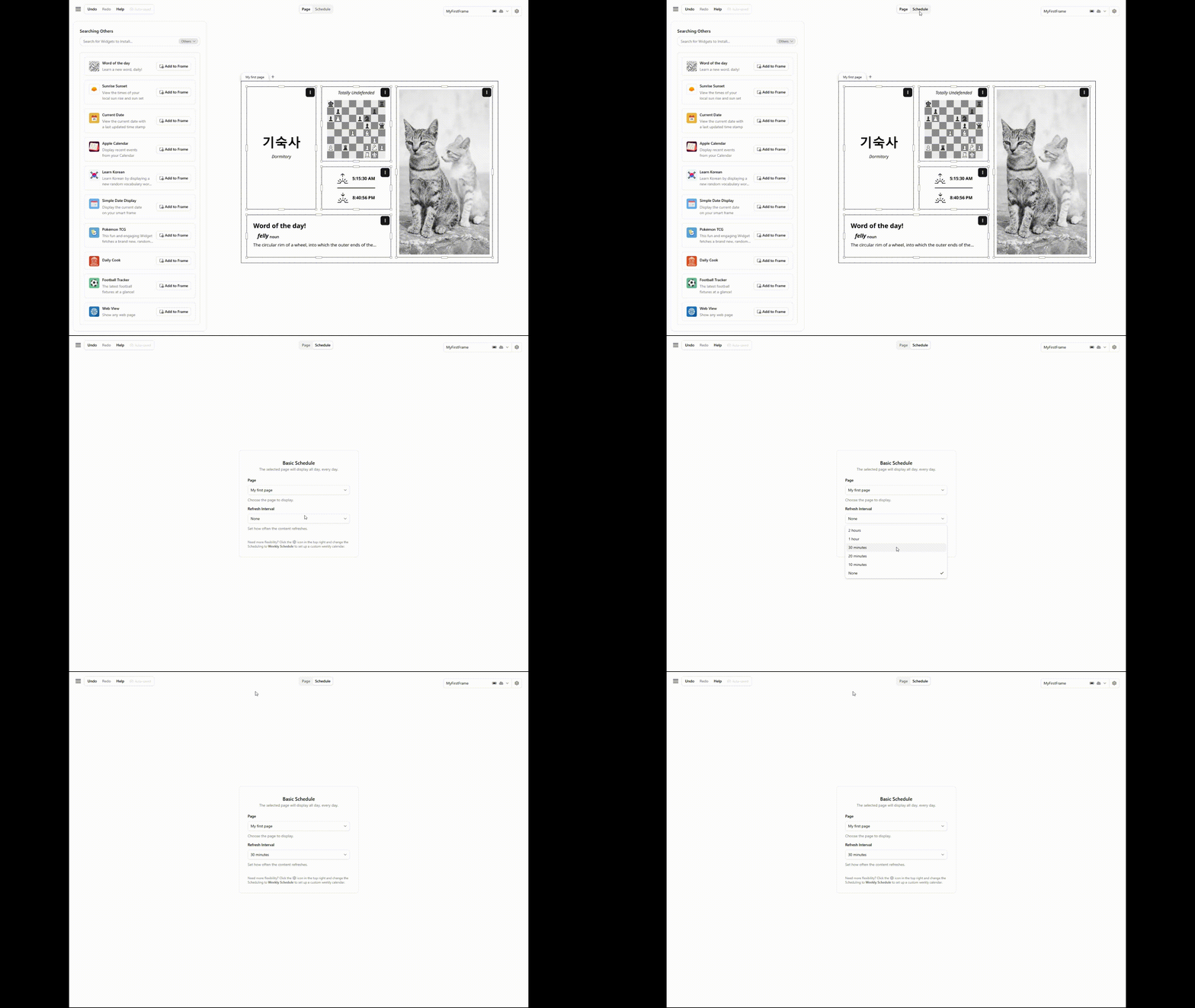
The Basic Schedule displays a single Page all day, every day.
This is the simplest way to get your Frame up and running.
- Page: select which
Pageto display - Refresh Interval: how often the
Pagecontent refreshes
This is ideal if you want the same layout shown at all times.
Calendar Schedule
The Calendar Schedule gives you full control over which Pages appear at what times throughout the week.
It uses a visual weekly calendar where you can create, move, and resize time blocks.
The Calendar View
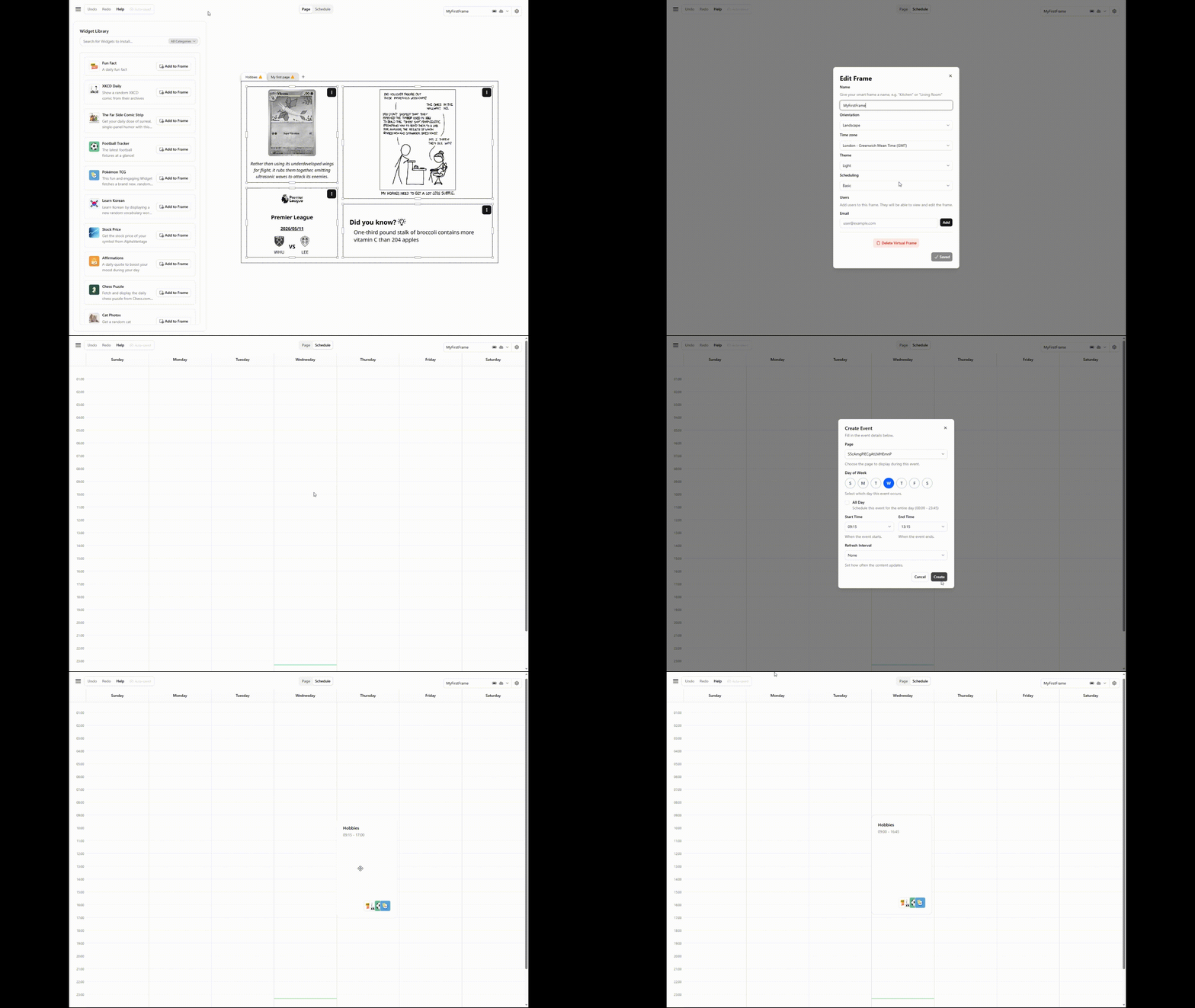
The calendar displays a 7-day week (Sunday to Saturday) with a 24-hour timeline on the vertical axis.
A green line indicates the current time based on your Frame's timezone.
Creating an Event
Click on any empty cell in the calendar to open the event creation dialog. You will need to specify:
| Field | Description |
|---|---|
| Page | Which Page to display during this time block. |
| Day of Week | Which day this event occurs on. |
| Start Time | When the Page starts displaying. |
| End Time | When the Page stops displaying. |
| Refresh Interval | How often the content refreshes while displayed. |
You can also toggle All Day to have the Page cover the entire day (00:00 to 23:45). Time slots are available in 15-minute increments.
You can also right-click on the calendar grid and select Add Page to create an event.
Editing an Event
Click on an existing event block to open the edit dialog.
You can change the day, time range, and refresh interval.
The delete button at the bottom of the dialog removes the event.
Dragging and Resizing
- Drag an event block up or down to change its time
- Resize by dragging the top or bottom edge to adjust the duration
- Events snap to 15-minute increments and have a minimum duration of 1 hour
Events that span past midnight will wrap into the next day.
Overlapping Events
Make sure Pages do not overlap each other. Multiple pages cannot be displayed simultaneously.
If events overlap, the Frame will pick one at random.
Refresh Intervals
The refresh interval controls how often a Page re-renders its Widgets while it is being displayed. Available intervals are:
- 10 minutes
- 20 minutes
- 30 minutes
- 1 hour
- 2 hours
- None (display once without refreshing)