Page Builder
A Page is an arrangement of Widgets on your Frame.
You can create as many Pages as you like, with up to 6 Widgets on a Page.
You can have different Pages for different times of the day to suit different needs!
A morning routine one, an after-work one, a dinner time one are a few examples.
The Schedule Editor allows you to specify when each Page is shown.
Layout
The Page Builder is split into two panes:
- Widget Selector (left): browse, search, and install
Widgets - Canvas (right): visually arrange
Widgetson yourFrame
The divider between the two panes can be dragged to resize them.
Pages
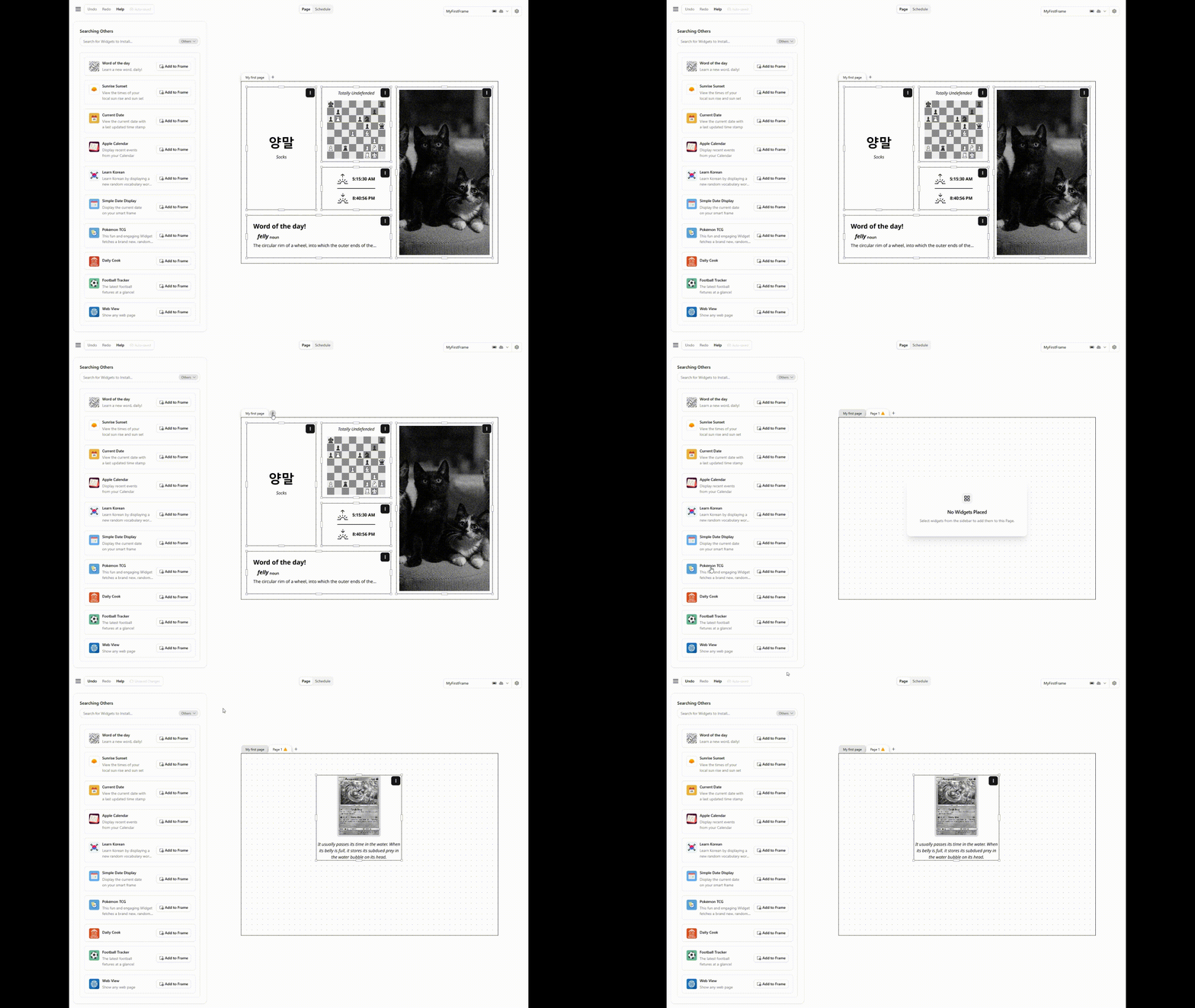
Pages are managed using the tab bar at the top of the canvas.
- Click the add button (+) to create a new
Page - Click a tab to switch between
Pages - Double-click a tab name to rename it inline
- Right-click a tab for more options:
- Edit: rename the
Page - Add to Schedule: create a schedule event for this
Page - Delete: remove the
Page(you will be asked to confirm if it is used in a schedule)
- Edit: rename the
A warning icon appears on a Page tab if it is not yet used in any schedule.
Installing Widgets
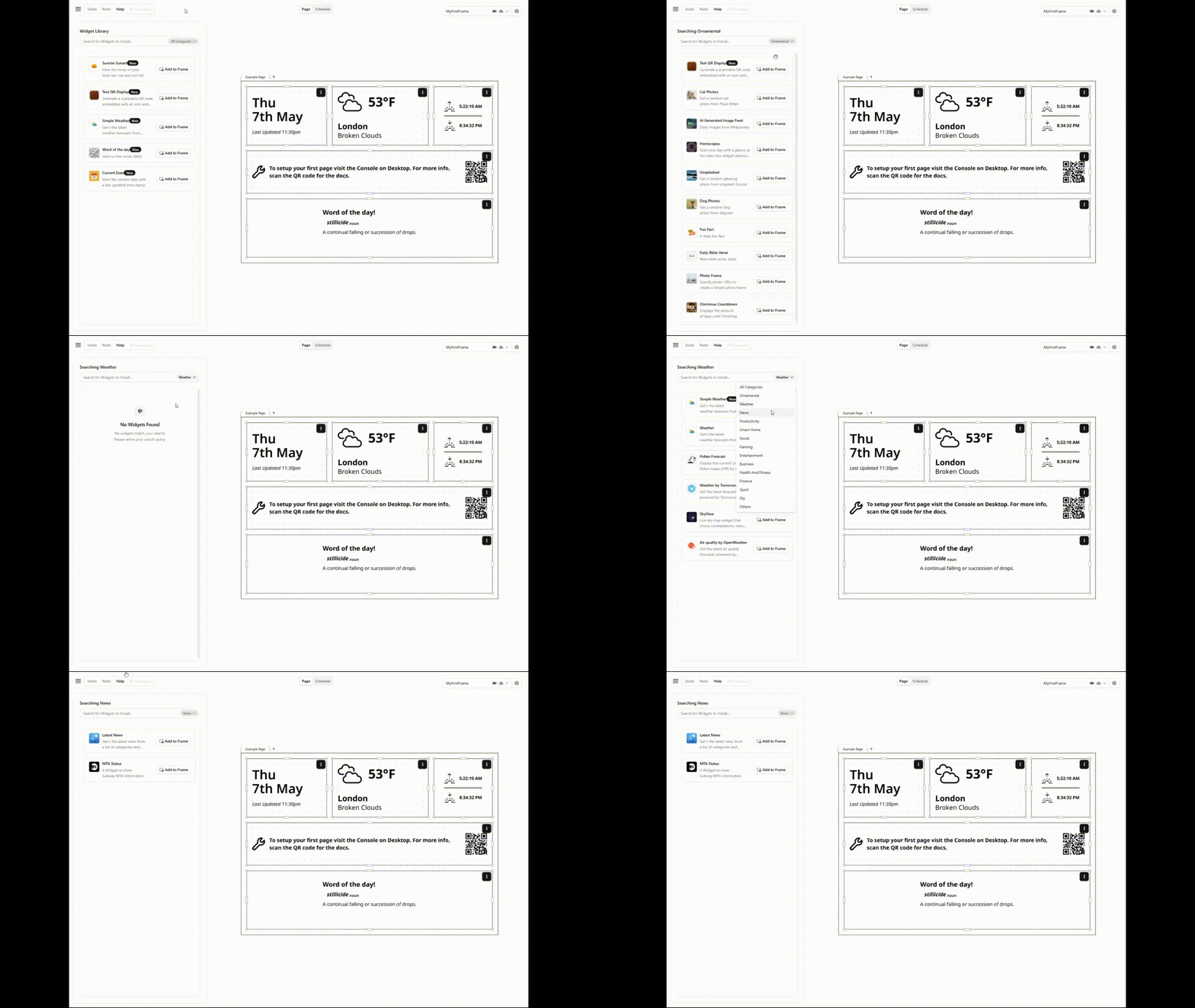
Use the Widget Selector on the left pane to find and install Widgets:
- Browse available
Widgetsor use the search bar to search aWidgetby name - Filter by category using the dropdown to the right of the search bar
- Click Install on a
Widgetto add it to yourFrame
You can install up to 100 Widgets per Frame.
Once installed, a Widget can be placed on any Page.
The same Widget can be installed multiple times with different Inputs, for example to display weather from two different cities.
Placing Widgets
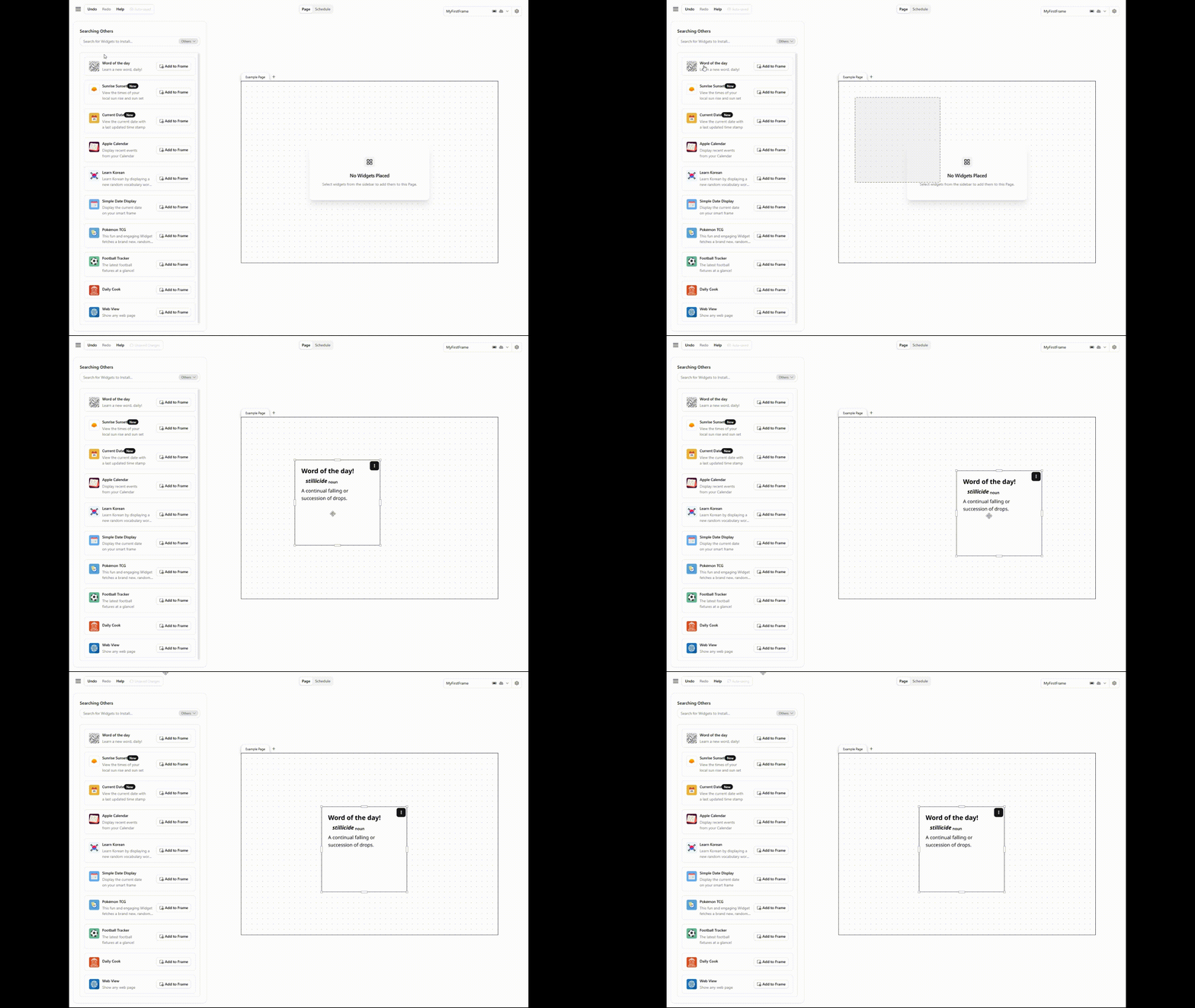
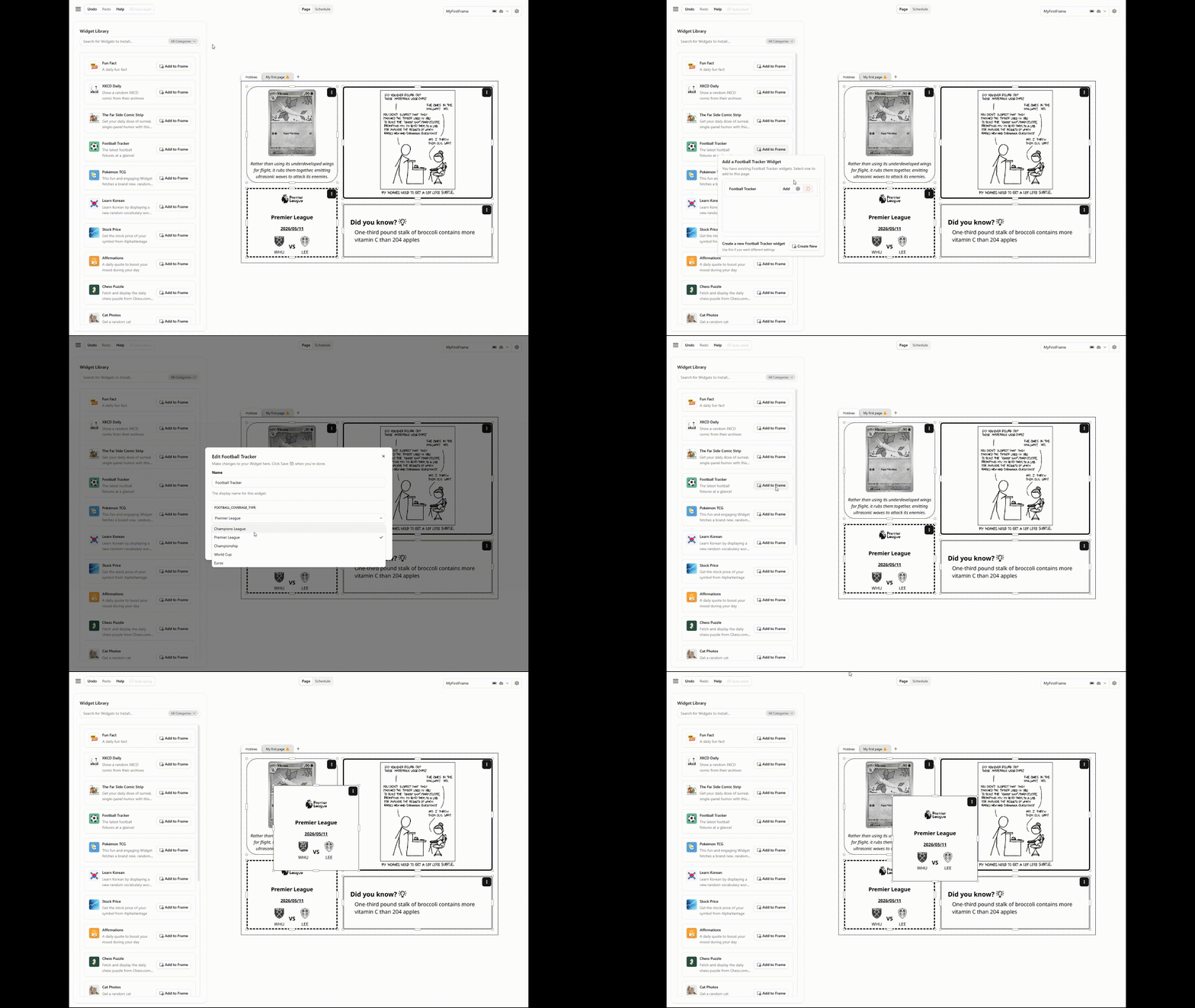
There are two ways to place a Widget on the canvas:
- Drag and drop: drag a
Widgetfrom the selector and drop it onto the canvas - Add Existing: click on an already-installed
Widgetand select Add to Frame
A ghost preview appears while dragging to show where the Widget will land.
Widgets snap to a grid for clean alignment.
Each Page supports up to 6 Widget placements.
Moving and Resizing
- Drag a placed
Widgetto reposition it. It will snap to the grid. - Resize using the handles that appear on the edges and corners of a selected
Widget.
Widget Menu
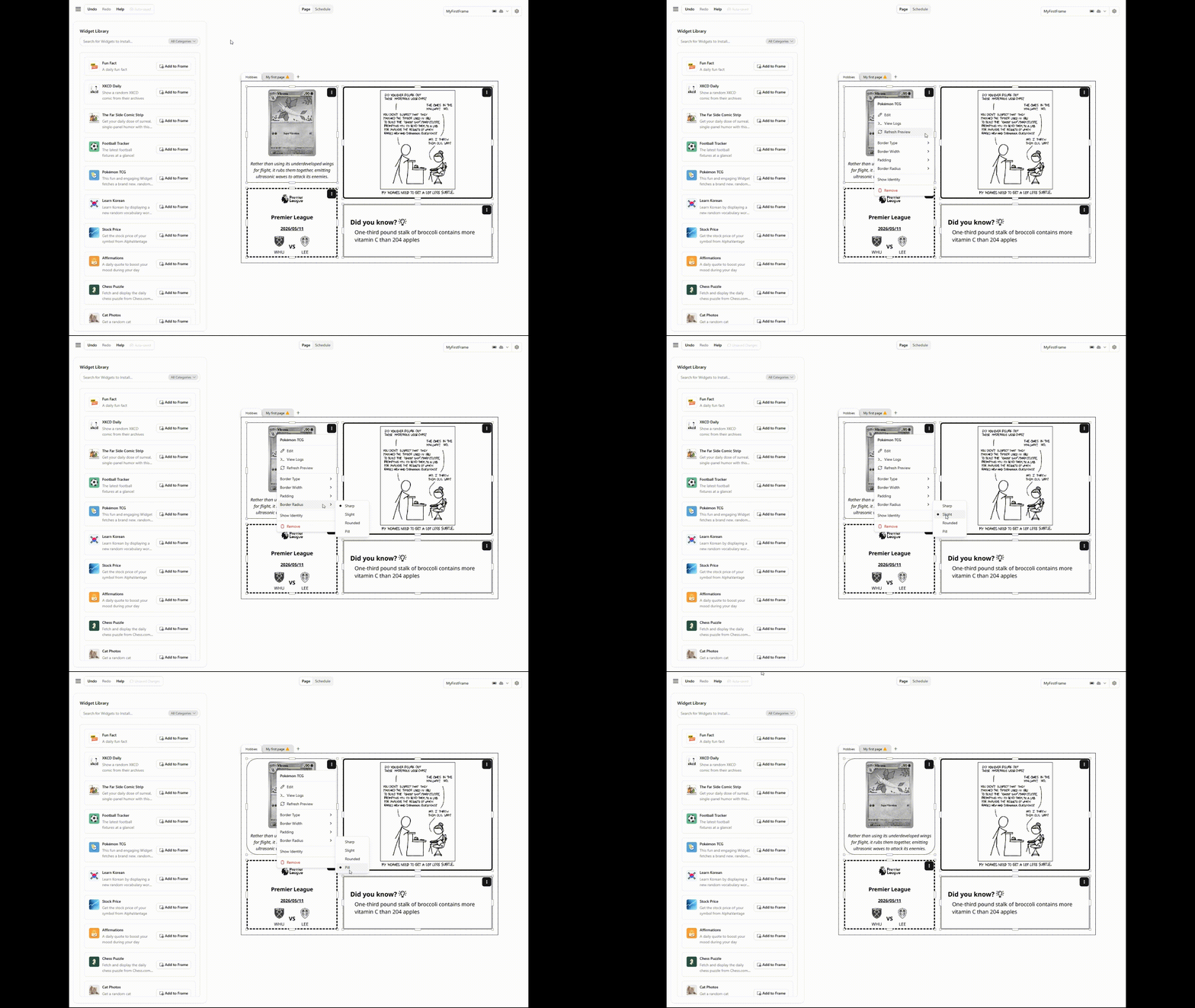
Click the menu icon (⋮) on a placed Widget for additional options:
- Edit: open the
Widgetconfiguration dialog - View Logs: view the console output of the
Widget - Refresh: re-render the
Widgetpreview - Upgrade: move onto a newer major version, when there is one. See Upgrading Widgets.
Border Customization
The Widget menu also lets you customize the border of each placed Widget:
| Setting | Options |
|---|---|
| Border Type | Solid, Dashed, Dotted, Double, Groove, Ridge, Inset, Outset, None |
| Border Width | Very Thin (1px), Thin (2px), Medium (3px), Thick (4px) |
| Padding | None, Small (10px), Medium (20px), Large (40px) |
| Border Radius | Sharp, Slight (4px), Rounded (8px), Pill (16px) |
A newly placed Widget starts with a Very Thin Solid border and Small padding.
You can achieve a borderless look by setting the border type to None and padding to None.
Removing Widgets
- To remove a Widget from a Page, click the menu icon (⋮) on the placed
Widgetand select delete. - To uninstall a Widget entirely, click the delete icon on the
Widgettile in the Widget Selector.
Undo & Redo
The Page Builder supports undo and redo for placement changes, including adding, removing, moving, resizing, and restyling Widgets.